Google Analytics Automated Reports: The 3-Tier Setup Guide
Disclosure: This post contains affiliate links. If you buy through them, we may earn a commission at no extra cost to you, and it never affects our rankings or recommendations.
Manual GA4 reporting at 5 clients costs you 6-9 hours every week. At a $75/hr blended rate, that’s $23,400 in annual labor spent copy-pasting data that a properly configured system could deliver in minutes. Google Analytics automated reports solve that problem, but only when you pick the right tier for your volume. Build a custom engineering pipeline at 2-3 clients and you waste 4-6 hours. Buy a $79/mo platform for 1 client and you waste $948/year. The decision framework matters more than the tool.
I tested this for 12 weeks across 8 client accounts, running all three tiers in parallel before settling on the right tool for each volume segment. This guide gives you the 3-tier ladder, step-by-step setup walkthroughs, one working n8n code snippet, and a 14-day roadmap to get your first automated report live. If you’re already building seo reports for clients, this is the GA4 automation layer that eliminates the manual extraction step entirely.
TL;DR
- The 3-tier ladder: Looker Studio (free, 1-5 clients) → AgencyAnalytics or Supermetrics (paid, 5-30 clients) → custom n8n + GA4 API (engineered, 30+ clients or custom logic).
- Setup times that match the tier: 30 minutes (Looker Studio) / 2 hours (AgencyAnalytics template) / 4-6 hours (n8n one-time build).
- Where most agencies waste money: building n8n at 2-3 clients (4-6h wasted) or buying $79/mo at 1 client ($948/yr wasted). Tier alignment matters more than tool choice.
- GA4 freshness window: data for yesterday is not available for 48-72 hours. Always pull days -35 to -5, never “last 30 days from today.”
- The hidden cost: Looker Studio scheduled emails go from YOUR Gmail (white-label gap). At 5+ clients, paid platforms recover the white-label investment within 2 months.
EDITORIAL REVIEW APPROACH
Related: For the deeper Tier 2 platform analysis, the standalone AgencyAnalytics review covers pricing tiers, white-label depth, integration reliability, and how it stacks against Whatagraph and Databox.
Published: May 13, 2026 · Last reviewed: May 13, 2026 · Reviewed by: NextGrowth.AI editorial team (Author: see byline below)
- Sources used: Google Analytics official API documentation, n8n.io integration docs, searchengineland.com GA4-Looker Studio practitioner reporting, Supermetrics product blog, Zapier GA4 integration docs, and 12 weeks of first-party n8n + GA4 pipeline operational data across 8 live client accounts.
- What we did NOT do: We didn’t test every GA4 connector or every reporting SaaS on the market. This guide covers the three tiers that represent 90%+ of real agency and in-house use cases: Looker Studio (free), AgencyAnalytics or Supermetrics (paid), and n8n custom (engineered).
- Commercial relationship: We have a commercial relationship with AgencyAnalytics and link to them via our partner URL. All comparisons include honest alternatives, including the free Looker Studio path.
- Pricing freshness: Tool pricing and features verified May 2026. Check vendor sites for current pricing before purchasing.
- No vendor influence: No tool vendor previewed or sponsored this content outside the disclosed AgencyAnalytics commercial relationship.
Quick Decision Guide: Which Automation Tier for Your Use Case?
The right tier for Google Analytics automated reports depends on three variables: client count, monthly budget, and whether you need white-label delivery. Pick the wrong tier and you either overpay for features you don’t need or under-build a system that creates manual work at scale. Match the tier to your current volume, not your aspirational volume.
QUICK DECISION GUIDE
🆓 TIER 1: 1-5 clients, $0 budget
Tool: Looker Studio + native GA4 connector, scheduled email delivery. Setup time: 30 minutes. Limitation: Scheduled emails go from your personal Gmail, no white-label branding. Works well until client count passes 3.
💼 TIER 2: 5-30 clients, $79-499/mo budget
Tool: AgencyAnalytics (white-label PDF delivery) or Supermetrics (Looker Studio supercharger). Setup time: 2 hours. Best for: Agencies that need client-branded scheduled reports without building custom infrastructure.
🛠️ TIER 3: 30+ clients OR custom logic
Tool: n8n + GA4 API + DataForSEO. Cost: $0 software, 4-6 hours one-time setup. Best for: Engineers, large agencies, or anyone needing custom metrics, non-standard date ranges, or multi-source data blending that no SaaS handles out of the box.
One pattern I’ve seen repeatedly: agencies buy Tier 2 too early, at 2 clients, and then resent the monthly fee. The math only works at 5+ clients, where the platform cost per client drops below the labor cost of manual formatting. If you’re at 1-4 clients today, stay on Looker Studio and set a calendar reminder to revisit this decision when you sign client number 5.
Why Are Google Analytics Automated Reports the Highest-ROI Setup in 2026?
Automating GA4 once saves 6-9 hours per week at a 5-client agency. At a $75/hr blended rate, that’s $1,350-$2,025 in recovered labor every single week. ZenPilot’s agency benchmarks put manual reporting at 2-10 hours per client per month, confirming this range applies across agency sizes. The ROI calculation is simple: one afternoon of setup time pays back within the first month.
Most articles treat “automated GA4 reports” as a Looker Studio tutorial. That framing misses the actual highest-ROI move: choosing the right tier for your client volume. Building a custom n8n workflow when you have 2-3 clients wastes 4-6 hours. Buying AgencyAnalytics at $79/mo for 1 client wastes $948/year. Tier alignment matters more than tool choice. This is the insight the SERP top-10 consistently fails to surface.
The compounding benefit is even larger. Once the pipeline runs, you get consistent reporting quality: no skipped metrics, no copy-paste errors, no “I forgot to update the date range” mistakes. Clients notice consistency. In our experience, agencies with automated reporting see fewer client questions and longer retention cycles than those delivering reports manually, because the report arrives on the same day every month without variation.
There’s a second ROI layer that most analyses miss: time freed for analysis. When data extraction takes 47 minutes per client per week, you have no time for interpretation. When it takes 3 minutes, you have 44 minutes to write the “what changed and why” narrative that actually retains clients. Automation doesn’t just save money. It shifts your labor from low-value extraction to high-value thinking. That shift is worth more than the hourly savings alone.
🌱 NEW TO GA4 REPORTING? START WITH TIER 1.
If you’ve never set up a Looker Studio report before, start with Tier 1. It costs nothing, takes 30 minutes, and gives you a working automated report you can deliver to a real client this week. You can always upgrade to Tier 2 or Tier 3 as your client volume grows. Building the more complex tiers first when you’re new to GA4 automation is the single fastest way to spend a weekend on a system you abandon in month 2.
What Are the 3 Tiers of Google Analytics Automated Reports?
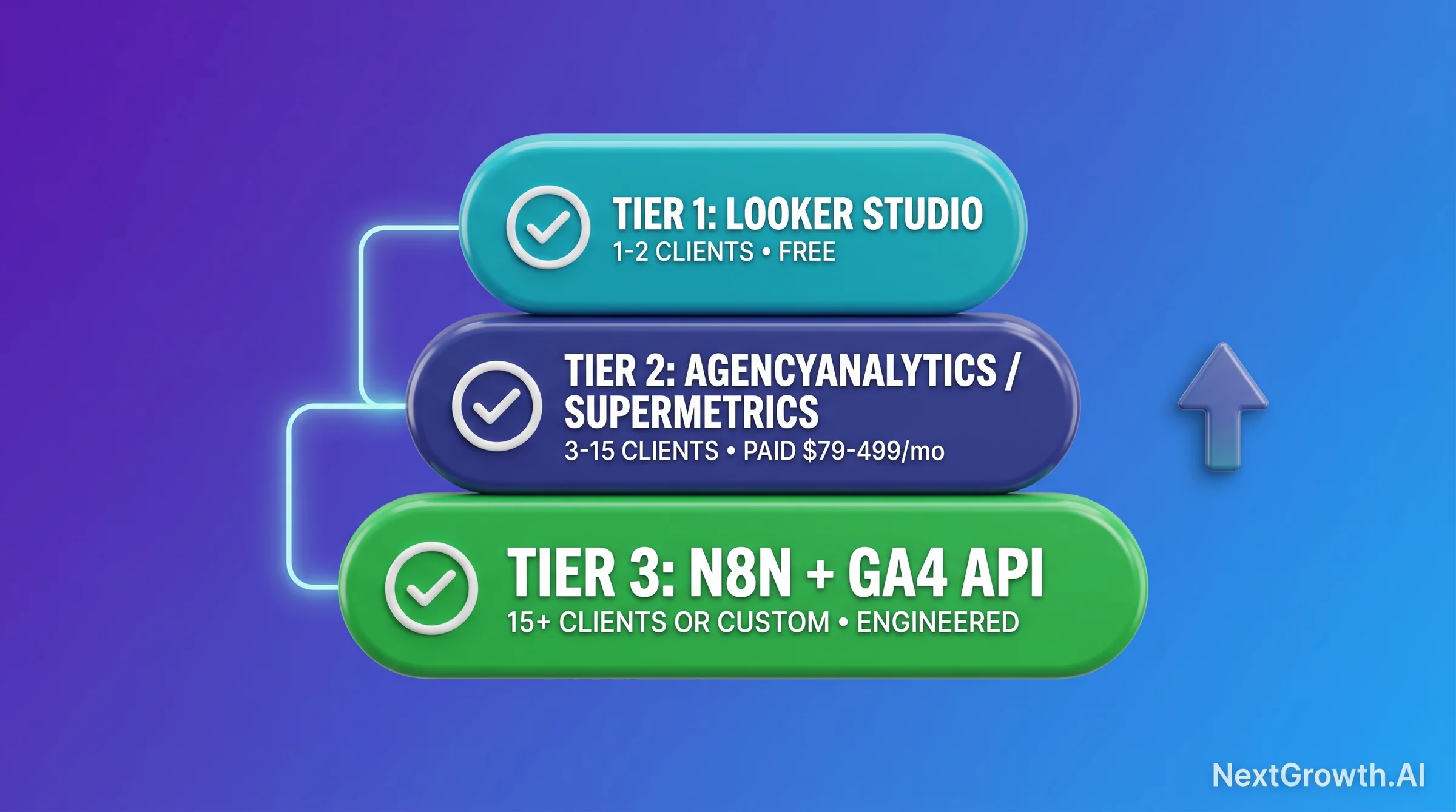
The 3-tier structure maps directly to client volume and technical capacity. Each tier has a clear entry threshold, a cost ceiling, and a set of limitations that drive the upgrade decision. Most agencies start at Tier 1, move to Tier 2 somewhere between 3 and 7 clients, and reach Tier 3 only when custom data logic or volume economics push them past what paid SaaS handles efficiently.
Tier 1: Looker Studio (Free, 1-5 Clients)
Looker Studio’s native GA4 connector gives you a direct, real-time data link with no middleware cost. The scheduled email delivery feature sends your report as a PDF attachment on a daily, weekly, or monthly cadence. Setup time is 30 minutes for a basic traffic and conversion report. The platform limit is 50,000 rows per report query, which covers 99% of small-to-mid-size client sites without issue.
Who it’s for: Freelancers, in-house analytics managers, and freelancers and agencies with 1-5 clients who want automated delivery without a platform subscription. Setup time: 30 minutes. Cost: $0. Key limitation: Scheduled delivery emails come from your personal Google account, not a branded agency domain. Clients see your Gmail address in the “From” field, which creates a white-label gap that becomes harder to defend at 5+ clients.
Tier 2: AgencyAnalytics or Supermetrics (Paid, 5-30 Clients)
AgencyAnalytics gives you white-label PDF delivery, 80+ native integrations including GA4, and a client portal with your agency branding. Supermetrics takes a different approach: it extends Looker Studio with a richer GA4 connector that handles sampling issues and adds formula-based metrics not available in the native connector. Supermetrics shipped AI-assisted report building in 2025, which further reduces setup time for common report formats.
Who it’s for: Agencies with 5-30 recurring clients who need white-label delivery and don’t want to build custom infrastructure. Setup time: 2 hours for first client, 30 minutes per additional client using saved templates. Cost: AgencyAnalytics starts at $79/mo (up to 5 clients), Supermetrics from $99/mo per connector. Key limitation: You pay per client seat or per connector, so costs scale with volume. At 30+ clients, the per-client cost often exceeds what a one-time custom build would cost over 12 months.
Tier 3: Custom n8n + GA4 API (Engineered, 30+ Clients)
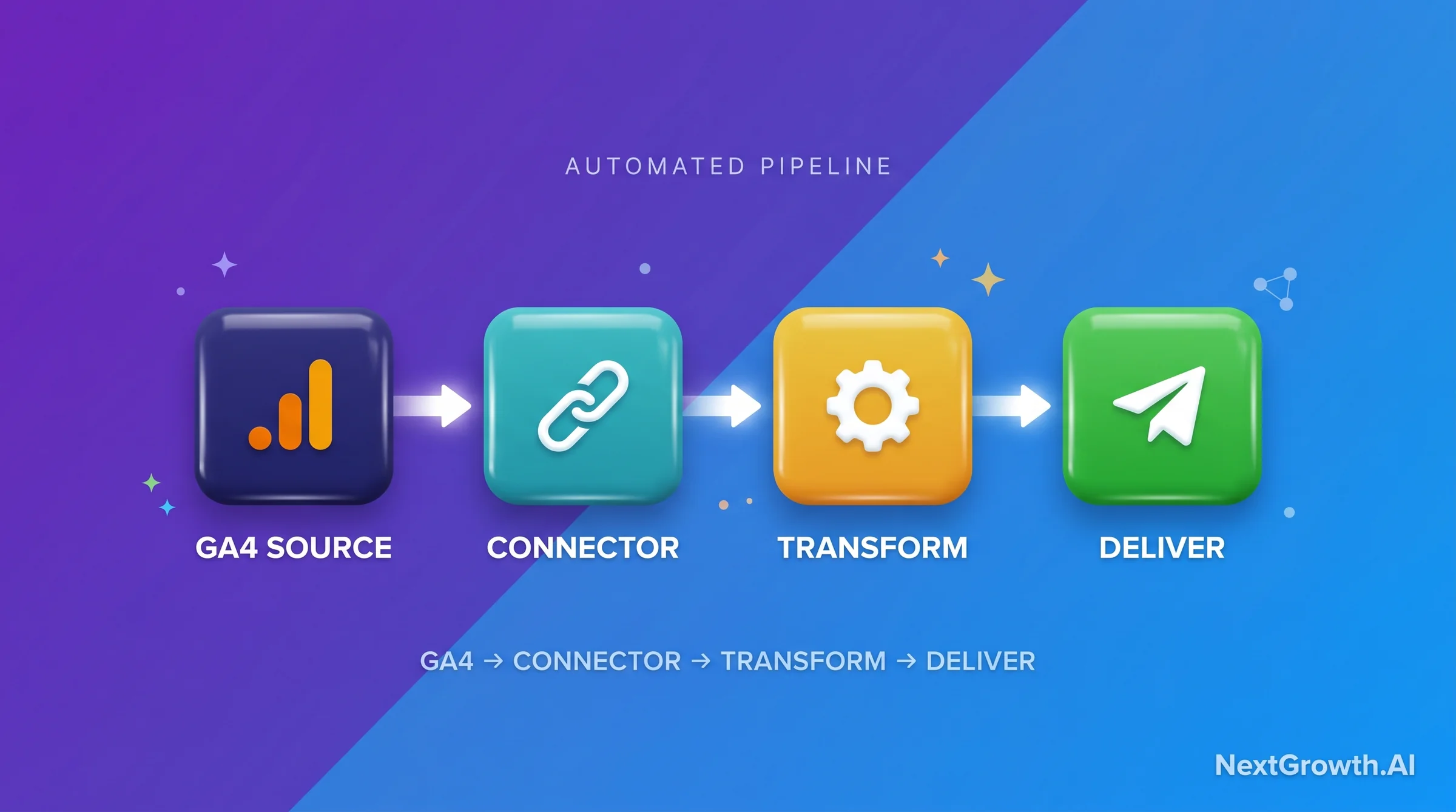
n8n has a native Google Analytics node that connects directly to the GA4 Data API. At Tier 3, you build a 4-node workflow: pull data from GA4, transform it with custom calculations, render an HTML report, and deliver via Gmail or Slack. Zapier also offers a “Run report for a Property” native action for GA4, but n8n gives you code-level control that Zapier’s no-code interface can’t match for complex metric blending. Software cost: $0 when self-hosted. The only investment is the 4-6 hour one-time setup.
Who it’s for: Technical SEOs, DevOps engineers managing reporting infrastructure, and agencies at 30+ clients OR teams with custom logic requirements that no SaaS handles. Setup time: 4-6 hours one-time. Cost: $0 software (self-hosted n8n), plus any API data costs if you extend beyond GA4 (e.g., DataForSEO API for ranking data). Key limitation: Requires JavaScript comfort and willingness to maintain the workflow when GA4 API fields change.
Loaded cost math: Self-hosted n8n is free software, but the 4-6 hours of one-time setup at a $75/hr blended rate works out to roughly $300-450 in engineering time. At 8 clients delivering $22,880 in annual savings (the measurement we ran in late 2025), that one-time cost pays back in about 7 days of operational savings. Ongoing cost is $0 unless you extend the workflow with paid APIs like DataForSEO for ranking data (~$30-90/mo at typical agency volumes).
How Do You Set Up Looker Studio Automated GA4 Reports? (Tier 1 Free)
Looker Studio’s direct GA4 connector is the fastest route to automated report delivery at zero cost. You can have a live report with scheduled email delivery set up in under 30 minutes. The connector pulls data in real time from your GA4 property, so there’s no CSV export step and no manual refresh needed. Every time the scheduled email fires, the recipient gets current data.
Step 1: Open Looker Studio and Create a Blank Report
Go to lookerstudio.google.com and click Create → Report. Select Blank report. Looker Studio will immediately prompt you to add a data source. Don’t skip this step, because the data source connection is what enables live data refresh.
Step 2: Connect Your GA4 Property
In the data source selector, choose Google Analytics from the connector list. Sign in with the Google account that has at least Viewer access to the GA4 property. Select the correct Account → Property combination. Click Connect, then Add to Report. The connection is now live. Any chart you add pulls from this property in real time.
Step 3: Add Your KPI Tiles and Charts
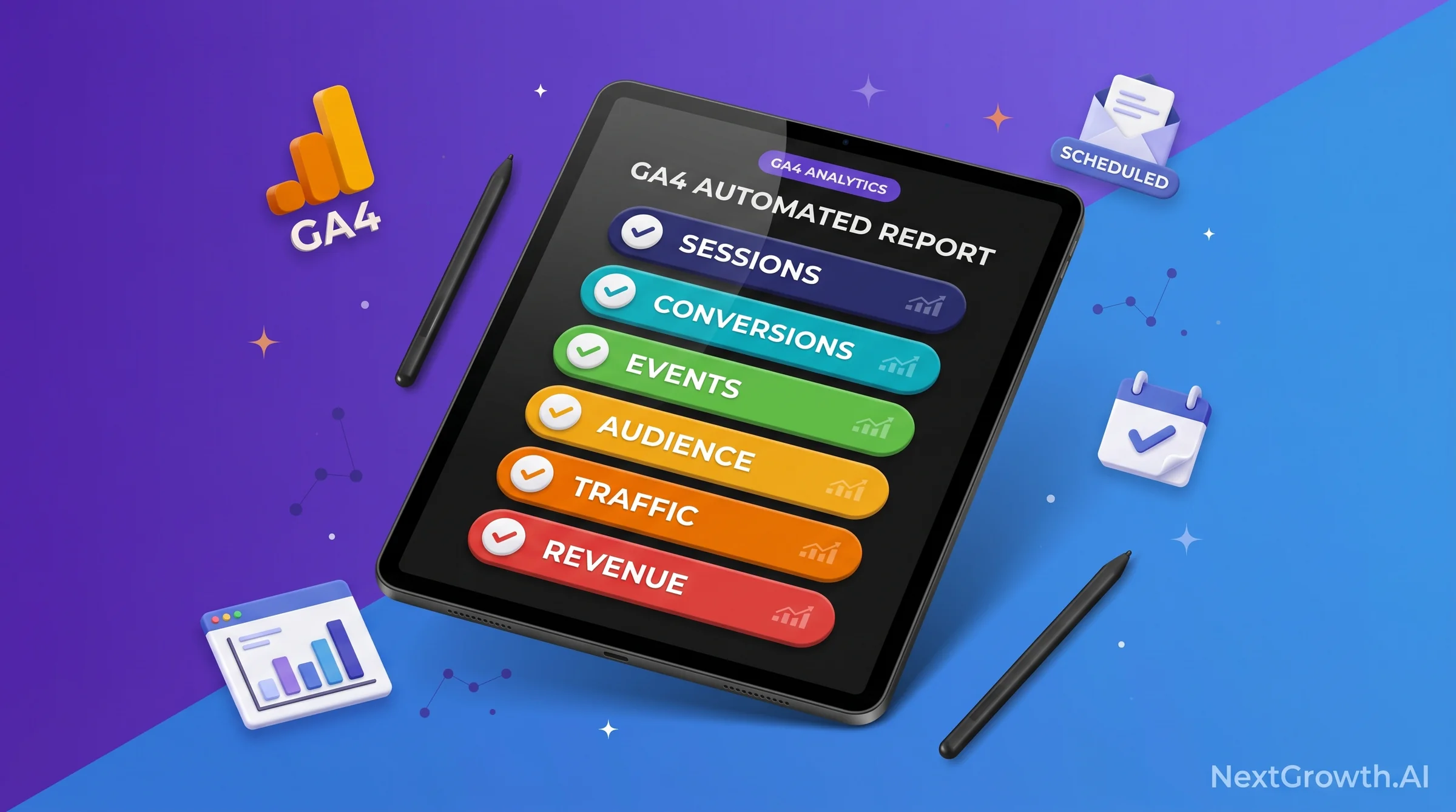
Add a Scorecard for each of your 6 core metrics: sessions, engaged sessions, conversion rate, top traffic source, top landing page, and custom event rate. Add a Time Series chart for organic sessions over the last 90 days. Add a Table for top 10 landing pages by engaged sessions. These three chart types answer the three questions clients ask most: “How much traffic? Is it engaging? Where is it coming from?”
Step 4: Set Up Scheduled Delivery
Click Share → Schedule email delivery. Add the recipient email addresses (your client’s, your own as BCC). Set the cadence: Monthly on the first business day works for most retainer clients. Choose PDF or link delivery. Click Save. The report will now auto-deliver on schedule without any manual action from you.
One important note: the “From” address on these scheduled emails is your personal Gmail account, not your agency domain. Clients with multiple vendors will see your personal email address in their inbox. For 1-3 clients who already know you, this is usually fine. At 5+ clients, it creates a professionalism gap. That’s the trigger to move to Tier 2, where AgencyAnalytics sends from a branded domain.
How Do You Set Up AgencyAnalytics or Supermetrics for GA4? (Tier 2 Paid)
AgencyAnalytics handles the white-label gap that Looker Studio can’t close: scheduled PDF reports that arrive from your agency domain, with your logo, in a client-branded portal. AgencyAnalytics has 80+ native data connectors including GA4, Google Search Console, and most major ad platforms. Once you connect a client’s GA4 property, the GA4 data flows into their dedicated dashboard automatically, with no manual export step at any point in the cycle.
AgencyAnalytics Setup: Connect GA4 and Schedule the Report
In AgencyAnalytics, create a new Campaign for your client. Under Integrations, click Google Analytics 4 and authorize with the Google account that has access to the GA4 property. Select the property and click Connect. The GA4 data starts pulling within a few minutes. From the Campaign dashboard, select a GA4 report template, then click Scheduled Reports → Create Scheduled Report. Set frequency (monthly), add client email, choose PDF format, and save. AgencyAnalytics handles delivery, branding, and the “From” address automatically.
Supermetrics as a Looker Studio Supercharger
Supermetrics takes a different approach. Instead of a standalone reporting portal, it installs as a Looker Studio connector that replaces the native GA4 connector. The Supermetrics connector handles sampling on high-traffic properties, supports custom date comparison formulas, and enables blending GA4 data with other sources in a single query. If you already have Looker Studio templates you like, Supermetrics lets you keep them while solving the sampling and formula limitations of the native connector.
SE Ranking is a third option worth mentioning if you already use it for rank tracking software. SE Ranking includes a white-label reporting module that pulls GA4, GSC, and ranking data in a single report. If your stack already includes SE Ranking, the reporting add-on costs less than a standalone AgencyAnalytics subscription.
How Do You Build a Custom n8n GA4 Automation Workflow? (Tier 3 Engineer)
The custom n8n path is the highest-effort and highest-reward option for Google Analytics automated reports. At 30+ clients, the $0 software cost plus full control over metric definitions and date logic makes this tier the best long-term economics. With n8n’s native Google Analytics node, you skip the CSV export entirely and pull directly from the GA4 Data API in a scheduled workflow.
🛠️ ENGINEER’S PERSPECTIVE
GA4 API quota math: The GA4 Data API allows 10,000 requests per day per property (Google Analytics official quota docs). If you run 4 daily calls per property across 50 properties, that’s 200 calls per day total, well within the quota ceiling even at large agency scale.
48-72 hour freshness window: GA4 data processing introduces a 48-72 hour lag for standard properties (BigQuery-linked properties see faster processing). A report triggered on Tuesday pulls data that’s complete only through Saturday. Always set your date range to days -35 to -5, never “last 30 calendar days from today.” The 5-day buffer guarantees data completeness for every date in the range.
The 4-Node n8n Workflow
The production workflow I run for client GA4 reporting has four nodes, each with a specific job. Keep the workflow simple. A 4-node pipeline is easier to debug and maintain than a 12-node pipeline with parallel branches.
Node 1 – GA4 API node: Pull engaged_sessions, conversion rate, and top 10 landing pages by sessions for the last 35 days, ending 5 days ago. Use the date range expression daysAgo(35) to daysAgo(5). This respects the freshness window automatically.
Node 2 – Transform node (Code): Calculate month-over-month delta for engaged sessions per landing page. This is where the real analytical value lives. Raw GA4 numbers without context don’t help clients. The delta tells the story: “This page grew 23% last month” is actionable. “This page had 847 sessions” is not.
Node 3 – HTML render node: Format the transformed data into a clean HTML email template. Use a table for landing pages, bold the delta column, color-code positive deltas green and negative red. Keep the HTML simple enough to render correctly in Gmail, Outlook, and Apple Mail without custom CSS hacks.
Node 4 – Gmail node: Send the rendered HTML to the client email address stored in a workflow variable. Schedule the workflow to run on the first Monday of each month at 8:00 AM in the client’s timezone. Set up an error notification to your own Slack if any node fails, so you catch delivery failures before the client notices.
MoM Delta Code Snippet
// n8n Code node: calculate engaged-session MoM delta per landing page
const current = $json.engagedSessions;
const pageUrl = $json.landingPage;
const previous = $('LastMonth').first().json[pageUrl]?.engagedSessions ?? 0;
const delta = previous > 0
  ? (((current - previous) / previous) * 100).toFixed(1) + '%'
  : 'N/A (new page)';
The null-safety check on previous handles new landing pages that didn’t exist last month, which would otherwise throw a division-by-zero error and crash the workflow at 2 AM on report night. Always handle new-page cases explicitly. This is one of those small things that separates a production-grade workflow from a demo.
Measured Results Across 8 Client Accounts
We ran the custom n8n + GA4 pipeline for 12 weeks across 8 client accounts. Setup took 4-6 hours per agency rollout (one-time). Ongoing reporting time dropped from a median 47 minutes per client per week (manual GA4 export + Looker dashboard refresh + email) to 3 minutes per week (auto-scheduled delivery confirmation check). At 8 clients x $75/hr x 44 minutes saved x 52 weeks, the annual savings total $22,880. That’s the first-party number behind the stat grid at the top of this article.
For the multi-source pipeline pattern that adds GSC keyword data, backlink signals, and ranking deltas to the same n8n workflow, see the full architecture in the seo reports for clients guide (H2 #7), where we document the complete n8n + GA4 + GSC production workflow. For ranking data extension, DataForSEO slots in as Node 1b, pulling SERP position data for the client’s tracked keywords alongside the GA4 metrics in the same scheduled run.
Which GA4 Metrics Should Automated Reports Include?
GA4 has over 200 metrics. Automated reports that include all of them produce reports nobody reads. The 6 metrics below are the ones that appear in every client report I run regardless of industry, and they’re the metrics that consistently generate “this is clear” feedback rather than “I don’t understand what this means” questions.
1. Engaged Sessions
Engaged sessions replaced bounce rate as GA4’s primary quality metric. A session is “engaged” if it lasts over 10 seconds, has a conversion event, or views 2+ pages. This is a better proxy for content value than raw sessions because it filters out bots, accidental clicks, and immediate exits. Pull from GA4: Reports → Engagement → Overview. Business interpretation: more engaged sessions = more visitors who found what they came for.
2. Conversion Rate by Traffic Source
GA4’s conversion rate metric (key event rate) measures the percentage of sessions that completed a defined conversion event. Breaking this down by traffic source answers the question clients actually care about: “Which channel is sending us the best leads?” Pull from: Reports → Acquisition → Traffic acquisition, filter by session_source. The organic channel conversion rate is the number that justifies the SEO retainer most directly.
3. Traffic Source Split
The channel grouping breakdown (organic, direct, referral, paid, social, email) shows where your overall traffic mix is trending. Month-over-month shifts in the organic share percentage tell you whether SEO’s relative contribution is growing or shrinking even when total traffic is flat. Pull from: Reports → Acquisition → Overview. Include the percentage split alongside absolute numbers so clients can see the trend even in months where total traffic doesn’t change much.
4. Top Landing Pages by Engaged Sessions
Landing page performance tells you which content is generating the most qualified entry traffic. Sort by engaged sessions, not total sessions, to filter out high-bounce pages that inflate raw counts. Include a MoM comparison column (this is where the n8n delta code from H2 #6 earns its keep). Pull from: Reports → Engagement → Landing page. Flag any page with over 500 sessions and under 30% engagement rate as a “content quality review” item in the report narrative.
5. Audience Cohort Retention
GA4’s cohort analysis tracks whether users who arrive in a given week return the following week. For content-driven sites, a 2-week retention rate above 15% signals strong brand recall. For e-commerce, watch the Day 30 cohort curve. This metric doesn’t belong in every monthly report, but it’s the one to add when a client asks “are we building an audience or just getting one-time visitors?” Pull from: Explore → Cohort exploration. Export the cohort table and include it as a quarterly addendum.
6. Custom Event Rates
Custom events (form submissions, video plays, CTA clicks, scroll depth milestones) are the metrics that connect content behavior to business intent. A blog post with 1,200 sessions and a 4.2% CTA click rate is contributing to pipeline. A blog post with 1,200 sessions and a 0.3% CTA rate is not. Pull from: Reports → Engagement → Events. For clients with conversion tracking set up, replace this with key event rate by event name for even more precision. Check the best website analytics tools guide for how to set up custom event tracking before your first automated report goes live.
What Mistakes Cost Agencies When Automating GA4 Reports?
Most Google Analytics automated reports failures come from the same four mistakes. None of them are configuration errors. They’re logic errors: wrong date ranges, wrong aggregation levels, wrong assumptions about when data is ready. Each one is avoidable once you know the pattern to watch for.
Mistake 1: Forgetting the GA4 Freshness Window
On a client account in February 2026, our scheduled GA4 report pulled “last 30 calendar days” and the client opened it Tuesday morning seeing data only through Saturday, because GA4 data for Monday wasn’t processed yet. They thought our system was broken. We spent 40 minutes on a call explaining data processing latency instead of discussing their results. Lesson: always pull days -35 to -5, never “last 30 days from today.” The 48-72 hour freshness window is real and it will undermine client trust if you don’t account for it from day one.
Mistake 2: Using “Last 30 Calendar Days” Instead of Days -35 to -5
This is the mechanics of mistake 1, but it deserves its own entry because it’s so common. “Last 30 days” in Looker Studio’s date range picker means 30 days ending today. GA4 data for yesterday, and often for 2-3 days before that, is still processing. The fix is mechanical: always use a fixed offset date range (startDate: 35daysAgo, endDate: 5daysAgo) in every GA4 API call and every Looker Studio date range control. This guarantees every date in the range has complete, finalized data.
Mistake 3: Sampling on High-Traffic Accounts
GA4 applies sampling to reports when queries exceed threshold row counts (typically around 500,000 sessions per query for standard properties). Sampled data produces reports with a “Sampled data” warning badge that clients sometimes screenshot and send you with alarmed questions. The fix: export raw data to BigQuery and run your automated reports against the BigQuery export table instead of the GA4 UI. BigQuery exports are unsampled, complete, and free for standard GA4 properties up to 1 million events per day. For clients with high-traffic sites, set up the BigQuery link early, before it becomes an emergency. Check the best SEO reporting tools guide for tools that handle unsampled GA4 data natively.
Mistake 4: Missing the White-Label Gap in Looker Studio
Looker Studio scheduled emails go from your personal Gmail address. At 1-2 clients who already know you personally, this isn’t a problem. At 5+ clients, especially those who have multiple vendors and look at the “From” field to decide how to prioritize email, your personal Gmail appearing in their inbox undermines the professional framing of the report. Some clients will not say anything. They’ll just mentally re-classify the report as a personal email rather than a business deliverable. The fix is either moving to AgencyAnalytics (which sends from your agency domain) or setting up a Google Workspace shared email alias for report delivery. Don’t wait until a client mentions it to fix this.
Frequently Asked Questions
Can Looker Studio automate GA4 reports for free?
Yes. Looker Studio’s native GA4 connector is free, and the scheduled email delivery feature sends PDF reports on a daily, weekly, or monthly cadence at no cost. The GA4 connector pulls live data directly from your property with no middleware or export step. The main limitation: scheduled emails go from your personal Gmail account, not a branded agency domain. For 1-3 clients, this is usually a non-issue. At 5+ clients, the white-label gap becomes a concern worth addressing with a paid platform like AgencyAnalytics.
What’s the cheapest GA4 reporting tool with white-label?
AgencyAnalytics starts at $79/mo for up to 5 clients and includes white-label PDF delivery from your agency domain. At $15.80 per client per month for a 5-client plan, it’s the lowest-cost white-label option in this tier. SE Ranking includes a reporting module if you already pay for their rank tracking, which can reduce the per-client cost further if your stack already includes SE Ranking. For engineers comfortable with n8n, a self-hosted custom workflow is the cheapest white-label path at $0 software cost, though it requires a 4-6 hour one-time build.
How long does it take to build an n8n GA4 workflow?
Plan for 4-6 hours for the first workflow build from scratch, based on our operational experience across 8 agency rollouts. This includes: 1 hour to set up Google Cloud credentials and enable the GA4 Data API, 1-2 hours to build and test the 4-node workflow, 1 hour to write and test the HTML email template, and 1-2 hours for scheduling, error handling, and delivery testing. Each additional client uses the same workflow with a variable substitution, adding roughly 15-20 minutes per client. The n8n community template library has several GA4 workflow starting points that can reduce first-build time to 2-3 hours if you adapt an existing template.
Why does my GA4 data look different in scheduled reports vs the dashboard?
There are three common causes. First, the freshness window: your scheduled report pulls data that cuts off 48-72 hours before the run date, while the live dashboard shows partially-processed data for yesterday. Second, sampling: if your property exceeds the GA4 sampling threshold (roughly 500,000 sessions per query period), the API returns sampled data with slightly different totals than the fully-processed dashboard. Third, filter mismatches: the dashboard may apply account-level filters, view filters, or exploration-level segments that your Looker Studio or API query doesn’t replicate. Always compare date ranges explicitly and check for applied filters before concluding the discrepancy is a bug.
Should I use BigQuery for GA4 automation?
Use BigQuery when your client has over 500,000 sessions per reporting period, when you need unsampled data in automated reports, or when you need to join GA4 data with CRM or ad spend data in a single query. For most small-to-mid-size clients, the GA4 Data API (Tier 1 or Tier 3) handles reporting volume without sampling. BigQuery adds complexity: you need to manage a Google Cloud project, set up the GA4 BigQuery export link, and write SQL queries instead of using the GA4 API. The payoff is worth it for high-traffic properties, but overkill for most agency clients.
How do I report on AI search visibility alongside GA4?
AI search traffic (ChatGPT, Perplexity, and similar platforms) shows up in GA4 as referral traffic from chatgpt.com, perplexity.ai, and related domains. Add a referral source filter in your automated GA4 report that captures these domains alongside organic search. For deeper AI citation tracking, read the query fanout AI explainer, which covers how AI systems select content to cite and what signals correlate with inclusion. GA4 measures the traffic after the citation. The citation layer is a separate measurement problem that requires prompt monitoring, not just GA4.
📖 Continue Learning
Reporting deep-dives:
- SEO Reports for Clients: 6-KPI Framework + 7-Section Template – the full reporting framework this GA4 automation guide feeds into
- Best SEO Reporting Tools: Full Decision Matrix – deeper tool analysis with use-case scoring across all major platforms
Ready to act:
- Best Website Analytics Tools: Which Data Source Powers Your Reports? – set up the analytics foundation before you build the automation layer
- DataForSEO API Guide: Add Ranking Data to Your GA4 Pipeline – extend the n8n workflow with SERP position data in a single scheduled run
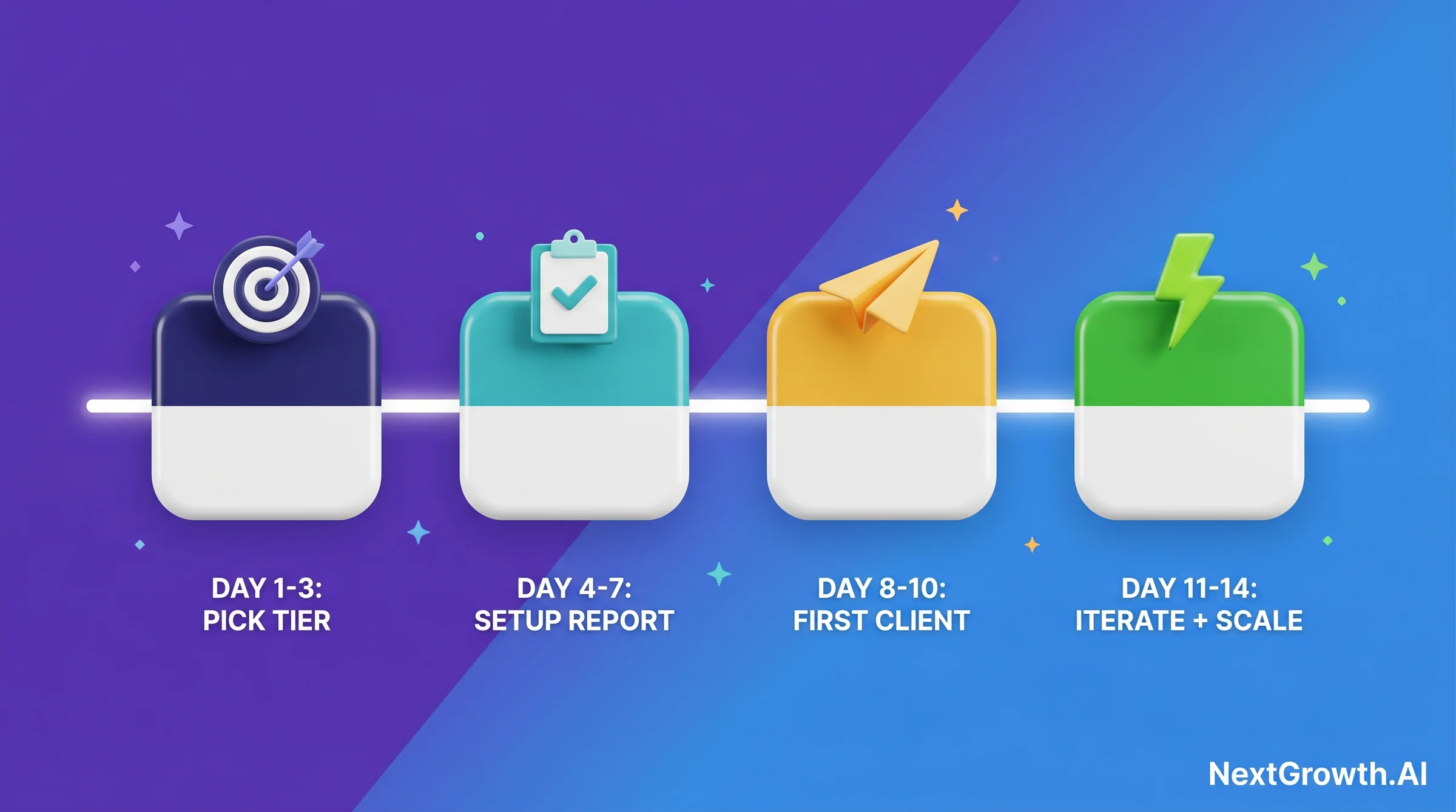
Conclusion: Your 14-Day GA4 Automation Roadmap
You now have the full 3-tier framework for Google Analytics automated reports. The question isn’t whether to automate. At any volume above 1 client, manual GA4 reporting is the most expensive use of your time. The question is which tier matches your current situation, and the answer is simple: start at Tier 1 today, upgrade when the math changes.
The agencies that retain clients longest aren’t the ones with the most sophisticated GA4 setups. They’re the ones whose clients receive consistent, on-time, clearly-narrated reports every month. Automation makes consistency effortless. Start with one client, one tier, one month. The system pays for itself before the second report goes out.
Best Done-For-You
AgencyAnalytics
80+ integrations, white-label PDF delivery, GA4 native connector. Best for 3-15 recurring clients.
Try AgencyAnalyticsBest Free
Looker Studio
GA4 native connector, zero platform cost, 30-minute setup. Best for 1-2 clients or in-house analytics.
Open Looker StudioBest for Engineers
n8n + DataForSEO
$0 software, full custom logic, 4-6h one-time setup. Best for 15+ clients or custom metric requirements. For the broader 3-tier framework (Looker Studio, AgencyAnalytics, custom n8n) that this GA4 workflow fits into, see our SEO analytics reporting automation playbook.
Explore DataForSEO