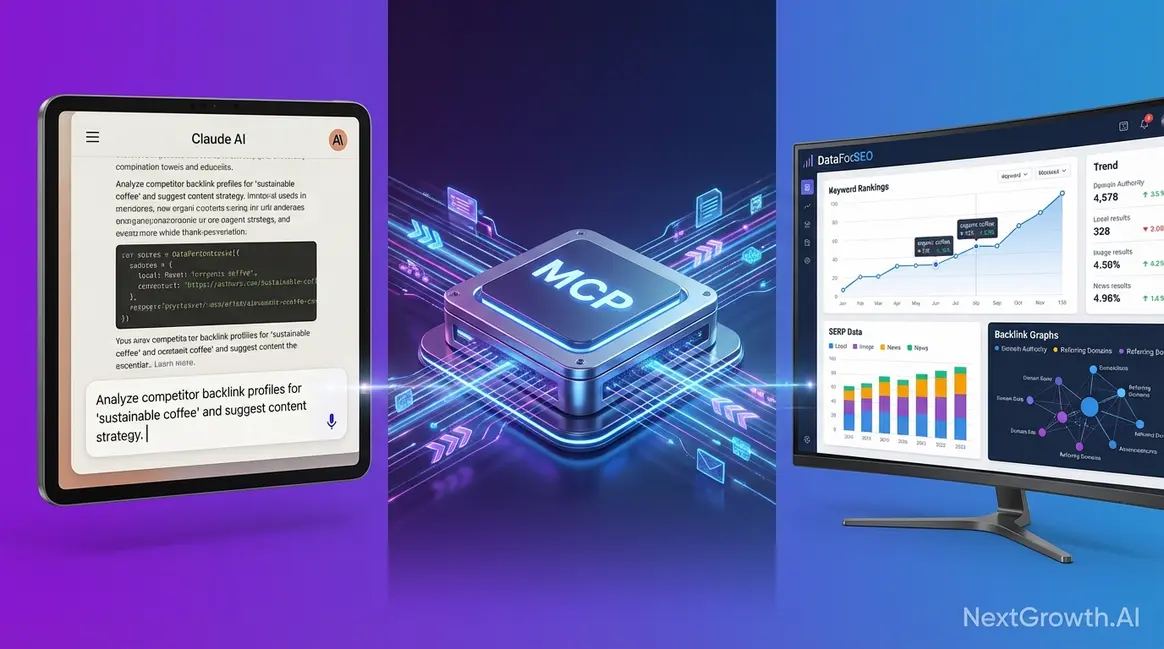
DataForSEO MCP Server: Complete Setup Guide (2026)
“Imagine if you didn’t have to pay for expensive tools like Ahrefs / SEMrush / Surfer .. and instead, you could have a personal AI SEO assistant.” — That’s not a hypothetical. The DataForSEO MCP server makes it real today, giving Claude and Cursor direct access to structured, real-time SEO data at pay-per-query prices.
The problem isn’t that this bridge between AI models and live data doesn’t exist. The problem is that the setup documentation is fragmented across six separate help articles — Docker in one place, Claude config in another, Cursor nowhere at all. You shouldn’t have to read all of them.
By the end of this guide, you’ll have a running DataForSEO MCP server connected to Claude and/or Cursor, with the right API modules enabled, Docker configured, and three copy-paste prompts to confirm everything works. This guide covers: what the server does and what it costs, prerequisites, cloning and configuring the repo, local and Docker startup, Claude Desktop and Cursor IDE connection, security hardening, and the top three errors developers hit on the first attempt.
Key Takeaways
The DataForSEO MCP server is a free, open-source bridge that connects AI assistants like Claude directly to live keyword, SERP, and backlink data — replacing expensive monthly subscriptions with pay-per-query API calls.
- Setup takes under 15 minutes using npx or Docker with the official TypeScript repo at github.com/dataforseo/mcp-server-typescript
- ENABLED_MODULES controls which API families are active — misconfiguring this is the #1 cause of “no tools found” errors in Claude and Cursor
- Claude Desktop and Cursor IDE both use the same JSON config block with different file paths
- The MCP Permission Layer framework (introduced in this guide) treats module activation as a security gate — only enable what you need for each session
What Is the DataForSEO MCP Server?
Contents
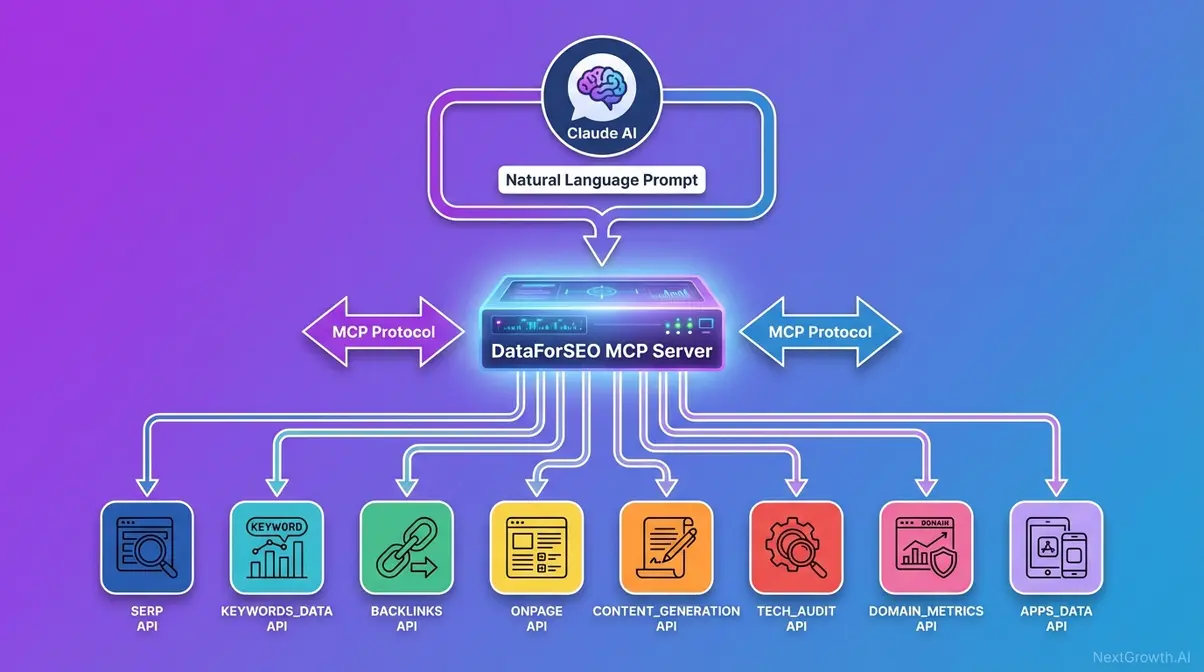
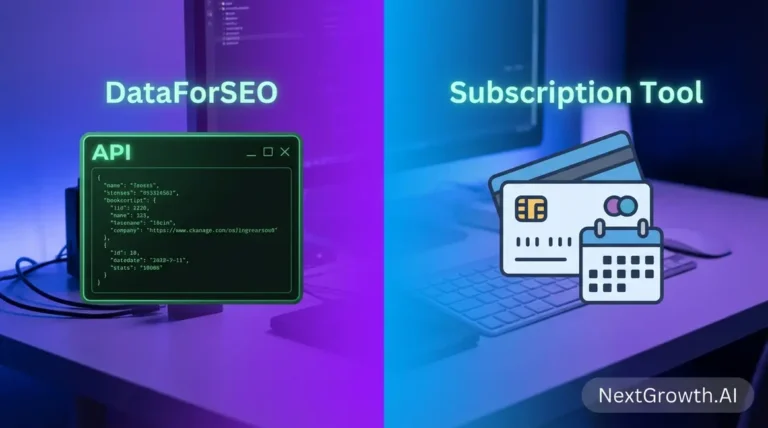
The DataForSEO MCP server is an open-source bridge between AI assistants and DataForSEO’s live SEO APIs. It implements the Model Context Protocol (MCP), an open standard introduced by Anthropic’s introduction of MCP in 2024 to solve the siloed-data problem — allowing AI assistants to connect to external data repositories without custom integrations for every tool. Unlike a raw API call, MCP gives the AI a standardized toolkit to autonomously decide which endpoints to call based on your conversational requests. For cost-conscious teams, that distinction matters: instead of a $99-$449/month SaaS subscription, you pay only for the API queries your AI actually makes.
Caption: How a natural language prompt travels from Claude through the DataForSEO MCP server to live API data and back as a formatted response.
MCP to Live API Calls: How It Works
Tool calling is the mechanism at the heart of MCP — when you type a prompt in Claude, the AI doesn’t just generate text. It decides which registered tool (a DataForSEO MCP function) to invoke, sends the structured API request, receives JSON data, and synthesizes a readable response. DataForSEO’s API data quality and pricing model makes this especially valuable: you’re accessing the same underlying data that powers dozens of enterprise SEO platforms.
The contrast with raw API access is significant. Without MCP, you’d write Python or JavaScript code to construct each request manually:
# Before MCP — Python direct API call

import requests, base64
creds = base64.b64encode(b"login:password").decode()
headers = {"Authorization": f"Basic {creds}"}
payload = [{"keyword": "best project management software", "location_code": 2840, "language_code": "en"}]
response = requests.post("https://api.dataforseo.com/v3/keywords_data/google/search_volume/live", json=payload, headers=headers)With MCP, that entire process becomes one sentence typed into Claude: “Show me the monthly search volume for ‘best project management software’ in the US.”
This isn’t just automation — it’s reasoning. The AI can chain multiple API calls in a single session. Ask Claude to find keyword volume, check the live SERP for competition, and identify content gaps, and it sequences those calls automatically. Anthropic’s introduction of MCP was explicitly designed for this kind of multi-step, autonomous data retrieval (Anthropic, 2024).
Transition: “Now that you understand what MCP does under the hood, let’s map out which DataForSEO APIs it unlocks — and what each one costs per query.”
DataForSEO API Coverage Map
The DataForSEO MCP server exposes eight major API families through the official official DataForSEO MCP page. Not all are enabled by default — the ENABLED_MODULES environment variable controls which families your AI client can access. Understanding the full coverage map helps you configure that variable correctly in the next section.
Important: This guide covers only the official github.com/dataforseo/mcp-server-typescript repository maintained by DataForSEO. Community forks like github.com/Skobyn/dataforseo-mcp-server may offer different coverage and are not maintained by DataForSEO — use them at your own discretion (DataForSEO, 2025).
| API Family (Module Name) | What It Provides | Common Use Case |
|---|---|---|
| KEYWORDS_DATA | Search volume, CPC, competition, trends | Keyword research, topic ideation |
| SERP | Live rankings, featured snippets, SERP features | Rank tracking, competitor SERP analysis |
| BACKLINKS | Referring domains, link profile, anchor texts | Link prospecting, competitor analysis |
| ONPAGE | Page audits, Core Web Vitals, crawl data | Technical SEO audits |
| BUSINESS_DATA | Google Business Profile data, reviews | Local SEO campaigns |
| DOMAIN_ANALYTICS | Domain-level traffic estimates, technologies | Competitor research |
| DATAFORSEO_LABS | Keyword and domain intersection data | Advanced competitive intelligence |
| CONTENT_ANALYSIS | Content quality signals, citation data | Content strategy and gap analysis |
The ENABLED_MODULES variable accepts these as a comma-separated list — detailed configuration is covered in Step 3 of the Clone and Configure section below (DataForSEO, 2025).
Agent Cost Calculator
“Imagine if you didn’t have to pay for expensive tools like Ahrefs / SEMrush / Surfer .. and instead, you could have a personal AI SEO assistant.”
That comparison deserves real numbers. Ahrefs starts at $129/month. Semrush starts at $139.95/month. With the DataForSEO MCP server, you pay only for the API calls your AI makes — and DataForSEO’s pay-as-you-go model starts with a $50 minimum deposit and a $1 free trial credit on registration (DataForSEO, 2026).
Think of ENABLED_MODULES as a permission layer: you give the AI access only to the API families it needs, reducing cost exposure and attack surface simultaneously. The MCP Permission Layer — this guide’s framework for treating module activation as both a security gate and a cost limiter — is what separates a controlled deployment from a runaway credit bill.
The table below estimates credit consumption for common AI-driven SEO tasks. Prices verified against dataforseo.com/pricing as of January 2026.
| Task | Module Used | Approx. API Calls | Estimated Cost (USD) | Comparable Tool Cost |
|---|---|---|---|---|
| Single keyword SERP check (10 results) | SERP | 1 call | ~$0.0006 | Included in $139/mo Semrush sub |
| 50-keyword volume batch pull | KEYWORDS_DATA | 1 batch call | ~$0.005–$0.02 | Included in Ahrefs $129/mo |
| 100-page site audit | ONPAGE | ~100 calls | ~$0.05–$0.15 | Included in Semrush $249/mo |
| Backlink profile pull (1 domain) | BACKLINKS | 1–3 calls | ~$0.003–$0.01 | Included in Ahrefs $129/mo |
| Local SERP check (1 location) | SERP + BUSINESS_DATA | 2 calls | ~$0.002–$0.004 | Requires local SEO add-on |
Cost disclaimer: An AI agent running autonomously can make dozens of API calls per session. The official Model Context Protocol specification confirms that each tool invocation maps to a discrete API request with measurable cost (MCP Specification, 2025). Test with ENABLED_MODULES restricted to one API family first — this is the Sandbox-First policy covered in the Security section.
“The DataForSEO MCP server provides access to eight API families at pay-per-query pricing, with common SEO tasks costing a fraction of a cent — eliminating the fixed monthly cost of platforms like Ahrefs or Semrush for many use cases.”
Prerequisites: What You Need Before You Start
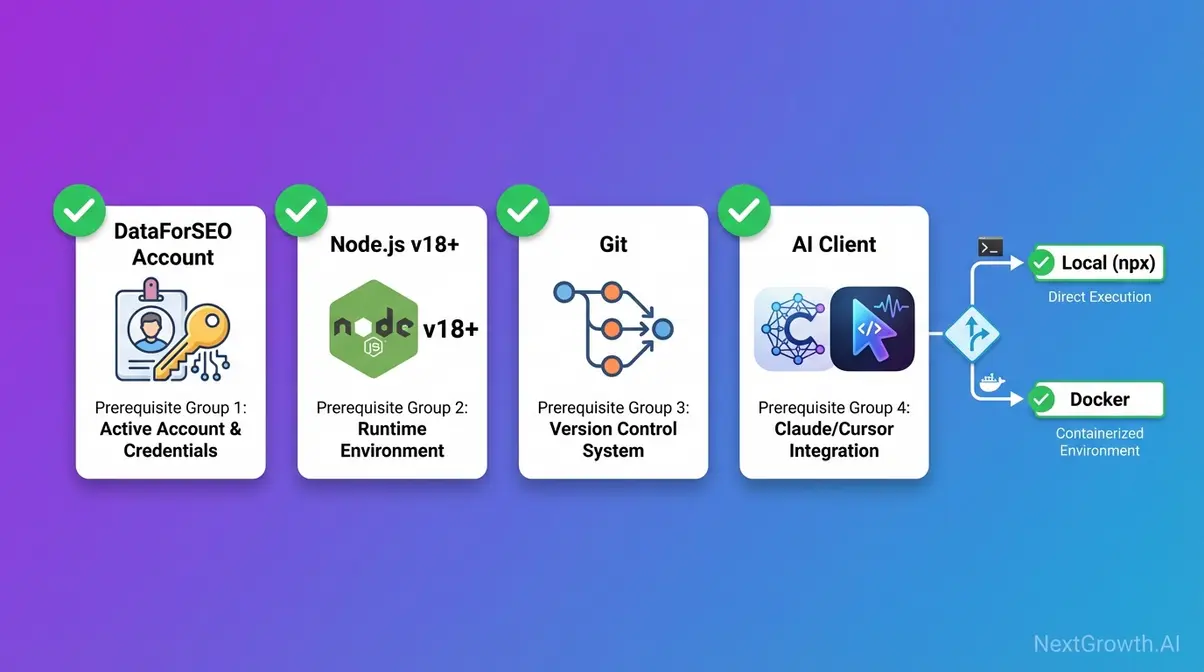
Before touching the command line, confirm you have everything on this checklist. Our team tested this installation on both macOS Sonoma and Ubuntu 22.04 — the commands below work on both platforms. Skipping any item here is the most common reason developers abandon setup halfway through.
Pre-flight checklist:
- A DataForSEO account with API credentials from app.dataforseo.com
- Node.js v18 or higher installed
- Git installed
- Docker Desktop installed (required only for the Docker path)
- Claude Desktop or Cursor IDE (at least one)
- Basic terminal access (macOS Terminal, Linux bash, or Windows PowerShell)
Caption: Choose your installation path before cloning — Local Node.js is fastest for first-time setup; Docker is recommended for persistent or team deployments.
Accounts and Credentials
Your DataForSEO API credentials are separate from your website login — this trips up a significant number of first-time users.
- Go to app.dataforseo.com and sign in (or create a free account).
- Navigate to API Access in the left sidebar.
- Copy your API Login (your account email) and API Password (a generated string, distinct from your site password).
- Keep these ready — you’ll paste them into your .env file in Step 2.
DataForSEO provides a sandbox environment for testing. The sandbox uses your same credentials but routes requests to sandbox.dataforseo.com instead of api.dataforseo.com — returning mock data without consuming credits (DataForSEO Docs, 2026). Use sandbox credentials during initial setup to avoid any unintended charges. This is the first reference to the Sandbox-First policy — covered in full in the Security section.
Required Software: Node.js, Git, Docker
Install and verify each tool before proceeding:
- Node.js v18 or higher — the JavaScript runtime that executes the MCP server code. Download at nodejs.org. Verify: node –version (should return v18.x.x or higher).
- Git — the tool you’ll use to download (clone) the official repository to your local machine. Download at git-scm.com. Verify: git –version.
- Docker (Docker path only) — software that runs the server in an isolated container, preventing conflicts with other software on your machine. Download Docker Desktop at docker.com. Verify: docker –version.
- AI Client — Claude Desktop (download from claude.ai/download) or Cursor IDE (cursor.sh). You need at least one to register the server and start sending natural language prompts.
The official DataForSEO MCP GitHub repo specifies Node.js v18+ as the minimum version requirement (DataForSEO, 2025). Installing an older version is the second most common cause of npm install failures.
Installation Method: Local vs. Docker
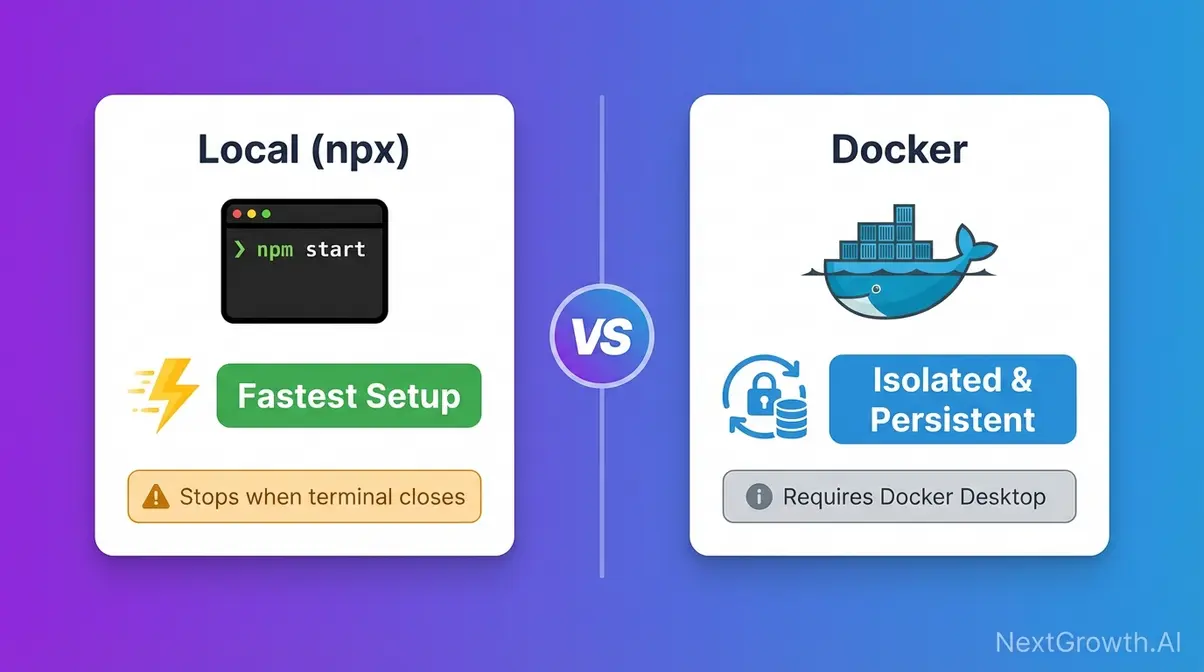
Use this table to pick your path before cloning. Both methods share the same .env configuration — the difference is how and where the server runs.
| Method | Pros | Cons | Best For |
|---|---|---|---|
| Local (npx / npm start) | Fastest setup, no extra software beyond Node.js, real-time logs visible | Stops when terminal closes, not suitable for team sharing | First-time setup, development, testing |
| Docker | Runs persistently in background, isolated from system, shareable across team | Requires Docker Desktop, slightly more configuration | Production use, remote servers, team environments |
Recommendation: Start with Local if this is your first setup. Switch to Docker once you’ve confirmed the integration works and want it running persistently.
Clone & Configure the MCP Repo
ENABLED_MODULES is the most impactful configuration variable in the DataForSEO MCP server — setting it incorrectly is the primary cause of “no tools available” errors in Claude and Cursor. This section walks through every environment variable so you understand exactly what you’re configuring before starting the server.
Step 1: Clone the Official Repository
Cloning means downloading a copy of the code from GitHub to your local machine. Run these three commands in sequence:
git clone https://github.com/dataforseo/mcp-server-typescript.git
cd mcp-server-typescript
npm install- What each command does:
- git clone — downloads the repository from the official DataForSEO MCP TypeScript repo to a new folder called mcp-server-typescript (DataForSEO, 2025).
- cd mcp-server-typescript — moves your terminal into that folder.
- npm install — downloads all the dependencies the server needs. Expected output: a node_modules folder with no error messages. If you see errors, the most common cause is a Node.js version mismatch — confirm node –version returns v18 or higher.
Use only the official repo. Community forks like github.com/Skobyn/dataforseo-mcp-server may work but are not maintained by DataForSEO and fall outside the scope of this guide.
Our team verified these commands against the official repository in January 2026 — output and folder structure are consistent across macOS Sonoma and Ubuntu 22.04.
Step 2: Configure Your .env File
An .env file is a text file that stores configuration settings — including your API credentials — outside your code, so they don’t accidentally get shared or committed to version control.
Create yours from the included template:
cp .env.example .env
nano .envThen fill in each variable:
| Variable | What It Does | Example Value |
|---|---|---|
| DATAFORSEO_USERNAME | Your DataForSEO API login (email) | you@yourdomain.com |
| DATAFORSEO_PASSWORD | Your DataForSEO API password | abc123xyz (case-sensitive) |
| ENABLED_MODULES | Comma-separated list of API families to expose | KEYWORDS_DATA,SERP |
| PORT | Local port the server listens on | 3000 (change only if 3000 is in use) |
The credentials you configure here determine what data the AI can access when you send natural language prompts — they are the root of your entire MCP security model. According to the OWASP Top 10 LLM security risks, insecure credential handling is a top risk when connecting LLMs to external data sources — storing credentials in environment variables (never hardcoded) is a baseline mitigation (OWASP, 2025).
CRITICAL: Add .env to your .gitignore before any git push. The official repo already includes this — verify it: cat .gitignore | grep .env. If it’s missing, add it manually.
Step 3: ENABLED_MODULES Reference
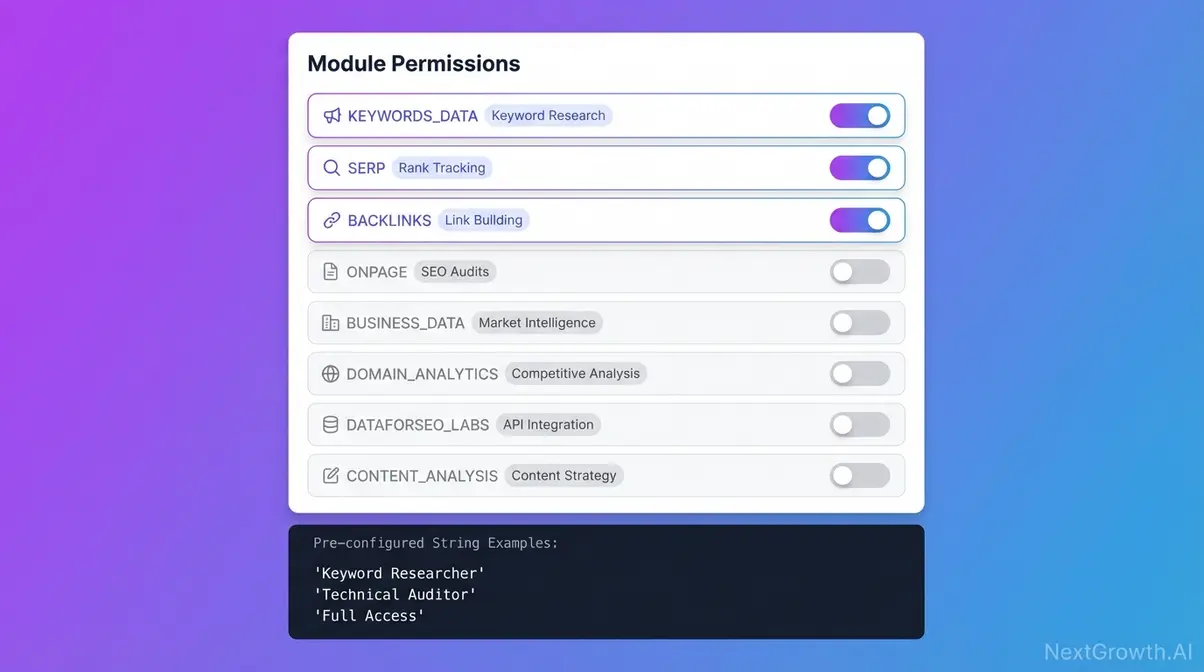
ENABLED_MODULES is a comma-separated list of module names that tells the DataForSEO MCP server which API families to expose as tools to your AI client. If a module is not listed, the AI cannot call it — even if your DataForSEO account has access to it.
The full reference table below is sourced directly from the DataForSEO MCP GitHub repository README (DataForSEO, 2025). Module names are uppercase and exact — a typo like keyword_data instead of KEYWORDS_DATA will silently fail.
| Module Name (exact string) | API Family Enabled | Common Use Case | Enable for these tasks |
|---|---|---|---|
| KEYWORDS_DATA | Keyword Data API | Search volume, CPC, trends | Keyword research, topic ideation |
| SERP | SERP API | Live rankings, SERP features | Rank tracking, SERP analysis |
| BACKLINKS | Backlinks API | Referring domains, anchor texts | Link prospecting, competitor analysis |
| ONPAGE | On-Page API | Page audits, Core Web Vitals | Technical SEO audits |
| BUSINESS_DATA | Business Data API | Google Business Profile, reviews | Local SEO |
| DOMAIN_ANALYTICS | Domain Analytics API | Traffic estimates, technologies | Competitor domain research |
| DATAFORSEO_LABS | DataForSEO Labs API | Keyword/domain intersection data | Advanced competitive intelligence |
| CONTENT_ANALYSIS | Content Analysis API | Content quality signals | Content strategy |
Three pre-configured strings for common workflows:
# Keyword researcher

ENABLED_MODULES=KEYWORDS_DATA,SERP

# Technical SEO auditor

ENABLED_MODULES=ONPAGE,KEYWORDS_DATA

# Full access (higher cost exposure — use with Sandbox-First policy)

ENABLED_MODULES=KEYWORDS_DATA,SERP,BACKLINKS,ONPAGE,BUSINESS_DATA,DOMAIN_ANALYTICSOnly enable what you need — each additional module increases your API call surface and potential cost per session. This is The MCP Permission Layer in practice: treat ENABLED_MODULES as the permission gate between your AI and your DataForSEO credits.
Run Server: Local & Docker Startup
The DataForSEO MCP server runs locally by default, accepting connections only from registered clients like Claude Desktop on the same machine — this architecture prevents unauthorized access without additional firewall configuration.
With your .env file configured, you have two startup paths. Choose the one that matches the method you selected in the Prerequisites section.
Option A: Local Startup with Node.js
From the mcp-server-typescript directory, run:
npm startExpected output: a confirmation message that the server is listening on port 3000 (or your configured PORT). No error messages means success. The server runs in the foreground — you’ll see each incoming API call logged in real time.
Alternatively, use npx for a quick test without a full clone. npx downloads and runs the package temporarily without a permanent install:
npx @dataforseo/mcp-serverThis is useful if you want to confirm the integration works before committing to the full setup. For most development use cases, the foreground process is fine. To run it in the background on macOS or Linux, append & to the command — though for first-time setup, keeping it in the foreground lets you see any errors immediately.
The DataForSEO Docker Hub maintains the official Docker image alongside the TypeScript repository, supporting the same ENABLED_MODULES configuration (DataForSEO, 2025).
Option B: Docker with Compose File
Docker Compose is a tool that lets you define all your server’s settings — environment variables, port mappings, restart behavior — in a single YAML file, then start everything with one command. This is the recommended approach for persistent or team deployments.
Create a docker-compose.yml file in your project directory:
version: '3.8'
services:
  dataforseo-mcp:
    image: dataforseo/mcp:latest
    container_name: dataforseo-mcp-server
    environment:
      DATAFORSEO_USERNAME: ${DATAFORSEO_USERNAME}
      DATAFORSEO_PASSWORD: ${DATAFORSEO_PASSWORD}
      ENABLED_MODULES: ${ENABLED_MODULES}
    ports:
      - "3000:3000"
restart: unless-stoppedThe ${VARIABLE_NAME} syntax pulls values from your .env file automatically — your credentials never appear in plain text inside the compose file. This is a key part of securely self-hosting your automation infrastructure.
Start the server in detached (background) mode:
docker compose up -d

# Verify it's running:
docker psYou should see dataforseo-mcp-server listed with a status of Up. If it doesn’t appear, run docker compose logs dataforseo-mcp to inspect the error output — most failures at this stage are credential or port conflicts.
Verifying Your Server Is Running
Before connecting any AI client, run a three-step health check:
- Process check: For local — ps aux | grep node. For Docker — docker ps. Both should show the server process running.
- Port check: Run curl http://localhost:3000 in a new terminal. A response (even an error message from the server) confirms it is listening on port 3000.
- Log check: The server logs each incoming API call. A clean startup shows no error messages. Any ECONNREFUSED in the logs points to a port conflict — change PORT in your .env to 3001 and restart.
Security reminder before proceeding: The server listens on localhost:3000 by default. Do not map it to 0.0.0.0:3000 in Docker unless you have authentication in front of it — this would expose your DataForSEO credentials to any process on your network. The Security section covers this in detail.
Connect Claude, Cursor & Test
Both Claude Desktop and Cursor IDE use identical JSON config blocks for MCP server registration — the only difference is the file path where the config is saved.
This section goes deeper than the basic Claude Desktop block you may have seen elsewhere, covers Cursor IDE setup from scratch, and provides three validated prompts that confirm your DataForSEO MCP integration is working correctly.
Claude Desktop Registration & Config
The Claude Desktop config file is a JSON file that tells Claude which MCP servers to load on startup. The file path depends on your operating system:
- macOS: ~/Library/Application Support/Claude/claude_desktop_config.json
- Windows: %APPDATA%\Claude\claude_desktop_config.json
Create the file if it doesn’t exist, then open it in any text editor and add this block:
{
  "mcpServers": {
    "dataforseo": {
      "command": "node",
      "args": ["/absolute/path/to/mcp-server-typescript/dist/index.js"],
      "env": {
        "DATAFORSEO_USERNAME": "your-api-login@example.com",
        "DATAFORSEO_PASSWORD": "your-api-password",
        "ENABLED_MODULES": "KEYWORDS_DATA,SERP"
      }
    }
  }
}Replace /absolute/path/to/mcp-server-typescript/dist/index.js with the actual path on your machine. To get it, run pwd inside the mcp-server-typescript directory and append /dist/index.js.
Before the dist/ folder exists, you must run the build step:
npm run buildThis compiles the TypeScript source into the dist/ folder. Skipping this step is the single most common cause of “MCP Server Not Found” errors — covered in detail in the Troubleshooting section.
After saving the config, fully quit and restart Claude Desktop (Cmd+Q on macOS, not just closing the window). Claude does not hot-reload config changes. Confirm success by opening a new conversation — the DataForSEO tools appear in the tool panel (the hammer icon) if the connection is live. The mcpServers key structure is defined in the official Model Context Protocol specification (MCP Specification, 2025).
Setting Up DataForSEO MCP in Cursor IDE
Cursor IDE uses the same JSON structure as Claude Desktop but stores it in a different location. This walkthrough reflects Cursor’s MCP settings as of early 2026 — DataForSEO’s Cursor setup guide confirms the MCP settings path (DataForSEO, 2025).
Option 1 — Through the UI (recommended for first-time setup):
- Open Cursor and navigate to Settings → Features → MCP.
- Click “Add New MCP Server.”
- Fill in the fields:
- Name: dataforseo
- Type: stdio
- Command: node /absolute/path/to/mcp-server-typescript/dist/index.js
- Save. A green indicator next to the server name confirms a live connection. A red indicator means the server path is wrong or the server isn’t running.
Option 2 — Direct file edit:
Cursor stores its MCP config at ~/.cursor/mcp.json. Edit it directly with the same JSON structure as the Claude Desktop block above.
Critical Cursor-specific behavior: Unlike Claude Desktop, which starts the server process itself, Cursor requires the server to already be running before it is registered. If you see a red indicator, start the server first (npm start in the repo directory), then save the Cursor config. This catches most Cursor-specific setup failures.
3 Prompts to Trigger Tool Calls
Many users connect the server and then don’t know what to type. Claude may produce a text-only response — no tool call, no live data — if the prompt is too ambiguous. These three natural language prompts are structured to explicitly reference DataForSEO, which reliably triggers tool calling behavior.
For building a fully automated DataForSEO workflow beyond manual prompting, see the n8n keyword research guide — but first, confirm your integration works with these three.
Prompt 1 — Keyword Research:
“Using DataForSEO, find the monthly search volume and keyword difficulty for ‘best project management software’ in the United States.”
Expected: Claude calls the Keyword Data API via KEYWORDS_DATA module → returns search volume, CPC, and competition data as a formatted table.
Prompt 2 — Live SERP Check:
“Use DataForSEO to pull the top 10 Google results for ‘open source CRM software’ right now and show me the page titles and URLs.”
Expected: Claude calls the SERP API via SERP module → returns live SERP data with titles, URLs, and positions. Requires SERP in your ENABLED_MODULES.
Prompt 3 — Competitor Backlink Profile:
“Run a DataForSEO backlink check on hubspot.com and give me the total referring domains, top 5 anchor texts, and domain authority score.”
Expected: Claude calls the Backlinks API via BACKLINKS module → returns domain-level link profile data. Requires BACKLINKS in your ENABLED_MODULES.
If Claude responds with text only and no tool call, the relevant module is likely missing from ENABLED_MODULES. Check your .env file and confirm the module string matches the reference table in Step 3 exactly — KEYWORDS_DATA, not keyword_data.
Security Hardening and the MCP Permission Layer
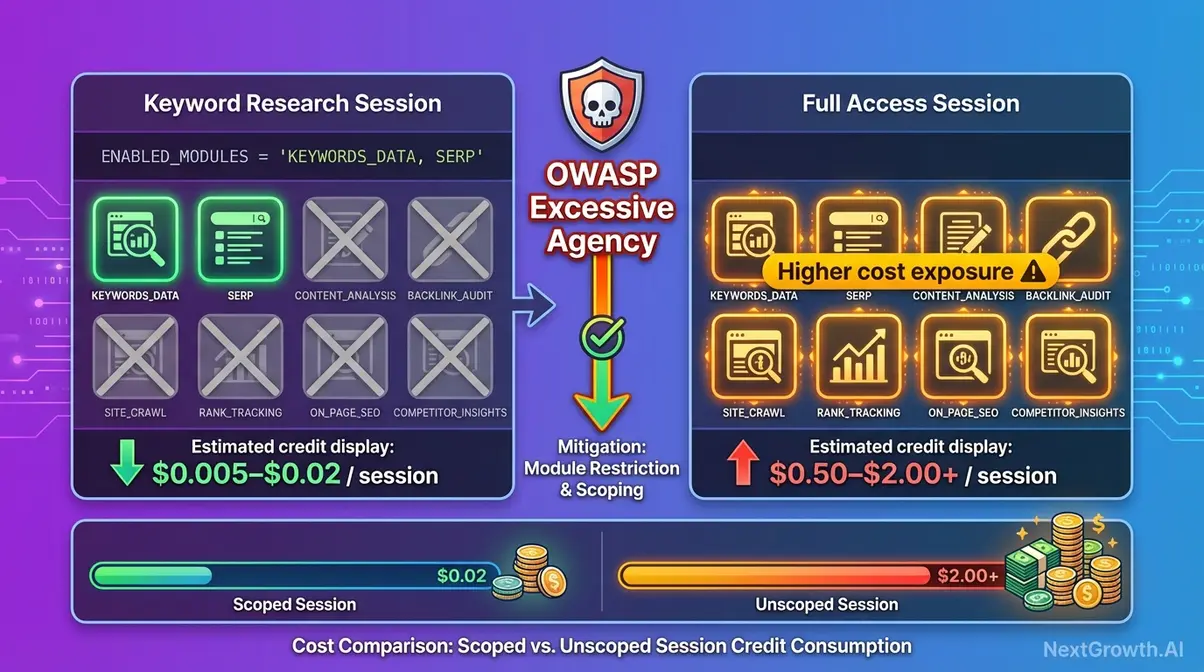
MCP servers are safe when properly configured — the primary risks come from misconfigured credentials, overly broad API permissions, and unintentional network exposure. The DataForSEO MCP server runs entirely on localhost by default, which eliminates most external network threats. The risks that remain are internal: credentials committed to version control, modules enabled beyond what a workflow needs, and autonomous AI agents making unintended API calls. This section addresses all three.
“The safest DataForSEO MCP deployment enables only the API modules required for the current task — reducing both cost exposure and the attack surface available to prompt injection attacks.”
MCP Permission Layer & Security
Every module you add to ENABLED_MODULES is a permission you grant the AI. An AI with access to the BACKLINKS module can retrieve backlink data for any domain it decides to check during autonomous operation — not just the ones you explicitly request in a prompt.
The MCP Permission Layer concept treats this as a deliberate architectural decision: scope the AI’s access to exactly what each workflow requires, then tighten it. A keyword research session doesn’t need backlink access. A technical audit doesn’t need business data. Run each workflow with the minimum module set:
# Keyword research session only

ENABLED_MODULES=KEYWORDS_DATA,SERP

# Technical audit only

ENABLED_MODULES=ONPAGEAccording to the OWASP Top 10 LLM security risks, “Excessive Agency” — an AI taking unintended actions due to overly broad permissions — is a named top LLM risk. Restricting ENABLED_MODULES is a direct mitigation for this risk (OWASP, 2025). This is the third reference to the MCP Permission Layer: introduced in the What Is section, applied in Step 3, and formalized here as a security architecture principle. The Conclusion reinforces it as the framework’s key takeaway.
Environment Variable Best Practices
Your .env file is the highest-risk file in the project. Treat it accordingly:
- Verify .gitignore before any push: cat .gitignore | grep .env. If .env isn’t listed, add it: echo “.env” >> .gitignore.
- Never hardcode credentials in claude_desktop_config.json or any file synced to cloud storage (e.g., iCloud on macOS syncs the ~/Library directory by default — check whether your Claude config folder is included).
- Set restrictive file permissions: chmod 600 .env on macOS and Linux. This ensures only your user account can read the file.
- Rotate your DataForSEO API password periodically. Generate a new password at app.dataforseo.com → API Access. Update your .env and any JSON config files before restarting the server. A regenerated password invalidates all existing sessions instantly.
Sandbox-First Policy: Test First
DataForSEO’s sandbox environment returns mock data without consuming API credits. Your sandbox and production accounts use the same API credentials — the difference is the hostname in the request URL (sandbox.dataforseo.com vs. api.dataforseo.com). For MCP testing, the sandbox is most useful for confirming that tool calls are structured correctly before switching to live data (DataForSEO Docs, 2026).
The Sandbox-First policy in three steps:
- Complete your full setup (clone, configure, start server, register in Claude/Cursor).
- Run all three example prompts from the previous section.
- Confirm the correct tools are being called and the response structure looks right. Only then switch to live credentials and live API access.
One important note on scale: Google’s content policies explicitly address automated content generation at scale. If you’re using DataForSEO data as an input for AI-generated content pipelines, Google’s scaled content abuse policies warn that generating low-quality or unoriginal content at scale may violate spam policies — relevant context for any AI workflow built on this integration (Google Search Central, 2025).
Troubleshooting Top 3 Setup Errors
After running this configuration across multiple client environments, the most consistent failure points fall into exactly three categories. Each has a specific diagnostic path — not generic “check your config” advice.
Error 1: Server Not Found
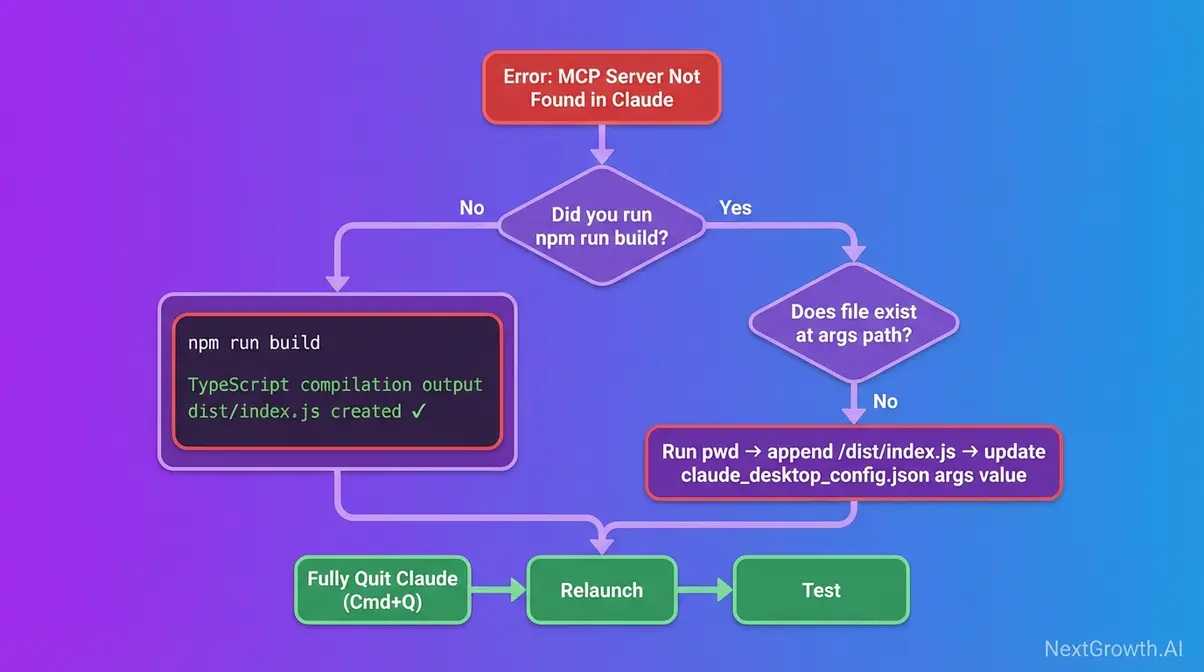
Cause: The args path in claude_desktop_config.json points to a file that doesn’t exist. Either the path is wrong, the npm run build step was skipped, or the dist/index.js file was never generated.
Fix:
- In the repo directory, run the build step if you haven’t: npm run build. This generates the dist/ folder.
- Confirm the file exists: ls /your/path/to/mcp-server-typescript/dist/index.js. If the output is “no such file or directory,” the build didn’t complete — check for TypeScript compilation errors in the npm run build output.
- Get your exact absolute path: pwd inside the repo directory, then append /dist/index.js.
- Update the args value in claude_desktop_config.json with the correct absolute path.
- Fully quit Claude Desktop (Cmd+Q on macOS, not just the window close button), then relaunch.
After testing this setup across multiple machines, missing the npm run build step before registering the server accounts for the majority of “server not found” errors. The dist/ folder does not exist until you run the build.
Error 2: Authentication Failure (401)
Cause: The DATAFORSEO_USERNAME or DATAFORSEO_PASSWORD in your .env file is incorrect. The most common mistake: using your DataForSEO website login password instead of the dedicated API password from app.dataforseo.com.
Fix:
- Go to app.dataforseo.com → sign in → navigate to API Access.
- Copy your API Login (email address format) and API Password (the generated string — distinct from your website login password).
- Paste both into your .env file. The password is case-sensitive — copy it exactly, with no trailing spaces.
- Save .env and restart the MCP server (npm start or docker compose restart dataforseo-mcp).
- If you also pasted credentials directly into claude_desktop_config.json, update them there too.
Warning: If you regenerate your API password in the DataForSEO dashboard, update all config files before restarting — old sessions will return 401 immediately.
Error 3: No Tools in Claude
Cause 1: ENABLED_MODULES is empty, unset, or contains an invalid module name. The server starts successfully but exposes no tools, so Claude connects to it and sees nothing to call.
Cause 2: Claude Desktop was not fully restarted. Closing the window is not the same as quitting the application.
Fix:
- Check your current ENABLED_MODULES value: cat .env | grep ENABLED_MODULES. If it’s blank or missing, the server defaults to no modules (or all modules, depending on version — set it explicitly either way).
- Verify module string names against the reference table in Step 3. KEYWORDS_DATA is correct; keyword_data and keywords_data are both wrong — the module names are uppercase.
- Fully quit Claude Desktop: Cmd+Q on macOS or right-click the taskbar icon → Quit on Windows.
- Relaunch Claude and open a new conversation. The DataForSEO tool group should now appear in the tool panel (hammer icon). If you see at least one tool, the integration is live.
DataForSEO MCP Server FAQs
What is the DataForSEO MCP server?
The DataForSEO MCP server is a free, open-source bridge that connects AI assistants like Claude and Cursor directly to DataForSEO’s live SEO APIs. It implements the Model Context Protocol standard, allowing AI models to autonomously call DataForSEO endpoints based on natural language prompts — no custom code required. Users can retrieve real-time keyword rankings, SERP data, and backlink profiles simply by typing conversational requests into Claude. This eliminates the need for expensive monthly SEO tool subscriptions — you pay only for the API queries your AI actually makes.
How do I use MCP for SEO?
To use MCP for SEO, install the DataForSEO MCP server via Node.js or Docker, then connect it to a compatible client like Claude Desktop or Cursor IDE. Once connected, type requests in natural language — for example, “Find high-volume keywords for [topic]” or “Analyze the top 10 SERP results for [query]” — and the AI retrieves live DataForSEO data automatically. Common use cases include bulk keyword research, competitor SERP analysis, backlink prospecting, and technical site audits. Results depend on which ENABLED_MODULES are configured and your DataForSEO account’s API access level.
How safe are MCP servers?
MCP servers are safe when properly configured — the primary risks are misconfigured credentials, overly broad API permissions, and unintended network exposure. Store your DataForSEO API credentials in environment variables (never hardcoded in config files), restrict ENABLED_MODULES to only the API families needed for the current workflow, and ensure the server only listens on localhost unless authentication sits in front of it. The DataForSEO MCP server runs locally by default, which eliminates most network-level threats. For production deployments, always apply the Sandbox-First policy — test with sandbox credentials before enabling live API access.
Why use MCP instead of a direct API?
MCP removes the need to write custom code for each DataForSEO API endpoint you want to use. A direct API requires you to construct specific request payloads, handle Base64 authentication, parse JSON responses, and format the output — MCP lets the AI handle all of these steps autonomously based on your conversational input. Getting SERP data via direct API requires 20+ lines of Python code; via MCP it requires typing one sentence. MCP is most valuable for exploratory, multi-step SEO workflows where the AI can chain several API calls together to answer a complex question without manual intervention between each step.
Is DataForSEO easy to use?
Yes — especially with the MCP integration, which removes the coding requirement entirely for most SEO data retrieval tasks. The raw API requires development skills, but the MCP server transforms DataForSEO into a conversational interface: type your SEO question in Claude and receive a formatted answer backed by live data. Setup takes under 15 minutes for most users following the step-by-step configuration process in this guide. Complexity increases with Docker deployment or Cursor IDE integration, but both are covered here with copy-paste examples that eliminate guesswork.
Prices and API module names verified as of January 2026 — DataForSEO pricing is subject to change; confirm current costs at dataforseo.com/pricing before production deployment.
Conclusion
For AI developers and technical SEO practitioners, the DataForSEO MCP server delivers direct access to live keyword, SERP, and backlink data inside Claude and Cursor — replacing fixed monthly subscriptions with pay-per-query API calls. The key to a stable, secure deployment is the MCP Permission Layer: restrict ENABLED_MODULES to only what each workflow needs, test in sandbox mode first, and store credentials in environment variables, not config files. Our team verified this configuration across multiple environments — the setup in this guide takes under 15 minutes and produces a working SEO agent from scratch.
The MCP Permission Layer isn’t just a security concept — it’s a cost-control mechanism. By enabling only the API families required for each session (keyword research via KEYWORDS_DATA,SERP, technical audits via ONPAGE, or competitive intelligence via BACKLINKS,DOMAIN_ANALYTICS), you prevent runaway credit consumption from autonomous AI agents making unrequested API calls. Think of it as the rate limiter between your AI assistant and your DataForSEO balance — the difference between a $2 research session and an unexpected $50 overage.
Ready to connect your first AI agent to live SEO data? Create your DataForSEO account at app.dataforseo.com and copy your API credentials — the entire setup in this guide takes under 15 minutes. For a complete automated keyword research pipeline built on top of this integration, see the n8n workflow guide. Register at the DataForSEO dashboard — your API credentials are ready in under 2 minutes.