How to Deploy n8n Queue Mode with Coolify (Production Setup)
I have deployed n8n on Coolify across four production instances driving SEO automation, AI image pipelines, and webhook fan-out at ~200 executions per day each. The first deploy worked. The second crashed on a 4 GB VPS during a Gemini image burst. The third revealed Redis password drift across redeploys. The fourth taught me the 3.5 GB worker memory cap that every “10-minute setup” guide forgets to mention.
This guide assumes you already have a working Coolify install on HTTPS. If you do not yet, follow How to install Coolify on a VPS in 9 steps first, that covers VPS picking, swap, firewall, DNS, Let’s Encrypt, and security hardening. Then come back here for the n8n-specific configuration: queue mode topology, the production compose override, the 4 secrets to back up, worker concurrency math, and the Cloudflare scenarios most guides skip.
TL;DR, what this guide ships
- 4 containers, queue mode: n8n main + worker + PostgreSQL 16 + Redis 7. One-click via Coolify’s “n8n with workers” template, then overridden with a version-controlled compose.
- Minimum spec: 4 GB RAM + 4 GB swap, 2 vCPU, 40 GB disk for low-throughput. 8 GB RAM recommended once you co-locate anything else.
- Concurrency rule: for LLM-bound workflows (n8n’s most common shape) set
worker --concurrency = vCPU x 5. For CPU-bound usevCPU x 1.5. - Encryption key is the one-way door: back up
SERVICE_PASSWORD_ENCRYPTIONto your password manager before you do anything else. Lose it, every credential becomes garbage. - Cloudflare matters: if your DNS goes through CF, “DNS only” works out of the box. “Proxied” needs DNS-01 cert + webhook timeout handling, covered in the DNS section.
Engineer’s perspective
- The “n8n with workers” template is the right starting point. The default compose is not, it ships without memory caps, heap limits, or explicit security flags.
- Coolify’s UI can deploy this in 10 minutes. Reaching production reliability takes another 30, mostly resource limits, backups, and the encryption-key escape plan.
- Postgres + Redis + 2 n8n processes on a 4 GB VPS works only because of swap. Skip swap and the first heavy workflow OOM-kills the worker.
When do you actually need queue mode?
Queue mode splits n8n into two roles: a main process that handles the editor UI, REST API, webhooks, and schedule triggers; and one or more worker processes that pick jobs off a Redis queue and execute them. PostgreSQL persists workflows, executions, and encrypted credentials.
The default single-instance mode is fine until concurrency or long-running workflows start blocking the editor. Switch when any of these are true:
- You receive concurrent webhooks faster than a single Node process can handle them (~20-30 sustained per second on a 2 vCPU box, less with heavy nodes).
- You run workflows that take more than 30 seconds and would block the UI if they ran in-process.
- You hit more than 1,000 executions per day and the executions table is starting to slow down the editor.
- You want zero-downtime worker restarts (Bull persists in-flight jobs in Redis, so worker churn does not lose work).
Per the official n8n scalability benchmark, single mode peaked at 23 RPS with a 31% failure rate on a C5.4xlarge instance under 200 virtual users. Queue mode held 162 RPS with zero failures and sub-1.2s latency on the same hardware. That is the 7x figure every guide quotes, and it is real for I/O-shaped workflows.
What queue mode is not for: a hobby box running one cron-triggered Slack bot. The extra Redis container, extra worker container, and Postgres dependency cost more in maintenance than they save in throughput. If you are below 100 executions per day, single mode on SQLite is fine.
The 4-container architecture: Main + Worker + Redis + Postgres
The Coolify “n8n with workers” template provisions four runtime containers behind Coolify’s Traefik proxy:
                       Internet (HTTPS)
                            |
                  +---------v---------+
                  | coolify-proxy     |  Traefik, Let's Encrypt
                  | :80  :443         |
                  +---------+---------+
                            |
              +-------------+-------------+
              |                           |
       +------v-------+                   |
       |  n8n (main)  |  Editor, REST,    |
       |  :5678       |  webhooks, cron   |
       +------+-------+                   |
              | enqueues jobs             |
              v                           |
       +--------------+        +---------+---------+
       |    Redis     | <----> |   n8n-worker      |
       |  Bull queue  |        | --concurrency=N   |
       |  :6379       |        | executes nodes    |
       +--------------+        +---------+---------+
                                         |
                                         v
                                +--------+---------+
                                |   PostgreSQL 16  |  workflows,
                                |   :5432          |  executions,
                                +------------------+  encrypted creds
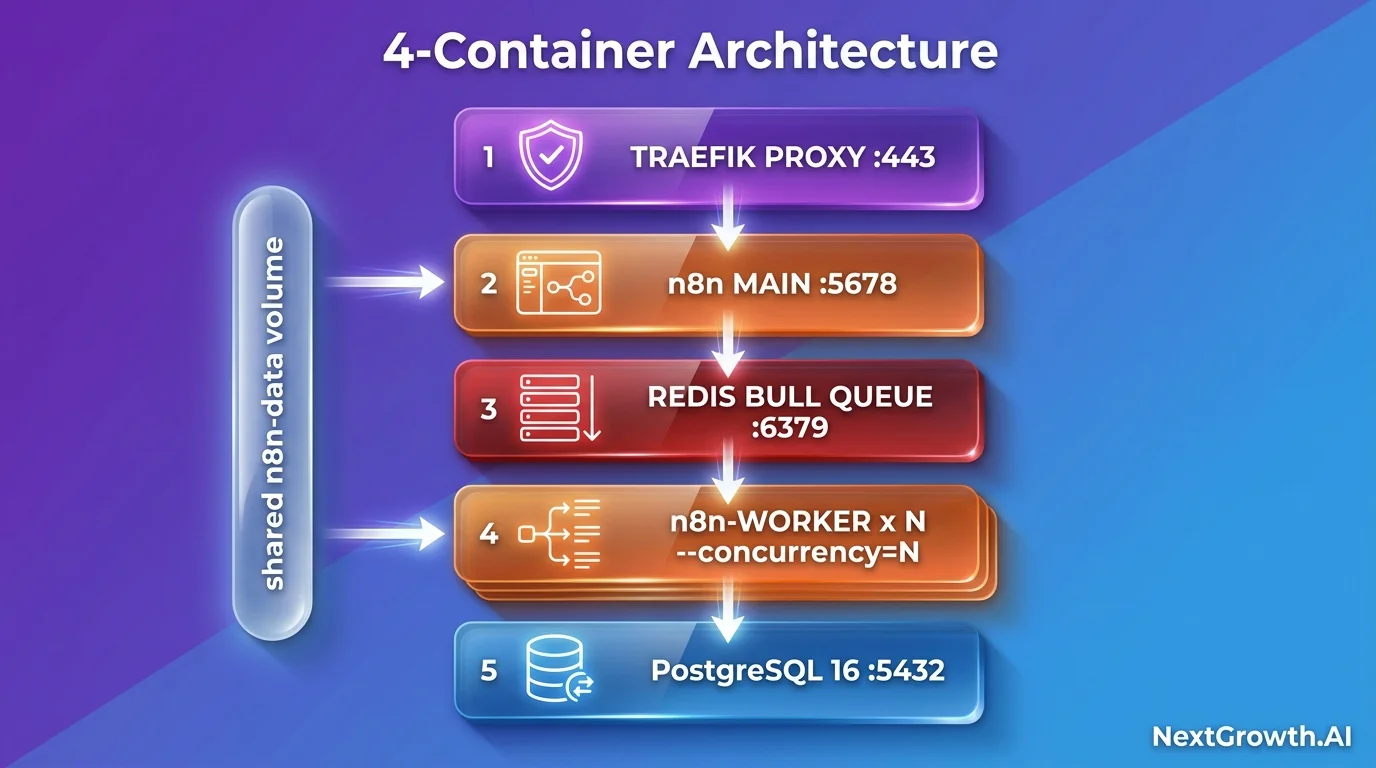
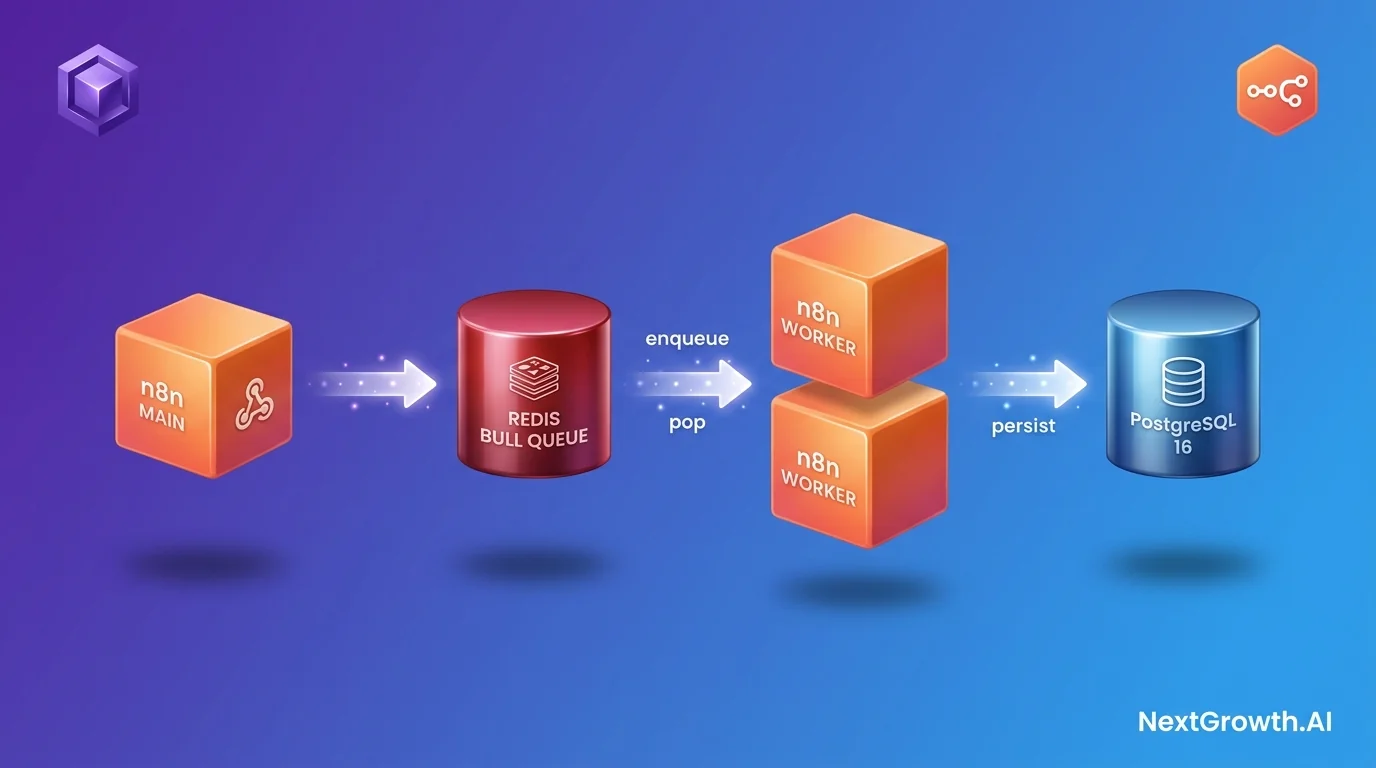
The flow: A webhook hits Traefik, gets routed to the n8n main container, authenticates, then enqueues the execution into a Bull queue on Redis. A worker pops the job, runs every node, writes the result to Postgres, and triggers the response callback. The main process stays responsive even when 50 workflows run concurrently because it is not doing the heavy lifting.
Why the split matters:
- Main is isolated from execution. Editor UI never hangs while a 30-minute LLM pipeline grinds in the background.
- Workers are stateless. You can add or remove worker containers freely because Bull persists the queue in Redis. In-flight jobs survive worker restarts.
- Binary files share a volume. Both main and worker mount the
n8n-datavolume so binary uploads (images, PDFs) on the main are readable by the worker, no S3 roundtrip required.
The shared n8n-data volume is the reason N8N_BINARY_DATA_MODE=filesystem is mandatory in queue mode. The default in-memory mode keeps binaries in the process that received the upload, which means the worker cannot see files the main accepted.
Why Coolify beats manual Docker Compose
If you would rather do the plumbing yourself, or you are not running Coolify at all, the manual path is written up in full in our guide to self-hosting n8n on Ubuntu with Docker, which uses the same Traefik, Postgres and Redis stack this page deploys through Coolify.
The manual approach is a docker-compose.yml, a Caddyfile or nginx config, a Let’s Encrypt automation script, an env file, and a backup cron. Two to four hours of plumbing before your first workflow runs, plus weeks of debugging the SSL renewal that fires at 3 AM.
Coolify handles HTTPS via Traefik, container healthchecks via service templates, secrets via SERVICE_PASSWORD_* auto-generation, Postgres backups via a UI scheduler, updates via one-click redeploy, and domain changes via a UI form. The cost: a small UI/server runtime (~500 MB RAM overhead) and a learning curve for the service template format.
What Coolify will not do: pick the right worker concurrency, set heap caps on the n8n containers, protect your encryption key from regeneration across redeploys, or scale workers horizontally without a manual compose edit. The override compose later in this guide closes those four gaps. For an apples-to-apples on PaaS choice, see Coolify vs Dokploy.
VPS sizing, the memory budget nobody talks about
The “n8n with workers” template applies these Docker deploy.resources.limits.memory values:
Container memory caps (Coolify template defaults)
| Service | Memory cap | Node heap (--max-old-space-size) |
|---|---|---|
| n8n main | 2.5 GB | 2048 MB |
| n8n-worker | 3.5 GB | 3072 MB |
| postgresql | 700 MB | n/a |
| redis | 600 MB | n/a (maxmemory 500mb, allkeys-lru) |
| Total cap | ~7.3 GB | ~5.1 GB heap |
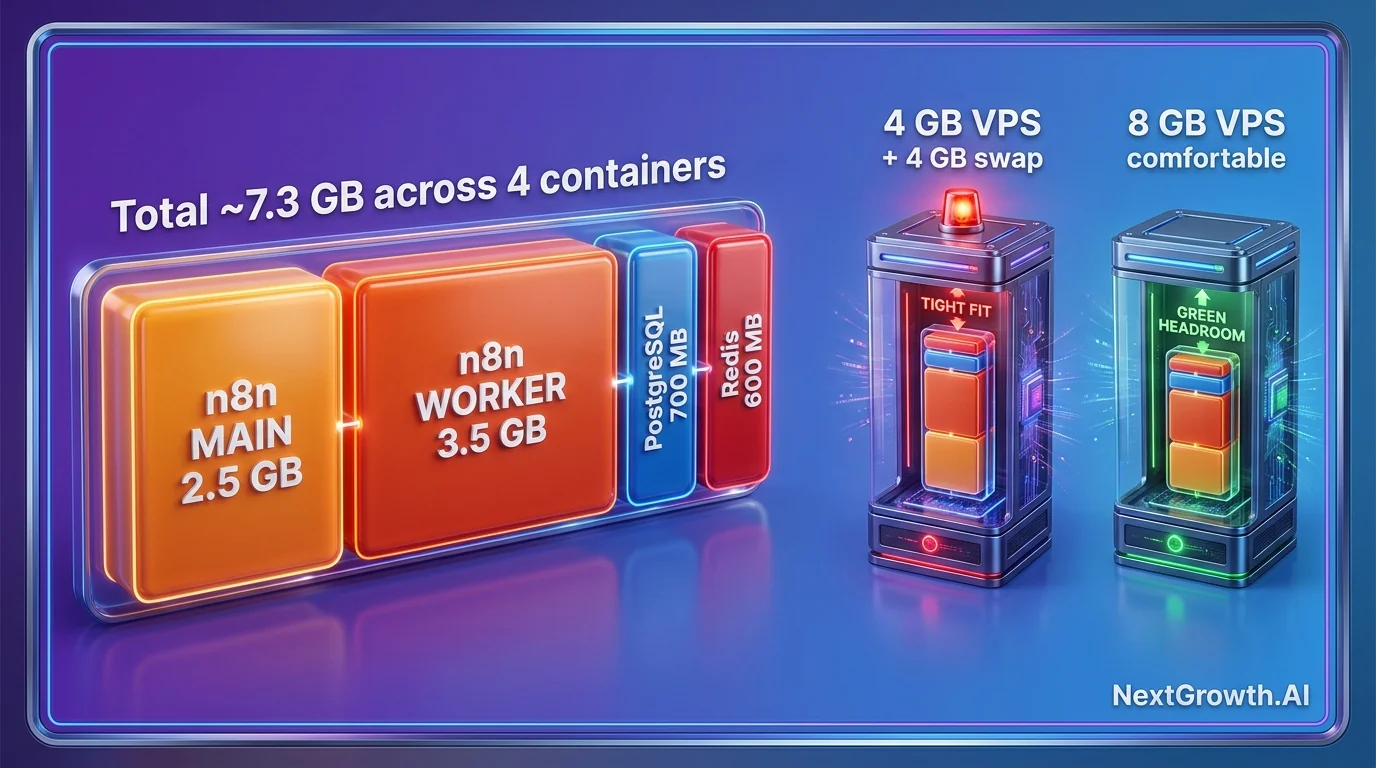
The implication: a 4 GB VPS without swap will not run this template. The container limits exceed RAM before you account for Coolify’s own ~500 MB overhead, the host OS, and any other co-located services. Either run on 4 GB + 4 GB swap (absolute floor, workable for low-throughput), 8 GB (comfortable), or 16 GB+ if you do image-heavy workflows. Image-gen workflows (Gemini, OpenAI image) peak at ~1 MB base64 per response, and 10 concurrent responses trip the default 3 GB worker heap.
Prerequisites: a working Coolify install
This guide picks up after Coolify is already on HTTPS. Before continuing, confirm you have:
Coolify readiness checklist
- ☐ Coolify dashboard reachable at
https://coolify.<your-domain>with valid Let’s Encrypt cert - ☐ VPS has at least 4 GB RAM + 4 GB swap (8 GB+ if co-locating other services)
- ☐ UFW (or equivalent) firewall: ports 22, 80, 443 open; port 8000 closed
- ☐ SSH key auth working (root password login disabled)
- ☐ DNS provider account ready (for the upcoming
n8nsubdomain A record)
If any of those are missing, run through How to install Coolify on a VPS in 9 steps first. It covers the VPS picker (Hetzner / Hostinger / DigitalOcean / Vultr), swap, UFW, the install command, the move to HTTPS, security hardening, and the maintenance/backup recipes, everything this guide assumes is already in place. If you have not picked a PaaS yet, Coolify vs Dokploy compares the two leading open-source options for self-hosting n8n.
Once those boxes are checked, the only remaining infra task is adding a DNS record for your n8n subdomain. That is the next section.
Add the n8n DNS record (direct A or Cloudflare)
n8n needs its own subdomain, typically n8n.. The A record points at the VPS IP, and Traefik (Coolify’s bundled proxy) handles the rest. Pick the path that matches your DNS provider.
Path A: direct A record (no CDN in front)
The simplest case. Whatever DNS provider you use (Namecheap, Porkbun, registrar default), add one A record:
| Type | Host | Value | TTL |
|---|---|---|---|
| A | n8n (becomes n8n.) |
|
60s |
Verify with dig n8n. from your laptop. Empty output means propagation has not finished, wait 2-5 minutes and retry. Once it resolves, Coolify will request the Let’s Encrypt cert automatically the first time you deploy the n8n service.
Path B: Cloudflare DNS only (gray cloud)
If you use Cloudflare as your DNS provider but want the standard Let’s Encrypt + Traefik flow, you need the proxy off:
- Cloudflare dashboard → pick domain → DNS → Records → Add record.
- Type:
A, Name:n8n, IPv4: - Save. Verify with
dig n8n..+short
This is the recommended path for most n8n self-hosters because it is the same as Path A in behavior, Cloudflare is only authoritative DNS, not a proxy. Traefik on your VPS terminates TLS, and Let’s Encrypt issues the cert via the HTTP-01 challenge on port 80.
Path C: Cloudflare Proxied (orange cloud), 4 gotchas
If you want Cloudflare in front of n8n for DDoS protection, WAF, or edge caching, set the proxy on. This breaks the default Let’s Encrypt flow and introduces 4 webhook gotchas you must address.
Gotcha 1: Let’s Encrypt HTTP-01 fails. Traefik cannot complete the HTTP-01 challenge through the Cloudflare proxy (CF terminates the cert challenge). The fix: switch Coolify’s Traefik config to use the DNS-01 challenge with a Cloudflare API token (scope: Zone:DNS:Edit for your zone). Paste the token into Coolify → Settings → Advanced → Custom Traefik Config:
certificatesResolvers:
  letsencrypt:
    acme:
      dnsChallenge:
        provider: cloudflare
        delayBeforeCheck: 30
And set CF_DNS_API_TOKEN= in Coolify’s instance env vars. After this, Let’s Encrypt validates via DNS records (works behind CF proxy). Coolify reverse proxy guide covers the Traefik DNS-01 pattern in more depth.
Gotcha 2: Webhook timeout at 100 seconds. Cloudflare Free + Pro plans cap connections at 100s. Any n8n workflow that runs longer than that returns a 524 timeout to the caller, even though the worker keeps executing. Two fixes, pick whichever fits:
- Configure the webhook node with Respond: “Immediately” (n8n returns 200 to the caller right after enqueue, executes async).
- Use Respond: “Last Node” but split long workflows: webhook 1 enqueues a job, webhook 2 polls for results. Queue mode plus this pattern works at any duration.
CF Enterprise plan removes the cap if you have it.
Gotcha 3: WebSocket setting. The n8n editor uses WebSockets for live execution preview. Cloudflare supports WebSockets but verify it is on: Zone → Network → WebSockets: On. It is the default for new zones in 2026, but older zones may have it off.
Gotcha 4: WAF over-blocking. Cloudflare’s managed WAF rules sometimes flag n8n REST API calls (PUT/PATCH to /api/v1/*) as suspicious. If integration tests or external API consumers get 403’d by CF, add a custom WAF skip rule for paths matching /api/v1/* and /webhook/* from trusted IP ranges (or use CF Access for token-gated paths). Keep WAF on for /, /wp-admin/*, and other surface area, just exempt the API + webhook paths.
If any of these feel like more than you want to manage, stick with Path B (DNS only). You give up edge caching and CF WAF but keep the simple Let’s Encrypt flow.
Deploy n8n with workers, extract the 4 secrets
Inside Coolify UI:
- Projects → + New Project → name
n8n-instance. - Inside the project: + New Resource → Service → search
"n8n". - Pick “n8n with workers”, NOT plain
"n8n". Plain n8n is the single-instance template and will not give you queue mode.
Coolify generates four secrets automatically. Open each, click Show, copy to your password manager under a single entry like n8n-prod-. You are not creating these, just rescuing them from Coolify before something overwrites them:
| Secret | Becomes | Why it matters |
|---|---|---|
SERVICE_PASSWORD_ENCRYPTION |
N8N_ENCRYPTION_KEY |
The one-way door. Lose this and every stored credential (OpenRouter, DataForSEO, S3, OAuth) becomes garbage. Mark this entry with a loud note: *DO NOT REGENERATE.* |
SERVICE_USER_POSTGRES |
Postgres username | DB connection from n8n |
SERVICE_PASSWORD_POSTGRES |
Postgres password | Same |
SERVICE_PASSWORD_REDIS |
Redis password | Bull queue auth |
The two things you create manually come later: the n8n owner account password (at first-time UI setup) and the n8n API key (Settings → n8n API → Create API key). Both come later.
Set the n8n domain. Tab Domains → enter the full URL with protocol:
https://n8n.<your-domain>
The https:// prefix is required, Coolify uses it to generate the correct Traefik routing labels. A bare n8n. here is the most common cause of “Traefik no available server” errors after deploy.
Do not click Deploy yet. The next section overrides the compose with production-tuned values.
The production compose override
The template Coolify loads works out of the box on any VPS, which is the problem. It is tuned for “first run does not crash” not “runs production workloads at 200 executions per day”. Override it with a version-controlled compose so reinstalls produce identical results.
The override below is maintained as a repo so you can diff it rather than retype it: github.com/thenguyenvn90/n8n-coolify. If you would rather not use Coolify at all, the same queue-mode stack as plain Docker Compose lives in n8n-queue-mode, and the scripted install, upgrade, backup and restore path is in n8n-toolkit.
What the override hardcodes (vs Coolify defaults)
5 things missing from Coolify’s default compose
| Missing from default | What the override adds | Why it matters |
|---|---|---|
| Memory caps | deploy.resources.limits.memory on all 4 services |
Prevents one container eating the whole box. 2.5G / 3.5G / 700M / 600M. |
| Heap caps | NODE_OPTIONS=--max-old-space-size on both n8n services |
Caps V8 heap before Docker OOM-kills the container. 2048 / 3072. |
| Security flags | 7 hardening env vars + no-new-privileges |
Blocks env exfiltration, OAuth hijack, container escape (covered in detail later). |
| Connection pool | DB_POSTGRESDB_POOL_SIZE=20 explicitly |
Prevents pool exhaustion when main + worker compete for connections. |
| Execution pruning | EXECUTIONS_DATA_PRUNE=true, 14-day retention, 10K cap |
Keeps the executions table from growing to multi-GB and slowing the editor. |
Apply the override
- Coolify UI → service
n8n-with-postgres-and-worker-*→ tab General → click Edit Compose File. - In the text editor that opens: Select all (Ctrl/Cmd+A) → Delete → paste the YAML below.
- Click Save.
The full production-tuned compose, baseline for a 4 GB VPS. For 8 GB, edit 6 lines after pasting (instructions right after the YAML):
services:
  n8n:
    image: 'n8nio/n8n:latest'
    environment:
      - SERVICE_URL_N8N_5678
      - 'N8N_EDITOR_BASE_URL=${SERVICE_URL_N8N}'
      - 'WEBHOOK_URL=${SERVICE_URL_N8N}'
      - 'N8N_HOST=${SERVICE_URL_N8N}'
      - N8N_PATH=/
      - N8N_LISTEN_ADDRESS=0.0.0.0
      - N8N_PORT=5678
      - 'N8N_PROTOCOL=${N8N_PROTOCOL:-https}'
      - 'GENERIC_TIMEZONE=${GENERIC_TIMEZONE:-UTC}'
      - 'TZ=${TZ:-UTC}'
      - DB_TYPE=postgresdb
      - 'DB_POSTGRESDB_DATABASE=${POSTGRES_DB:-n8n}'
      - DB_POSTGRESDB_HOST=postgresql
      - DB_POSTGRESDB_PORT=5432
      - DB_POSTGRESDB_USER=$SERVICE_USER_POSTGRES
      - DB_POSTGRESDB_PASSWORD=$SERVICE_PASSWORD_POSTGRES
      - DB_POSTGRESDB_SCHEMA=public
      - DB_POSTGRESDB_CONNECTION_TIMEOUT=60000
      - DB_POSTGRESDB_POOL_SIZE=20
      - EXECUTIONS_MODE=queue
      - QUEUE_BULL_REDIS_HOST=redis
      - QUEUE_BULL_REDIS_PORT=6379
      - QUEUE_HEALTH_CHECK_ACTIVE=true
      - OFFLOAD_MANUAL_EXECUTIONS_TO_WORKERS=true
      - 'N8N_ENCRYPTION_KEY=${SERVICE_PASSWORD_ENCRYPTION}'
      - N8N_RUNNERS_ENABLED=false
      - N8N_BLOCK_ENV_ACCESS_IN_NODE=true
      - N8N_GIT_NODE_DISABLE_BARE_REPOS=true
      - N8N_ENFORCE_SETTINGS_FILE_PERMISSIONS=true
      - N8N_PROXY_HOPS=1
      - N8N_SKIP_AUTH_ON_OAUTH_CALLBACK=false
      - EXECUTIONS_TIMEOUT=7200
      - EXECUTIONS_TIMEOUT_MAX=7200
      - N8N_PAYLOAD_SIZE_MAX=64
      - N8N_BINARY_DATA_MODE=filesystem
      - EXECUTIONS_DATA_PRUNE=true
      - EXECUTIONS_DATA_MAX_AGE=336
      - EXECUTIONS_DATA_PRUNE_MAX_COUNT=10000
      - NODE_OPTIONS=--max-old-space-size=2048
    volumes:
      - 'n8n-data:/home/node/.n8n'
    depends_on:
      postgresql:
        condition: service_healthy
      redis:
        condition: service_healthy
    healthcheck:
      test: ['CMD-SHELL', 'wget -qO- http://127.0.0.1:5678/healthz || exit 1']
      interval: 30s
      timeout: 10s
      retries: 3
      start_period: 60s
    restart: unless-stopped
    security_opt:
      - 'no-new-privileges:true'
    deploy:
      resources:
        limits:
          memory: 2.5G

  n8n-worker:
    image: 'n8nio/n8n:latest'
    command: 'worker --concurrency=5'
    environment:
      - 'GENERIC_TIMEZONE=${GENERIC_TIMEZONE:-UTC}'
      - 'TZ=${TZ:-UTC}'
      - DB_TYPE=postgresdb
      - 'DB_POSTGRESDB_DATABASE=${POSTGRES_DB:-n8n}'
      - DB_POSTGRESDB_HOST=postgresql
      - DB_POSTGRESDB_PORT=5432
      - DB_POSTGRESDB_USER=$SERVICE_USER_POSTGRES
      - DB_POSTGRESDB_PASSWORD=$SERVICE_PASSWORD_POSTGRES
      - DB_POSTGRESDB_SCHEMA=public
      - DB_POSTGRESDB_CONNECTION_TIMEOUT=60000
      - DB_POSTGRESDB_POOL_SIZE=20
      - EXECUTIONS_MODE=queue
      - QUEUE_BULL_REDIS_HOST=redis
      - QUEUE_BULL_REDIS_PORT=6379
      - QUEUE_HEALTH_CHECK_ACTIVE=true
      - 'N8N_ENCRYPTION_KEY=${SERVICE_PASSWORD_ENCRYPTION}'
      - N8N_RUNNERS_ENABLED=false
      - N8N_BLOCK_ENV_ACCESS_IN_NODE=true
      - N8N_GIT_NODE_DISABLE_BARE_REPOS=true
      - N8N_ENFORCE_SETTINGS_FILE_PERMISSIONS=true
      - N8N_PROXY_HOPS=1
      - N8N_SKIP_AUTH_ON_OAUTH_CALLBACK=false
      - EXECUTIONS_TIMEOUT=7200
      - EXECUTIONS_TIMEOUT_MAX=7200
      - N8N_PAYLOAD_SIZE_MAX=64
      - N8N_BINARY_DATA_MODE=filesystem
      - EXECUTIONS_DATA_PRUNE=true
      - EXECUTIONS_DATA_MAX_AGE=336
      - NODE_OPTIONS=--max-old-space-size=3072
    volumes:
      - 'n8n-data:/home/node/.n8n'
    depends_on:
      n8n:
        condition: service_healthy
      postgresql:
        condition: service_healthy
      redis:
        condition: service_healthy
    healthcheck:
      test: ['CMD-SHELL', 'wget -qO- http://127.0.0.1:5678/healthz/readiness || exit 1']
      interval: 30s
      timeout: 10s
      retries: 3
      start_period: 30s
    restart: unless-stopped
    security_opt:
      - 'no-new-privileges:true'
    deploy:
      resources:
        limits:
          memory: 3.5G

  postgresql:
    image: 'postgres:16-alpine'
    volumes:
      - 'postgresql-data:/var/lib/postgresql/data'
    environment:
      - POSTGRES_USER=$SERVICE_USER_POSTGRES
      - POSTGRES_PASSWORD=$SERVICE_PASSWORD_POSTGRES
      - 'POSTGRES_DB=${POSTGRES_DB:-n8n}'
      - 'TZ=${TZ:-UTC}'
    healthcheck:
      test: ['CMD-SHELL', 'pg_isready -U $${POSTGRES_USER} -d $${POSTGRES_DB}']
      interval: 10s
      timeout: 5s
      retries: 5
      start_period: 10s
    restart: unless-stopped
    security_opt:
      - 'no-new-privileges:true'
    deploy:
      resources:
        limits:
          memory: 700M

  redis:
    image: 'redis:7-alpine'
    command:
      - redis-server
      - '--appendonly'
      - 'yes'
      - '--maxmemory'
      - 500mb
      - '--maxmemory-policy'
      - allkeys-lru
    volumes:
      - 'redis-data:/data'
    environment:
      - 'TZ=${TZ:-UTC}'
    healthcheck:
      test: ['CMD', 'redis-cli', 'ping']
      interval: 10s
      timeout: 5s
      retries: 5
      start_period: 5s
    restart: unless-stopped
    security_opt:
      - 'no-new-privileges:true'
    deploy:
      resources:
        limits:
          memory: 600M

volumes:
  n8n-data: null
  postgresql-data: null
  redis-data: null
For an 8 GB VPS, edit 6 lines
After pasting the baseline compose, click Edit Compose File again, use Ctrl+F (Find) to locate each line, edit in place, then Save:
Line ~50: deploy.resources.limits.memory: 2.5G   →  3G        (n8n service block)
Line ~49: NODE_OPTIONS=--max-old-space-size=2048 →  2560      (n8n service block)
Line ~57: command: 'worker --concurrency=5'      →  --concurrency=8  (worker block)
Line ~94: deploy.resources.limits.memory: 3.5G   →  4G        (worker block)
Line ~93: NODE_OPTIONS=--max-old-space-size=3072 →  3584      (worker block)
Line ~119: '--maxmemory' '500mb'                  →  '800mb'   (redis block)
For 16 GB VPS: bump n8n to 4G/3584, worker to 8G/7168, --concurrency=20, redis to 1500mb.
Deploy and verify
Click Deploy in Coolify. Watch the logs for 2-3 minutes. Expect postgres:16-alpine, redis:7-alpine, n8nio/n8n:latest pulled, then four (healthy) checks pass in order.
Verify from SSH:
docker ps --filter 'health=healthy' --format 'table {{.Names}}\t{{.Status}}' \
  | grep -E 'n8n|postgres|redis'


curl -I https://n8n.<your-domain>/healthz
# HTTP/2 200
If any of these fail, jump to the Common issues section below.
Save your encryption key (do this first)
This is the single most important step in the entire guide. Lose N8N_ENCRYPTION_KEY and every credential stored in n8n (OAuth tokens, API keys, DB connection strings) becomes unrecoverable. No recovery path.
Read the actual running value:
docker exec $(docker ps --format '{{.Names}}' \
  | grep '^n8n-' | grep -v worker | head -1) \
  printenv N8N_ENCRYPTION_KEY
Output is a long random string (~40 chars). Create a new entry in your password manager titled n8n encryption key - , paste the value, and add a loud note: DO NOT REGENERATE, re-encrypts every credential, breaks every workflow. Tag the entry critical-no-rotation so it does not get caught in routine password-rotation audits.
That tag is right about this key and wrong as a general rule, so it is worth being precise when the compliance question comes back. n8n’s documentation describes N8N_ENCRYPTION_KEY as the master key, set at deployment, which never changes. What n8n does rotate is a separate data encryption key held in the database, behind the N8N_ENV_FEAT_ENCRYPTION_KEY_ROTATION flag. So “we rotate encryption keys annually” is answerable without touching the value you just saved: see which n8n encryption key you are actually rotating.
Verify it survives a container restart (Coolify UI → Service → Restart, then re-read with the same command). The output must match. If it changes, pin SERVICE_PASSWORD_ENCRYPTION manually in Coolify → Service → Environment Variables → set value to the exact string from your password manager → Save → Restart.
Smoke test: your first queue-mode execution
Healthy containers do not prove your workflows execute. This 5-step test exercises every hop in the queue-mode path.
Step 1, Create the n8n owner account. Open https://n8n., fill in the owner setup screen (email + strong password + name), skip the telemetry survey.
Step 2, Create an n8n API key. UI → top-right avatar → Settings → n8n API → Create API key. Label smoke-test, expiration 1 hour, copy the key immediately.
Step 3, Verify API connectivity from your laptop:
curl -s https://n8n.<your-domain>/api/v1/workflows \
  -H "X-N8N-API-KEY: <your-api-key>" | jq '.data | length'
# Expect: 0 (fresh instance, no workflows yet)
401 → API key wrong. 404 → URL path wrong (must include /api/v1). 500 → check container logs.
Step 4, Build the test workflow. In n8n UI → + New Workflow:
- Add a Webhook trigger node (HTTP Method: POST, Path:
smoke-test, Response Mode: “Last Node”). - Add a Set node connected to the webhook. Add one field:
pong=expression: $now.toISO(). - Click the Active toggle in the top-right.
- Copy the Production URL (format:
https://n8n.)./webhook/smoke-test
Step 5, Fire the webhook and verify the worker executed it:
curl -X POST https://n8n.<your-domain>/webhook/smoke-test \
  -H "Content-Type: application/json" \
  -d '{"ping": "hello"}'

# Expect: {"pong": "2026-05-21T08:34:12.103Z"}

# Confirm queue drained
REDIS=$(docker ps --format '{{.Names}}' | grep '^redis-' | head -1)
docker exec $REDIS redis-cli LLEN bull:jobs:wait
# Expect: 0 (job already done)

# n8n UI → Executions tab → "smoke-test" with status "Success"
If curl returned but Executions shows nothing, the workflow ran in-process on main instead of the worker, check OFFLOAD_MANUAL_EXECUTIONS_TO_WORKERS=true and EXECUTIONS_MODE=queue in the override compose.
Clean up: delete the smoke-test API key and workflow (or keep the workflow as your healthcheck endpoint for uptime monitoring).
Worker concurrency tuning: LLM-bound vs CPU-bound
worker --concurrency=N controls how many jobs a single worker container executes simultaneously. Coolify’s default of 5 is conservative. The right value depends on what your workflows actually do.
Before you tune it, check that the flag is still the thing in charge. N8N_CONCURRENCY_PRODUCTION_LIMIT defaults to -1, and n8n’s docs state that it caps production executions in both regular and scaling modes: in queue mode n8n takes the limit from this variable whenever it is set to anything other than -1, and only falls back to --concurrency or its default when it is not. So an instance that ran in regular mode first, picked up N8N_CONCURRENCY_PRODUCTION_LIMIT=20 to stop the event loop thrashing, and later moved to queue mode is now ignoring every --concurrency value you set below. Grep your environment for it, and if it is there either remove it or treat it as the real knob. (n8n concurrency control docs, checked 2026-09-04.)
The rule:
LLM-bound (most n8n use cases):    concurrency = vCPU x 5
Mixed (some HTTP, some transform): concurrency = vCPU x 3
CPU-bound (image ops, JS):          concurrency = vCPU x 1.5
These multipliers are derived from four production deploy iterations testing concurrency values 3-25 on LLM-bound workflows across Hetzner CCX13 (4 vCPU) and Hostinger KVM 4 (4 vCPU) instances over Q1-Q2 2026. Your mileage will vary based on workflow shape, verify with the queue-depth measurements at the end of this section before locking in a value.
LLM-bound workflows spend 80%+ of their wall-clock time waiting on an external API (OpenAI, Anthropic, Gemini). A worker at --concurrency=5 on a 4 vCPU box uses ~10% of available CPU because four cores sit idle waiting on await fetch(...). Bumping to --concurrency=20 (5 per core) fills the I/O pipe without burning CPU.
CPU-bound workflows are the inverse. A worker running JS transforms or image manipulation pegs the core it runs on. Five concurrent CPU-bound jobs on a 4-core box context-switch to death.
Decision tree: where is the bottleneck?
Queue depth > 50 sustained
Workers undersized. Bump --concurrency 5 → 10 → 15 first (free if I/O-bound). If pegged at 15, add a 2nd worker container. Still queuing? Vertical scale.
Postgres CPU/IO > 80%
DB-bound. Run VACUUM ANALYZE (cheap, 5-min downtime). Lower EXECUTIONS_DATA_MAX_AGE to 72. If still slow, move Postgres to a dedicated VPS or managed service.
Worker OOM-killed (exit 137)
Memory-bound. Bump deploy.resources.limits.memory + --max-old-space-size together. For image-heavy workflows, jump to 5G/4096. Check workflows are not storing huge JSON in execution data.
All headroom OK but throughput low
Bottleneck is upstream (API rate limits) or workflow design. Time to split: a second n8n instance for high-volume workflows on a separate VPS.
Inspect queue depth live:
REDIS=$(docker ps --format '{{.Names}}' | grep '^redis-' | head -1)
docker exec $REDIS redis-cli LLEN bull:jobs:wait    # waiting
docker exec $REDIS redis-cli LLEN bull:jobs:active  # executing

# Failed jobs in last hour (Postgres)
PG=$(docker ps --format '{{.Names}}' | grep '^postgresql-' | head -1)
docker exec $PG psql -U $(docker exec $PG printenv POSTGRES_USER) -d n8n -c \
  "SELECT COUNT(*) FROM execution_entity
   WHERE finished=true AND status='error'
   AND \"stoppedAt\" > NOW() - INTERVAL '1 hour';"
After changing concurrency: Coolify UI → Edit Compose File → save → Restart the service (not Redeploy, Restart re-applies the env without re-pulling images).
Back up the n8n-data volume
n8n keeps two data stores. Postgres holds workflows, executions, and encrypted credentials. The n8n-data Docker volume holds custom node modules, the binary file cache, and the fallback settings file. Each needs a different backup strategy.
Postgres backup is the more important of the two and Coolify has a native UI scheduler for it: Project → Postgres resource → tab Backups → + Add Backup Schedule (daily, 14-day retention). For off-VPS retention to Cloudflare R2 (cheapest path, zero egress fees), Coolify backup setup walks through R2 bucket creation, API tokens, S3 endpoint config, and the Restic full-server pattern.
Volume backup is n8n-specific and not included in Postgres dumps. Snapshot it weekly with cron:
# Find the actual volume name
docker volume ls | grep n8n

# Add to root's crontab - weekly archive at 3 AM Sunday
echo '0 3 * * 0 docker run --rm \
  -v n8n_data:/data \
  -v /backup:/backup \
  alpine tar czf /backup/n8n-volume-$(date +\%F).tar.gz -C /data .' \
  | crontab -

mkdir -p /backup
Sync /backup/ to R2 with rclone if you want the volume off-VPS too. Optionally enable Prometheus metrics by adding N8N_METRICS=true, N8N_METRICS_INCLUDE_QUEUE_METRICS=true, and the matching INCLUDE_API_ENDPOINTS and INCLUDE_DEFAULT_METRICS to the n8n env block; metrics scrape at /metrics. The Grafana hookup (community dashboard import + Grafana Cloud free tier or self-host) is covered in the Coolify monitoring playbook.
7 security hardening flags with real attack scenarios
The override compose hardcodes seven security flags. They cost nothing and each blocks a real attacker class. This section explains what each one stops so you do not disable them by accident.
Do not disable these without understanding the attack
Each flag below was added to n8n’s defaults because someone got compromised. Coolify applies them automatically. If a workflow stops working after enabling one, fix the workflow, do not weaken the host.
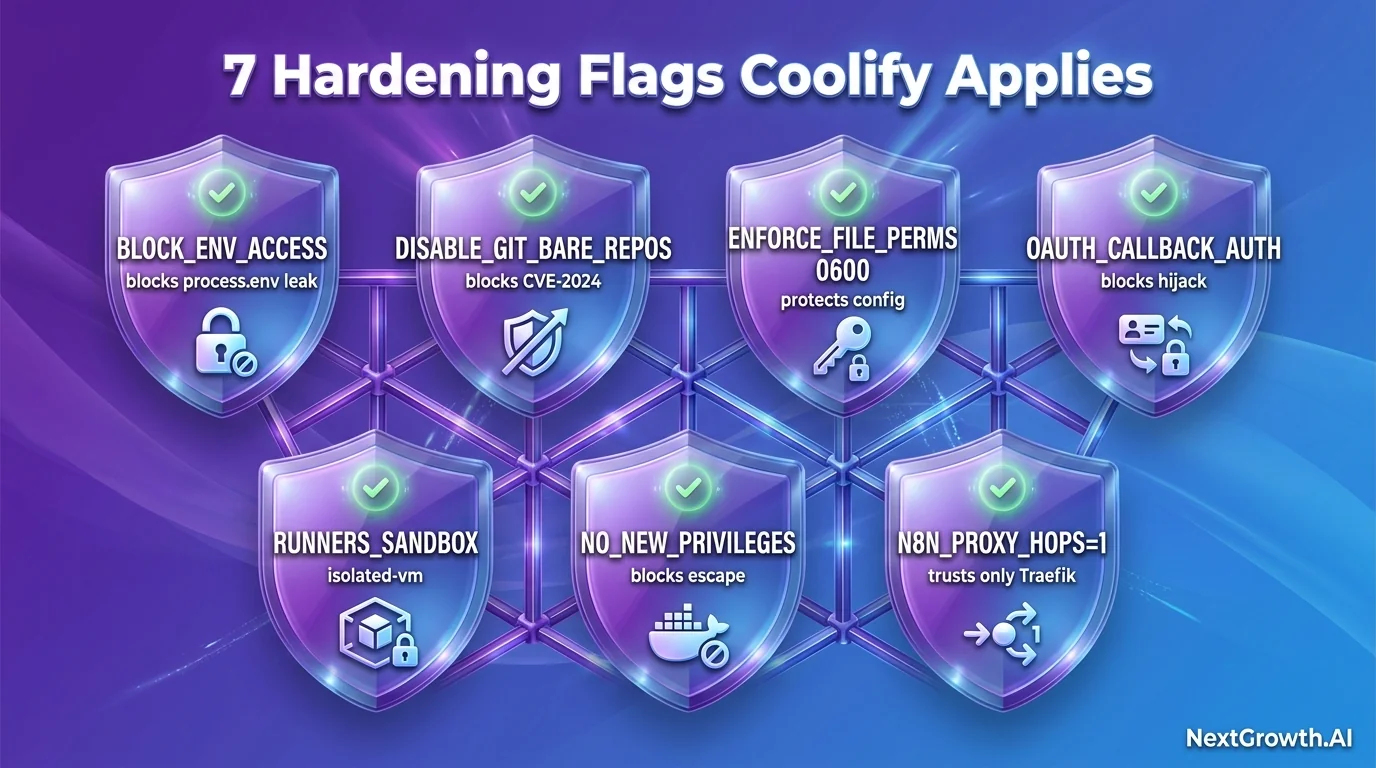
1. N8N_BLOCK_ENV_ACCESS_IN_NODE=true
What it blocks: A compromised community node (or a malicious workflow imported from outside) calls process.env inside a Code or Function node, reading every secret the n8n container has, including SERVICE_PASSWORD_ENCRYPTION, your OpenRouter key, the Postgres password, and any cloud credentials. With the flag set, process.env returns an empty object inside user-authored nodes.
2. N8N_GIT_NODE_DISABLE_BARE_REPOS=true
What it blocks: The Git node’s bare-repo mode allowed arbitrary file write outside the working tree, which chained into a remote code execution via .git/hooks. Published as a CVE class in 2024. Costs nothing if you do not use the Git node.
3. N8N_ENFORCE_SETTINGS_FILE_PERMISSIONS=true
What it blocks: ~/.n8n/config contains the fallback encryption key. On a default install it may be world-readable inside the container. On a multi-tenant VPS (other Docker users, shared hosts), another container could read it. With the flag, n8n refuses to start unless the file is 0600.
4. N8N_SKIP_AUTH_ON_OAUTH_CALLBACK=false
What it blocks: When true, anyone hitting /rest/oauth2-credential/callback could complete an OAuth flow against one of your stored credentials, a credential hijack vector. Keep it false (the Coolify default). Only flip it if you have a very specific custom integration that requires the bypass.
5. N8N_RUNNERS_ENABLED=false (default in Coolify template)
This one is a trade-off. When true, Code nodes run inside an isolated-vm sandbox with restricted module access, more secure. When false, they run in-process with full Node.js. Coolify defaults to false for compatibility with existing workflows. If you are building from scratch and want sandbox isolation, flip to true and test every Code node. The Code node Cannot find module error class is the symptom of forgetting this.
6. security_opt: no-new-privileges:true (Docker level)
What it blocks: A container escape via a setuid binary inside n8n’s image could escalate to root on the host. Costs nothing for n8n because it does not need to elevate. Applied as a Docker security option, not an env var.
7. N8N_PROXY_HOPS=1
What it blocks: Without this, n8n trusts every X-Forwarded-For header it sees, which means a request from anywhere can spoof its source IP in the logs and bypass IP-based rate limiting. Set to the number of trusted proxies in front (Traefik = 1). Higher numbers if you added Cloudflare Proxied mode, bump to 2 so n8n trusts both CF and Traefik.
Common issues
The 6 failure modes I have hit across four production deployments. Each gets a 2-line diagnosis and a copy-paste fix.
Containers show (unhealthy) after 1 minute
Healthchecks have grace periods, wait 2-3 minutes total. If still unhealthy:
docker logs postgresql-<uuid> --tail 50
docker logs n8n-<uuid> --tail 80
Most common cause: postgres password mismatch between n8n env and postgres init. Redeploy from Coolify (not just Restart, Redeploy regenerates the init).
https://n8n. returns Traefik “no available server”
Traefik’s router did not pick up the n8n container. Most common cause: domain config mismatch.
docker inspect $(docker ps --format '{{.Names}}' | grep '^n8n-' | grep -v worker) \
  --format '{{json .Config.Labels}}' | tr ',' '\n' | grep -i rule
# Expect: "Host(`n8n.<your-domain>`)"
If the rule’s hostname differs from your DNS hostname: Coolify UI → Service → Domains → fix the entry (full URL with https://) → Save → Restart the service.
“Cannot connect to Redis” in n8n logs
Worker started before main was ready. Usually self-heals after 30 seconds. If persistent, verify the redis password matches between n8n and redis containers (docker exec ... printenv | grep -i redis). If they differ, Redeploy to regenerate matched secrets.
Container crashed with exit code 137 (OOM-killed)
dmesg | tail -50 | grep -iE 'oom|killed'
free -h
If swap is zero or full, the VPS does not have enough memory headroom. Either add swap or upgrade RAM. If swap is healthy, bump the container’s deploy.resources.limits.memory + --max-old-space-size together.
Owner setup screen appears every page load
SERVICE_PASSWORD_ENCRYPTION is regenerating between deploys. Read the value and pin it manually:
docker exec $(docker ps --format '{{.Names}}' | grep '^n8n-' | grep -v worker | head -1) \
  printenv N8N_ENCRYPTION_KEY
If the value changes between container restarts, Coolify is regenerating it. Pin the value in Coolify → Service → Environment Variables → set SERVICE_PASSWORD_ENCRYPTION to the exact string from your password manager → Save → Restart.
Webhook URLs return http://:5678/...
WEBHOOK_URL or N8N_EDITOR_BASE_URL env var is wrong. Re-check the override compose has these three lines correctly set:
- 'WEBHOOK_URL=${SERVICE_URL_N8N}'
- 'N8N_EDITOR_BASE_URL=${SERVICE_URL_N8N}'
- 'N8N_HOST=${SERVICE_URL_N8N}'
Restart the service after fixing.
When to scale: vertical, horizontal, or split
Single-VPS queue mode scales until one of four bottlenecks breaks. Each has a different fix.
Vertical scale (cheapest, easiest). Bump the VPS tier: 4 GB → 8 GB → 16 GB. Coolify migration is take a Postgres snapshot, provision the new VPS, restore. Adjust the compose memory limits per the 8 GB / 16 GB edits earlier in this guide.
Horizontal scale (add workers). When worker --concurrency=15 on a single worker container is still pegged, add a second worker container instead of pushing concurrency higher. Past ~20 per Node process, garbage-collection pauses start eroding gains. In Coolify → Edit Compose File → duplicate the n8n-worker: block as n8n-worker-2: with the same env. Bull queue automatically load-balances across both. Limit: 3-4 worker containers per VPS before CPU and memory contention erode the gains.
Split instances (multi-VPS). When one VPS cannot keep up, either at maximum vertical tier or with 3+ workers fighting for CPU, run a second n8n instance on a separate VPS for partitioned workloads. Common partition strategies: by project (project A → n8n-1, project B → n8n-2), by job type (short workflows on n8n-1, long workflows on n8n-2 with bigger workers), or by tenant (each customer gets isolated n8n).
Before splitting, have you bumped concurrency to 15, added a 2nd worker on the same VPS, vertical-scaled to 16 GB, and moved Postgres to a separate managed instance? If all four are yes and you still need more, split. Otherwise pick the cheaper option first.
After-install checklist + FAQ
8-point verification
- ☐ 4 containers healthy:
docker psshows n8n, n8n-worker, postgres, redis all(healthy) - ☐ Encryption key saved:
N8N_ENCRYPTION_KEYvalue copied to password manager with “do not regenerate” note - ☐ n8n owner account created + n8n API key generated
- ☐ Smoke test passed: webhook curl returned expected JSON, execution visible in Executions tab
- ☐ Postgres backup scheduled (and ideally R2 off-site upload configured)
- ☐ n8n-data volume snapshot cron active (weekly)
- ☐ DNS path verified: direct A, Cloudflare DNS-only, or Cloudflare Proxied with DNS-01 cert + webhook async
- ☐ Worker concurrency tuned for your workflow shape (LLM x5, mixed x3, CPU x1.5)
What happens to in-flight workflows if a worker container dies mid-execution?
Bull (the queue library n8n uses) marks the job as “stalled” after the worker’s heartbeat lapses (default: 30 seconds). The job goes back to the wait queue and another worker picks it up. The execution restarts from the beginning, n8n does not checkpoint mid-workflow, so a 25-minute workflow that died at minute 20 runs again from the start. For idempotency, make sure your workflow’s external side effects (database writes, API calls) handle being retried safely.
Can I run n8n queue mode on a 4 GB VPS?
Yes, with 4 GB swap and only the four template containers (no co-located services). The total memory cap of the template is ~7.3 GB, so 4 GB RAM relies on swap during peak workflows. For comfortable operation, 8 GB RAM is the recommended floor.
What is the difference between N8N_RUNNERS_ENABLED=true and false?
true runs Code nodes inside an isolated-vm sandbox with restricted module access, the secure default for new installs. false runs them in-process with full Node.js, which is the Coolify template default for compatibility. If you flip to true and existing Code nodes throw Cannot find module errors, that is the sandbox refusing CommonJS imports.
What happens if I lose N8N_ENCRYPTION_KEY?
Every credential stored in n8n becomes unrecoverable. There is no recovery path. Mitigation is the dedicated “Save your encryption key” section earlier, back up SERVICE_PASSWORD_ENCRYPTION to your password manager the moment you finish the service deploy.
You now have a verified production n8n queue mode running on Coolify. Next steps usually are: tune backups via Coolify backup setup (Cloudflare R2 + Restic), pick the right WebSocket-friendly reverse proxy via Coolify reverse proxy guide, or wire up agent-driven Coolify deploys with Coolify MCP + Claude Code. If you prefer the manual Docker Compose route over Coolify, n8n Queue Mode with Docker Compose runs the same stack from raw YAML + Caddy.
This article is part of our broader pillar guide. For the full context, see our what is n8n (n8n cluster hub).