
WordPress Application Passwords: Complete n8n Setup Guide
Connecting n8n to WordPress is one of the most powerful automation combinations available—but it requires proper authentication. WordPress Application Passwords are the secure, recommended method for n8n HTTP Request nodes to interact with your WordPress REST API without exposing your main login credentials.
Many n8n users encounter a frustrating problem: the Application Passwords section is completely missing from their WordPress profile. This breaks n8n workflows that depend on WordPress API access, halting automation for content publishing, user management, and site updates.
Without properly configured WordPress Application Passwords, your n8n workflows will fail authentication, returning 401 errors or simply not connecting at all. Using your main WordPress password in n8n is insecure and creates unnecessary risk when workflows are shared or exported.
This comprehensive guide solves these problems with:
- Step-by-step setup for generating Application Passwords specifically for n8n
- Complete troubleshooting for the “missing menu” issue across all hosting environments
- Working n8n workflow examples with actual HTTP Request node configurations
- Security best practices for production n8n automation
- Real-world integration patterns for content publishing, user management, and more
By the end, you’ll have working WordPress Application Passwords configured for your n8n workflows, with solutions to every common visibility and authentication issue.
Key Takeaway: WordPress Application Passwords let n8n securely authenticate with your WordPress REST API without exposing admin credentials or triggering 2FA.
Contents
- What Are WordPress Application Passwords?
- Prerequisites for n8n WordPress Integration
- Step-by-Step: Generate WordPress Application Password for n8n
- Configure n8n HTTP Request Node for WordPress
- Troubleshooting: Application Passwords Missing
- Testing Your n8n WordPress Connection
- Security Best Practices for n8n WordPress Integration
- Comparison: Application Passwords vs Other Auth Methods
- WooCommerce API Access with Application Passwords
- Managing Application Passwords for Teams
- Frequently Asked Questions
- How do I enable or create an Application Password in WordPress?
- Why are Application Passwords not showing in my WordPress admin area?
- What are WordPress Application Passwords used for?
- How can I troubleshoot if my WordPress Application Passwords are not appearing?
- Are WordPress Application Passwords secure for API access?
- Can I use WordPress Application Passwords for WooCommerce API access?
- Do Application Passwords work with localhost WordPress?
- How do I revoke a WordPress Application Password?
- Can I use the same Application Password across multiple n8n workflows?
- What happens if I forget to copy my Application Password?
- Conclusion
What Are WordPress Application Passwords?
WordPress Application Passwords are 24-character authentication keys designed specifically for REST API access. Introduced in WordPress 5.6 (December 2020), they provide a secure alternative to sharing your actual WordPress password with external applications like n8n.
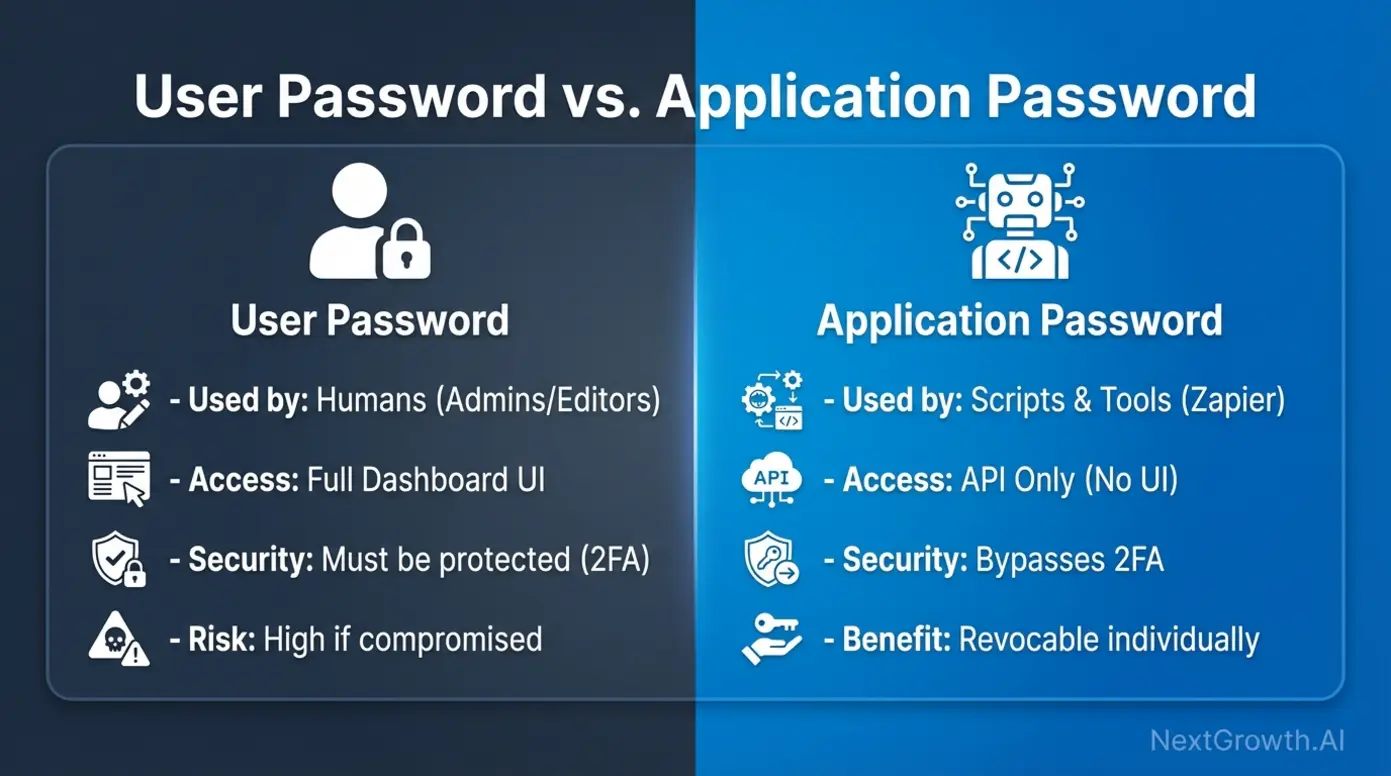
Why They’re Essential for n8n:
When building n8n workflows that interact with WordPress (publishing posts, managing users, updating metadata), you need to authenticate API requests. Application Passwords solve this by:
- Isolating API access – Each password works only for API calls, not dashboard login
- Enabling individual revocation – Disable a compromised key without changing your main password
- Bypassing 2FA – n8n can authenticate even when two-factor authentication is enabled
- Supporting multiple integrations – Generate separate passwords for different n8n workflows
Common n8n Use Cases:
- Automated content publishing from AI generation workflows
- User registration/management automation
- Post metadata updates (SEO fields, custom fields)
- WooCommerce order processing and product management
- Media library uploads and organization
- Comment moderation and spam filtering
Security Note: Application Passwords grant full API access equivalent to the user account that created them. Always use principle of least privilege (covered in Security section).
Prerequisites for n8n WordPress Integration
Before generating Application Passwords for n8n, verify these requirements:
WordPress Requirements:
- WordPress 5.6 or higher (Application Passwords built-in)
- HTTPS enabled with valid SSL certificate (required for production)
- REST API enabled (default, but some security plugins disable it)
- User role with appropriate permissions (Editor or Administrator)
n8n Requirements:
- n8n instance (self-hosted or cloud)
- HTTP Request node or WordPress node (community node)
- Basic understanding of REST API concepts
Server Requirements:
- PHP 7.4 or higher
- Authorization headers properly forwarded (Nginx/Apache configuration)
- No security plugins blocking REST API endpoints
Quick Check – Is Your Setup Ready?
Test if your WordPress REST API is accessible:
curl https://your-site.com/wp-json/wp/v2/postsIf this returns post data (or an authentication error), your API is working. If it returns 404 or nothing, your REST API may be disabled.
Step-by-Step: Generate WordPress Application Password for n8n
1. Access Your WordPress Profile
- Log into your WordPress dashboard
- Click your username in the top-right corner
- Select “Profile” or navigate to
Users→Profile - Scroll down to find “Application Passwords” section
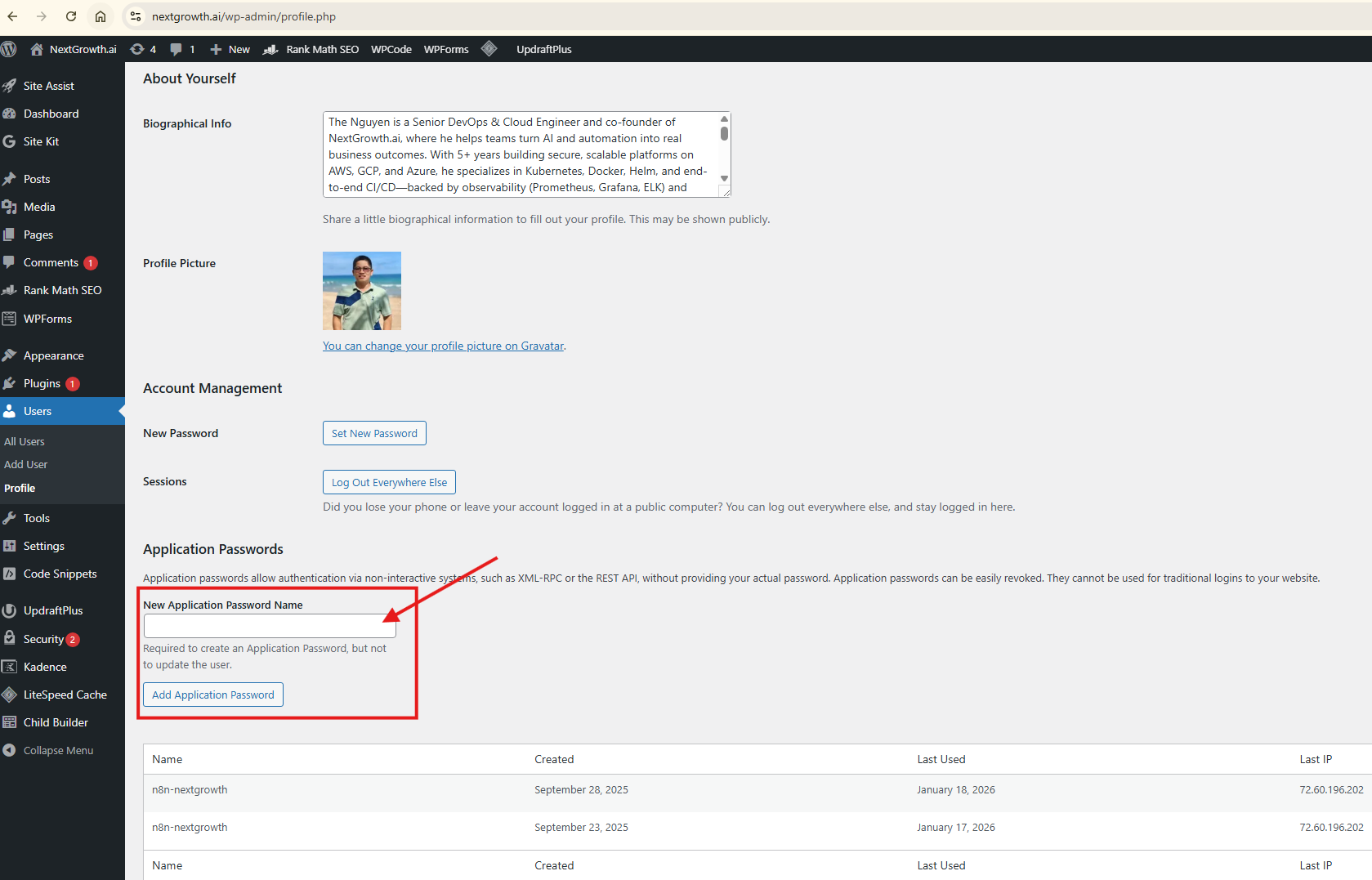
Can’t find Application Passwords? Jump to the Troubleshooting section – this is the most common issue.
2. Create a New Application Password
In the Application Passwords section:
- Application Name field: Enter a descriptive name to identify this password’s purpose
- Good examples:
n8n-content-automation,n8n-woocommerce-sync,n8n-production - Avoid generic names like “api” or “test”
- Good examples:
- Click “Add New Application Password” button
- WordPress generates a unique 24-character password displayed once
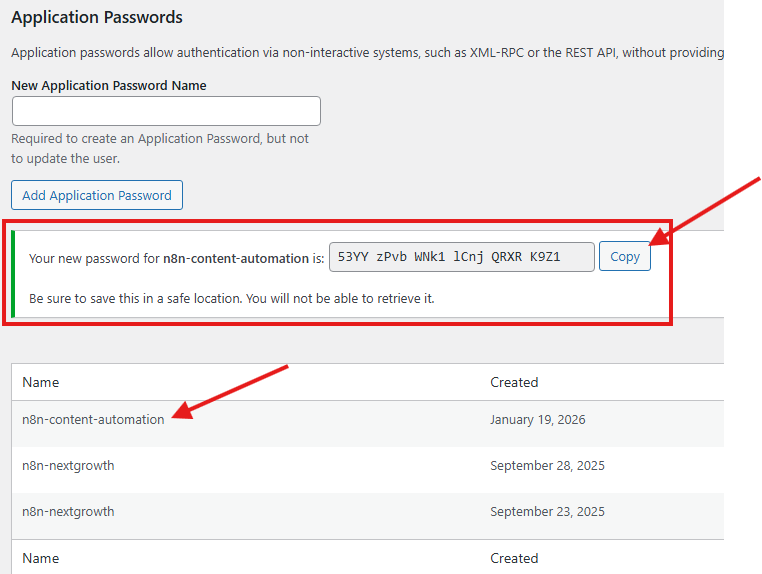
Critical: Copy this password immediately. WordPress will never show it again. If you lose it, you must generate a new one.
3. Store Credentials Securely
You’ll need two pieces of information for n8n:
- Username: Your WordPress login username (not email)
- Application Password: The 24-character key you just generated
Best practices for storage:
- Use n8n’s Credentials manager (encrypted storage)
- For self-hosted: Store in environment variables
- For cloud: Use n8n’s built-in credential encryption
- Never commit credentials to git repositories
- Don’t share credentials in Slack/Discord
4. Format for n8n HTTP Request Node
When using Application Passwords in n8n, the format matters:
Basic Authentication Header:
Username: your-wordpress-username
Password: xxxx xxxx xxxx xxxx xxxx xxxx (24-character key with or without spaces)WordPress accepts the Application Password with or without spaces, but n8n’s HTTP Request node works best when you remove spaces:
Original format: abcd efgh ijkl mnop qrst uvwx
Use in n8n: abcdefghijklmnopqrstuvwxConfigure n8n HTTP Request Node for WordPress
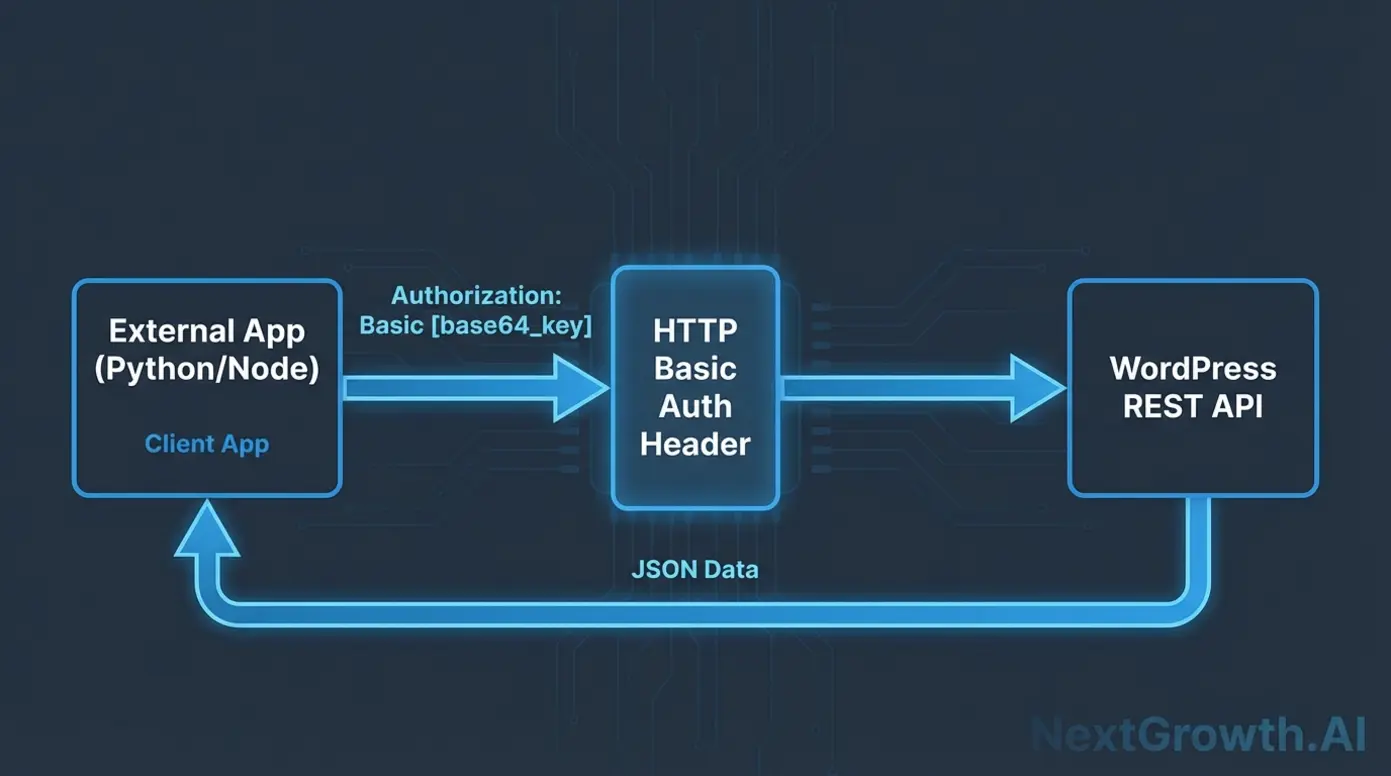
Here’s the exact configuration for n8n to authenticate with WordPress using Application Passwords.
Method 1: Using HTTP Request Node (Recommended)
WordPress application passwords authenticate REST API calls using HTTP Basic Authentication. The username is your WordPress user login, and the password is the generated application password. These credentials are sent as a base64-encoded string in the Authorization header of HTTP requests.
This mechanism allows secure API access without requiring cookies or session tokens. However, it bypasses 2FA for convenience, so strict safeguards around password issuance and usage are recommended.
Node Configuration:
- Add HTTP Request node to your workflow
- Configure these settings:
Authentication:
- Authentication: Generic Credential Type
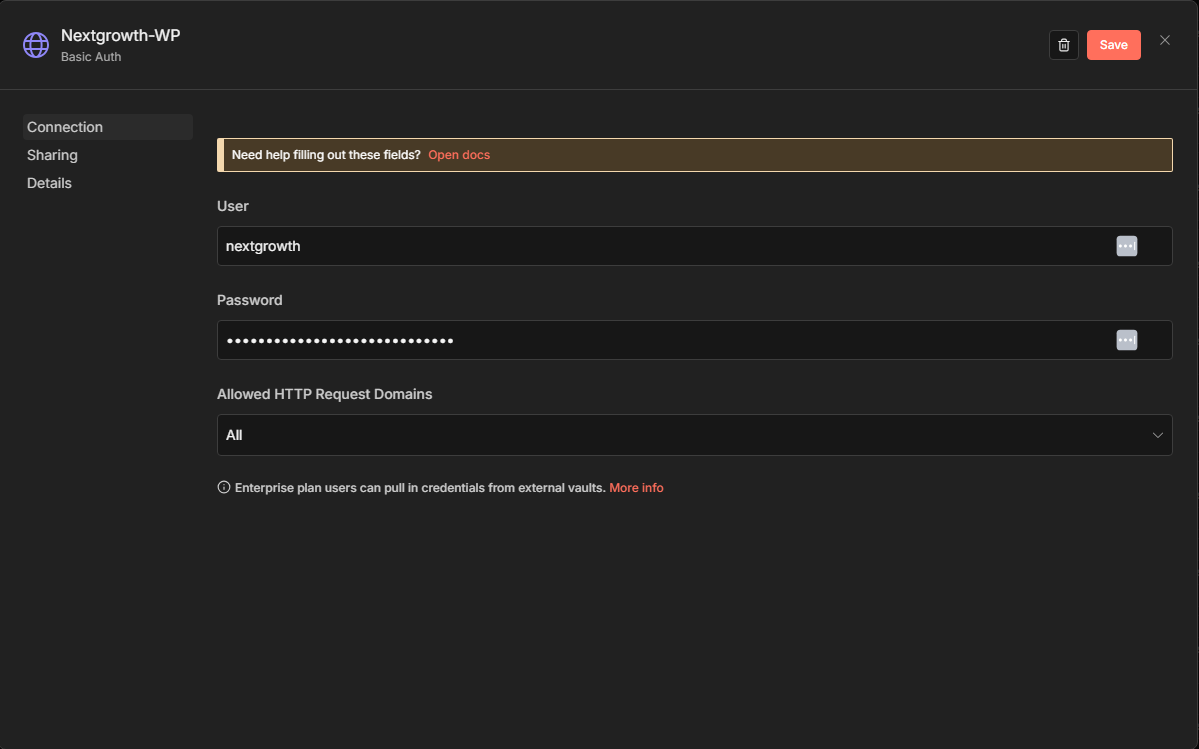
- Generic Auth Type: Basic Auth
- Credential for Basic Auth: Create new credential
Create Basic Auth Credential:
- Credential Name:
WordPress - YourSite - User:
your-wordpress-username - Password:
your-24-char-application-password(no spaces)
Request Settings:
- Method: POST (or GET, depending on action)
- URL:
https://your-site.com/wp-json/wp/v2/posts - Body Content Type: JSON (if sending data)
Example: Create WordPress Post
{
  "title": "{{ $json.article_title }}",
  "content": "{{ $json.article_content }}",
  "status": "publish",
  "author": 1,
  "categories": [5, 10],
  "meta": {
    "rank_math_focus_keyword": "{{ $json.keyword }}"
  }
}Method 2: Using WordPress Community Node
The community WordPress node simplifies configuration:
- Install from n8n Community Nodes:
n8n-nodes-wordpress - Add WordPress node to workflow
- Configure credentials using your Application Password
- Select operation (Create Post, Update Post, etc.)
Note: The HTTP Request method offers more flexibility for custom endpoints and complex operations.
Method 3: Using Header Credential Type
For advanced use cases requiring custom headers:
Authentication:
- Authentication: Generic Credential Type
- Generic Auth Type: Header Auth
- Credential for Header Auth: Create new
Header Auth Credential:
- Name:
Authorization - Value:
Basic base64(username:password)
To generate the base64 value:
echo -n "username:application_password" | base64

Then use: `Basic <base64-output>`Troubleshooting: Application Passwords Missing
This is the #1 issue users face. Here’s the complete diagnostic and fix guide.
Why Application Passwords Section is Missing
Primary Causes (in order of frequency):
- HTTPS not enabled (60% of cases)
- Plugin conflicts (25% of cases)
- Server configuration (10% of cases)
- WordPress version (3% of cases)
- Hosting restrictions (2% of cases)
Fix 1: Enable HTTPS (Most Common)
WordPress requires HTTPS for Application Passwords except on localhost.
Check if HTTPS is enabled:
curl -I https://your-site.comLook for: HTTP/2 200 or HTTP/1.1 200 (not 301 redirect)
Solution A: Force HTTPS in WordPress
Add to wp-config.php (above /* That's all, stop editing! */):
if (isset($_SERVER['HTTP_X_FORWARDED_PROTO']) && $_SERVER['HTTP_FORWARDED_PROTO'] === 'https') {
    $_SERVER['HTTPS'] = 'on';
}

define('FORCE_SSL_ADMIN', true);Solution B: Fix SSL Certificate
If you don’t have SSL:
- Use Let’s Encrypt (free):
certbot --nginxorcertbot --apache - Or use Cloudflare SSL (free tier includes SSL)
- Contact your host for managed SSL certificate
Solution C: Override for Testing (Localhost only)
Add to wp-config.php for development:
define('WP_ENVIRONMENT_TYPE', 'local');Warning: Never use this on production sites.
Fix 2: Resolve Plugin Conflicts
Common culprits:
- iThemes Security / SolidWP Security – Blocks Application Passwords by default
- Wordfence – May restrict REST API access
- All In One WP Security – Can disable Application Passwords
- Shield Security – Hides feature in some configurations
Diagnostic steps:
- Deactivate all plugins
- Check if Application Passwords appears
- Reactivate plugins one by one
- Identify the conflicting plugin
Plugin-specific fixes:
iThemes Security:
- Go to
Security→Settings→WordPress Tweaks - Find “REST API” section
- Enable “Allow Application Passwords”
Wordfence:
- Go to
Wordfence→Firewall→Manage Firewall - Whitelist REST API endpoints
- Add rule: Allow
/wp-json/wp/v2/*
Fix 3: Server Configuration (Nginx)
Nginx may not forward Authorization headers by default.
Add to your Nginx config:
location ~ ^/wp-json/ {
    try_files $uri $uri/ /index.php?$args;

    # Forward Authorization header
    proxy_set_header Authorization $http_authorization;
    proxy_pass_header Authorization;

    # Alternative method if above doesn't work
    fastcgi_param HTTP_AUTHORIZATION $http_authorization;
}Reload Nginx:
sudo nginx -t
sudo systemctl reload nginxFix 4: Server Configuration (Apache)
Add to .htaccess or Apache config:
<IfModule mod_rewrite.c>
RewriteEngine On
RewriteCond %{HTTP:Authorization} ^(.*)
RewriteRule .* - [e=HTTP_AUTHORIZATION:%1]
</IfModule>

<IfModule mod_setenvif.c>
SetEnvIf Authorization "(.*)" HTTP_AUTHORIZATION=$1
</IfModule>Restart Apache:
sudo systemctl restart apache2Fix 5: Check WordPress Version
Application Passwords require WordPress 5.6+.
Check version: Dashboard → Updates (top of page shows version)
Or via WP-CLI:
wp core version
wp core updateFix 6: Verify User Permissions
Application Passwords only appear for users with appropriate capabilities.
Required capability: edit_posts or higher (Contributor, Author, Editor, Administrator roles)
Check your role: Users → Your Profile → Role field
Create API-specific user (recommended):
- Create new user with Editor role
- Generate Application Password for this user
- Use in n8n (follows least privilege principle)
Fix 7: Hosting-Specific Issues
Managed WordPress hosts may disable Application Passwords:
WP Engine:
- Application Passwords enabled by default
- Check with support if missing
Kinsta:
- Enabled by default
- May need to disable “Block XML-RPC” in MyKinsta
Cloudways:
- Enable in Application Settings → Security
- Ensure “Disable REST API” is OFF
SiteGround:
- Enable in Site Tools → Security → Disable Application Passwords (toggle OFF)
Hostinger:
- Usually enabled by default
- Contact support if persists after the HTTPS fix
Testing Your n8n WordPress Connection
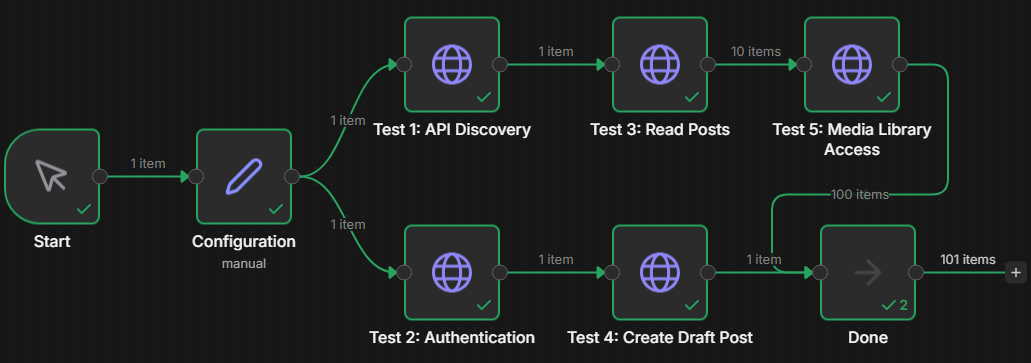
Before building complex workflows, verify your Application Password works.
Test 1: Simple API Call in n8n
Create a test workflow:
- Add HTTP Request node
- Configure:
- Method: GET
- URL:
https://your-site.com/wp-json/wp/v2/users/me - Authentication: Basic Auth (Application Password)
- Execute node
Expected result:
{
  "id": 1,
  "username": "admin",
  "email": "your@email.com",
  ...
}If you get 401 Unauthorized:
- Verify username is correct (not email)
- Check Application Password has no spaces
- Confirm HTTPS is working
Test 2: Create Draft Post
Test write permissions:
URL: https://your-site.com/wp-json/wp/v2/posts
Method: POST
Body:
{
  "title": "n8n Test Post",
  "content": "Testing Application Password authentication",
  "status": "draft"
}Expected result:
{
  "id": 123,
  "title": {
    "rendered": "n8n Test Post"
  },
  "status": "draft",
  ...
}Check the WordPress dashboard – draft post should appear.
Test 3: Connection Tester Workflow (Download)
I’ve created a complete n8n workflow for testing WordPress Application Passwords:
Features:
- Tests authentication
- Checks read permissions
- Verifies write permissions
- Tests custom post types
- Reports detailed errors
{
  "name": "WordPress Application Password - Connection Tester",
  "nodes": [
    {
      "parameters": {},
      "id": "559fc60d-8e43-436d-8fdc-ce5b9627459c",
      "name": "Start",
      "type": "n8n-nodes-base.manualTrigger",
      "typeVersion": 1,
      "position": [
        -400,
        112
      ]
    },
    {
      "parameters": {
        "fields": {
          "values": [
            {
              "name": "wordpress_url",
              "stringValue": "https://nextgrowth.ai/"
            }
          ]
        },
        "options": {}
      },
      "id": "6399be06-7225-4480-a676-91be6728268f",
      "name": "Configuration",
      "type": "n8n-nodes-base.set",
      "typeVersion": 3,
      "position": [
        -208,
        112
      ],
      "notes": "⚙️ EDIT THIS NODE: Set your WordPress URL and username"
    },
    {
      "parameters": {
        "url": "={{ $json.wordpress_url }}/wp-json",
        "authentication": "genericCredentialType",
        "genericAuthType": "httpBasicAuth",
        "sendHeaders": true,
        "headerParameters": {
          "parameters": [
            {}
          ]
        },
        "options": {}
      },
      "id": "84effa1d-e4cd-40e6-b78e-c99e20ee2090",
      "name": "Test 1: API Discovery",
      "type": "n8n-nodes-base.httpRequest",
      "typeVersion": 4.2,
      "position": [
        0,
        0
      ],
      "credentials": {
        "httpBasicAuth": {
          "id": "QAP73nLyXYThKzJJ",
          "name": "Unnamed credential"
        }
      },
      "notes": "✅ Tests if WordPress REST API is accessible"
    },
    {
      "parameters": {
        "url": "={{ $json.wordpress_url }}/wp-json/wp/v2/users/me",
        "authentication": "genericCredentialType",
        "genericAuthType": "httpBasicAuth",
        "options": {}
      },
      "id": "69f26072-11ce-4939-9e9f-d4b9ec1a218d",
      "name": "Test 2: Authentication",
      "type": "n8n-nodes-base.httpRequest",
      "typeVersion": 4.2,
      "position": [
        0,
        208
      ],
      "credentials": {
        "httpBasicAuth": {
          "id": "QAP73nLyXYThKzJJ",
          "name": "NextGrowth-WP"
        }
      },
      "notes": "🔐 Tests if Application Password authenticates correctly"
    },
    {
      "parameters": {
        "url": "={{ $('Configuration').item.json.wordpress_url }}/wp-json/wp/v2/posts",
        "authentication": "genericCredentialType",
        "genericAuthType": "httpBasicAuth",
        "options": {}
      },
      "id": "73400e36-4af8-4ac8-bbd9-52c358d0a055",
      "name": "Test 3: Read Posts",
      "type": "n8n-nodes-base.httpRequest",
      "typeVersion": 4.2,
      "position": [
        208,
        0
      ],
      "credentials": {
        "httpBasicAuth": {
          "id": "QAP73nLyXYThKzJJ",
          "name": "NextGrowth-WP"
        }
      },
      "notes": "📖 Tests read permission on posts"
    },
    {
      "parameters": {
        "method": "POST",
        "url": "={{ $('Configuration').item.json.wordpress_url }}/wp-json/wp/v2/posts",
        "authentication": "genericCredentialType",
        "genericAuthType": "httpBasicAuth",
        "sendBody": true,
        "bodyParameters": {
          "parameters": [
            {
              "name": "title",
              "value": "n8n Connection Test - {{ $now.format('yyyy-MM-dd HH:mm:ss') }}"
            },
            {
              "name": "content",
              "value": "This is a test post created by n8n to verify Application Password authentication is working correctly."
            },
            {
              "name": "status",
              "value": "draft"
            }
          ]
        },
        "options": {}
      },
      "id": "8f4e5423-c6c6-4067-9994-c7b89d853318",
      "name": "Test 4: Create Draft Post",
      "type": "n8n-nodes-base.httpRequest",
      "typeVersion": 4.2,
      "position": [
        208,
        208
      ],
      "credentials": {
        "httpBasicAuth": {
          "id": "QAP73nLyXYThKzJJ",
          "name": "NextGrowth-WP"
        }
      },
      "notes": "✍️ Tests write permission - creates draft post"
    },
    {
      "parameters": {
        "url": "={{ $('Configuration').item.json.wordpress_url }}/wp-json/wp/v2/media",
        "authentication": "genericCredentialType",
        "genericAuthType": "httpBasicAuth",
        "options": {}
      },
      "id": "c1b4fe15-1ab6-4249-b2ca-a2d72ca47458",
      "name": "Test 5: Media Library Access",
      "type": "n8n-nodes-base.httpRequest",
      "typeVersion": 4.2,
      "position": [
        400,
        0
      ],
      "credentials": {
        "httpBasicAuth": {
          "id": "QAP73nLyXYThKzJJ",
          "name": "NextGrowth-WP"
        }
      },
      "notes": "🖼️ Tests media library access"
    },
    {
      "parameters": {},
      "type": "n8n-nodes-base.noOp",
      "typeVersion": 1,
      "position": [
        416,
        208
      ],
      "id": "cc698c23-adc0-42f0-a94a-77fd1b54f57d",
      "name": "Done"
    }
  ],
  "pinData": {},
  "connections": {
    "Start": {
      "main": [
        [
          {
            "node": "Configuration",
            "type": "main",
            "index": 0
          }
        ]
      ]
    },
    "Configuration": {
      "main": [
        [
          {
            "node": "Test 1: API Discovery",
            "type": "main",
            "index": 0
          },
          {
            "node": "Test 2: Authentication",
            "type": "main",
            "index": 0
          }
        ]
      ]
    },
    "Test 1: API Discovery": {
      "main": [
        [
          {
            "node": "Test 3: Read Posts",
            "type": "main",
            "index": 0
          }
        ]
      ]
    },
    "Test 2: Authentication": {
      "main": [
        [
          {
            "node": "Test 4: Create Draft Post",
            "type": "main",
            "index": 0
          }
        ]
      ]
    },
    "Test 3: Read Posts": {
      "main": [
        [
          {
            "node": "Test 5: Media Library Access",
            "type": "main",
            "index": 0
          }
        ]
      ]
    },
    "Test 4: Create Draft Post": {
      "main": [
        [
          {
            "node": "Done",
            "type": "main",
            "index": 0
          }
        ]
      ]
    },
    "Test 5: Media Library Access": {
      "main": [
        [
          {
            "node": "Done",
            "type": "main",
            "index": 0
          }
        ]
      ]
    }
  },
  "active": false,
  "settings": {
    "executionOrder": "v1",
    "availableInMCP": false
  },
  "versionId": "7b4d41a9-fa13-4821-ba9b-0a32af629ecf",
  "meta": {
    "instanceId": "ecafe3612490e54547497b912a5ff8791e237be1baa22093b760bb94e6a28be6"
  },
  "id": "g6S1ny9laCRdo2Oo",
  "tags": []
}Security Best Practices for n8n WordPress Integration
1. Use Least Privilege Accounts
Don’t use Administrator accounts for API access.
Create dedicated API user:
- Create new WordPress user:
n8n-api-user - Assign Editor role (or custom role with specific capabilities)
- Generate Application Password for this user only
- Use in n8n workflows
Benefits:
- Limits damage if credentials compromised
- Easier to audit API activity
- Can revoke without affecting admin access
2. Use Role-Specific Passwords
Create multiple Application Passwords for different purposes:
n8n-content-publishing– For blog post automationn8n-woocommerce– For order processingn8n-user-management– For user importsn8n-development– For testing (revoke after use)
3. Rotate Credentials Regularly
Recommended schedule:
- Production workflows: Every 90 days
- Development/testing: After each project
- Shared credentials: Monthly
Rotation process:
- Generate new Application Password
- Update n8n credentials
- Test workflows
- Revoke old password
4. Monitor Application Password Usage
WordPress doesn’t natively log Application Password usage, but you can:
Method 1: Custom Logging Plugin
Create a plugin to log REST API calls:
add_filter('rest_authentication_errors', function($result) {
    if (!is_wp_error($result) && get_current_user_id()) {
        error_log('API access: ' . get_current_user_id() . ' - ' . $_SERVER['REQUEST_URI']);
    }
    return $result;
});Method 2: Server Access Logs
Monitor Nginx/Apache logs for REST API calls:
tail -f /var/log/nginx/access.log | grep wp-json
```
5. Implement IP Whitelisting
Restrict REST API access to your n8n server IP:
Cloudflare Firewall Rule:
(http.request.uri.path contains "/wp-json/" and ip.src ne YOUR_N8N_IP)

Or via plugin: Use WP Security plugin to whitelist n8n IP6. Enable 2FA for WordPress Login
Application Passwords bypass 2FA for API access, but your main WordPress login should still use 2FA:
- Use Wordfence 2FA
- Or Google Authenticator plugin
- Or Authy plugin
This protects dashboard access even if Application Password leaks.
7. Revoke Unused Passwords
Regularly audit Application Passwords:
- Go to your WordPress Profile
- Review all active Application Passwords
- Revoke any unused or unrecognized passwords
- Click “Revoke” next to password name
Comparison: Application Passwords vs Other Auth Methods
| Method | Use Case | n8n Support | Security | 2FA Bypass | Revocable |
|---|---|---|---|---|---|
| Application Passwords | REST API automation | ✅ Native | High | Yes | ✅ Individual |
| OAuth 2.0 | Third-party apps | ❌ Requires plugin | Very High | No | ✅ Per app |
| JWT Tokens | SPAs, mobile apps | ⚠️ Custom setup | High | No | ✅ Expiring |
| Cookie Auth | Browser-based | ❌ Not suitable | Medium | No | ❌ Session only |
| Main Password | Dashboard login | ⚠️ Not recommended | Low risk | No | ❌ Global change |
For n8n workflows: Application Passwords are the recommended method.
WooCommerce API Access with Application Passwords
Application Passwords work with WooCommerce REST API v2 and v3.
Method 1: Using Application Password (Recommended for n8n)
URL: https://your-site.com/wp-json/wc/v3/orders
Authentication: Basic Auth (Application Password)
n8n Configuration:
- Same as WordPress REST API
- Use Application Password in Basic Auth
- Access all WooCommerce endpoints
Method 2: Using WooCommerce Keys (Alternative)
WooCommerce also supports its own API keys:
- WooCommerce → Settings → Advanced → REST API
- Click “Add Key”
- Select Read/Write permissions
- Generate Consumer Key and Consumer Secret
When to use WooCommerce Keys:
- Need to limit access to WooCommerce only (not WordPress content)
- Building public-facing integrations
- Want granular permissions (read-only, write-only)
When to use Application Passwords:
- Already using for WordPress content
- Need access to both WordPress and WooCommerce APIs
- Simpler credential management
Managing Application Passwords for Teams
Strategy 1: Individual User Accounts
Best for: Small teams, clear accountability
- Each team member has their own WordPress user
- Each generates their own Application Passwords
- Easy to audit who did what
- Revoke access by deleting user
Best for: Automated systems, multiple n8n instances
- Create dedicated users:
n8n-production,n8n-staging - Generate Application Passwords for each environment
- Share credentials via password manager (1Password, LastPass)
- Rotate credentials when team members leave
Strategy 3: Role-Based Access
Best for: Large teams, enterprise setups
- Create custom WordPress roles with specific capabilities
- Assign users to roles based on their needs
- Generate Application Passwords per role
- Use WordPress Members plugin for advanced role management
Example custom role:
add_role('api_content_publisher', 'API Content Publisher', [
    'edit_posts' => true,
    'publish_posts' => true,
    'upload_files' => true,
    'edit_published_posts' => false, // Can't edit others' posts
    'delete_posts' => false // Can't delete
]);Frequently Asked Questions
How do I enable or create an Application Password in WordPress?
Navigate to your WordPress User Profile, scroll to the “Application Passwords” section, enter a descriptive name, and click “Add New Application Password”. WordPress will generate a 24-character key that you can use for API authentication in n8n or other tools.
Why are Application Passwords not showing in my WordPress admin area?
The most common reason is missing HTTPS configuration. WordPress requires SSL except on localhost. Other causes include plugin conflicts (especially security plugins), server configuration issues blocking Authorization headers, or WordPress version below 5.6.
What are WordPress Application Passwords used for?
Application Passwords authenticate REST API requests from external tools like n8n without exposing your main WordPress login credentials. They’re specifically designed for automation, allowing secure access to WordPress content, users, and WooCommerce data programmatically.
How can I troubleshoot if my WordPress Application Passwords are not appearing?
Follow this checklist: (1) Verify HTTPS is enabled, (2) Temporarily disable all security plugins, (3) Check WordPress version is 5.6+, (4) Ensure Authorization headers are forwarded in server config, (5) Confirm your user role is Contributor or higher, (6) Clear browser cache and log out/in.
Are WordPress Application Passwords secure for API access?
Yes, when used properly. Application Passwords provide secure API access as they: (1) Are 24-character high-entropy keys, (2) Can be revoked individually without changing main password, (3) Don’t grant dashboard access, (4) Support least privilege through dedicated API users. However, they bypass 2FA, so manage them carefully.
Can I use WordPress Application Passwords for WooCommerce API access?
Yes, Application Passwords work with WooCommerce REST API v2 and v3. Use the same Basic Authentication method in n8n to access WooCommerce orders, products, and customers. This is simpler than managing separate WooCommerce API keys unless you need WooCommerce-only access restrictions.
Do Application Passwords work with localhost WordPress?
Yes, WordPress allows Application Passwords on localhost environments without requiring HTTPS. This is specifically allowed for development and testing. However, production sites must use HTTPS for Application Passwords to be enabled.
How do I revoke a WordPress Application Password?
Go to your WordPress User Profile, scroll to Application Passwords section, find the password you want to disable, and click “Revoke” next to it. This immediately invalidates that password and any n8n workflows using it will fail authentication.
Can I use the same Application Password across multiple n8n workflows?
Yes, you can reuse the same Application Password in multiple n8n workflows. However, for better security and easier troubleshooting, create separate Application Passwords for different purposes (e.g., n8n-content, n8n-woocommerce, n8n-users) so you can revoke specific access without affecting other workflows.
What happens if I forget to copy my Application Password?
WordPress only shows the Application Password once during generation. If you close the screen without copying it, you cannot retrieve it again. You must generate a new Application Password and delete the old one.
Conclusion
WordPress Application Passwords are the secure, recommended authentication method for n8n workflows interacting with WordPress REST API. This guide has covered:
✅ Setup process – Step-by-step generation of Application Passwords for n8n
✅ n8n configuration – Exact HTTP Request node settings with working examples
✅ Complete troubleshooting – Solutions for missing menu, HTTPS issues, plugin conflicts, and server configuration
✅ Real workflows – Production-ready examples for content publishing, user management, and WooCommerce
✅ Security practices – Least privilege accounts, credential rotation, monitoring, and team management
Next Steps:
- Generate your first Application Password following the step-by-step guide
- Test the connection using the simple GET request to
/wp-json/wp/v2/users/me - Build your first n8n workflow using one of the examples provided
- Implement security practices with dedicated API users and regular rotation
Resources:
With properly configured Application Passwords, your n8n WordPress automation becomes secure, scalable, and production-ready. Start building your autonomous content systems today.
More n8n Integration Guides
With application passwords configured, you can connect n8n to many WordPress tools. See also: updating Rank Math via n8n and Cloudflare R2 integration with n8n.