SEVOsmith v1.5.0 User Guide – Complete Setup & Usage
You’ve just acquired SEVOsmith—a 326-node n8n workflow system that transforms keyword research into publication-ready, AI-citable articles.
TL;DR
- SEVOsmith is a 326-node n8n workflow that takes keyword research as input and outputs publication-ready, AI-citable WordPress articles — full setup takes approximately 2 hours.
- Seven API accounts are required: DataForSEO (SERP + keyword data), Firecrawl, Perplexity, Google AI Studio, Google Workspace, Cloudflare R2, and WordPress.
- The package includes 3 workflow JSON files and a Google Sheets Content Planner template; import these into your n8n instance after completing all API credential setup.
This comprehensive guide walks you through everything from API account creation to your first published article.
Version 1.5.0 | December 2025
Before You Start — Prerequisites Checklist
- A running n8n instance (self-hosted or n8n Cloud)
- 7 API accounts: DataForSEO, Firecrawl, Perplexity, Google AI Studio, Google Workspace, Cloudflare R2, WordPress
- Google Sheets access (the SEVOsmith Content Planner template is included in your download)
- Approximately 2 hours for initial setup
- Your SEVOsmith package downloaded from Gumroad (includes 3 workflow JSON files)
Contents
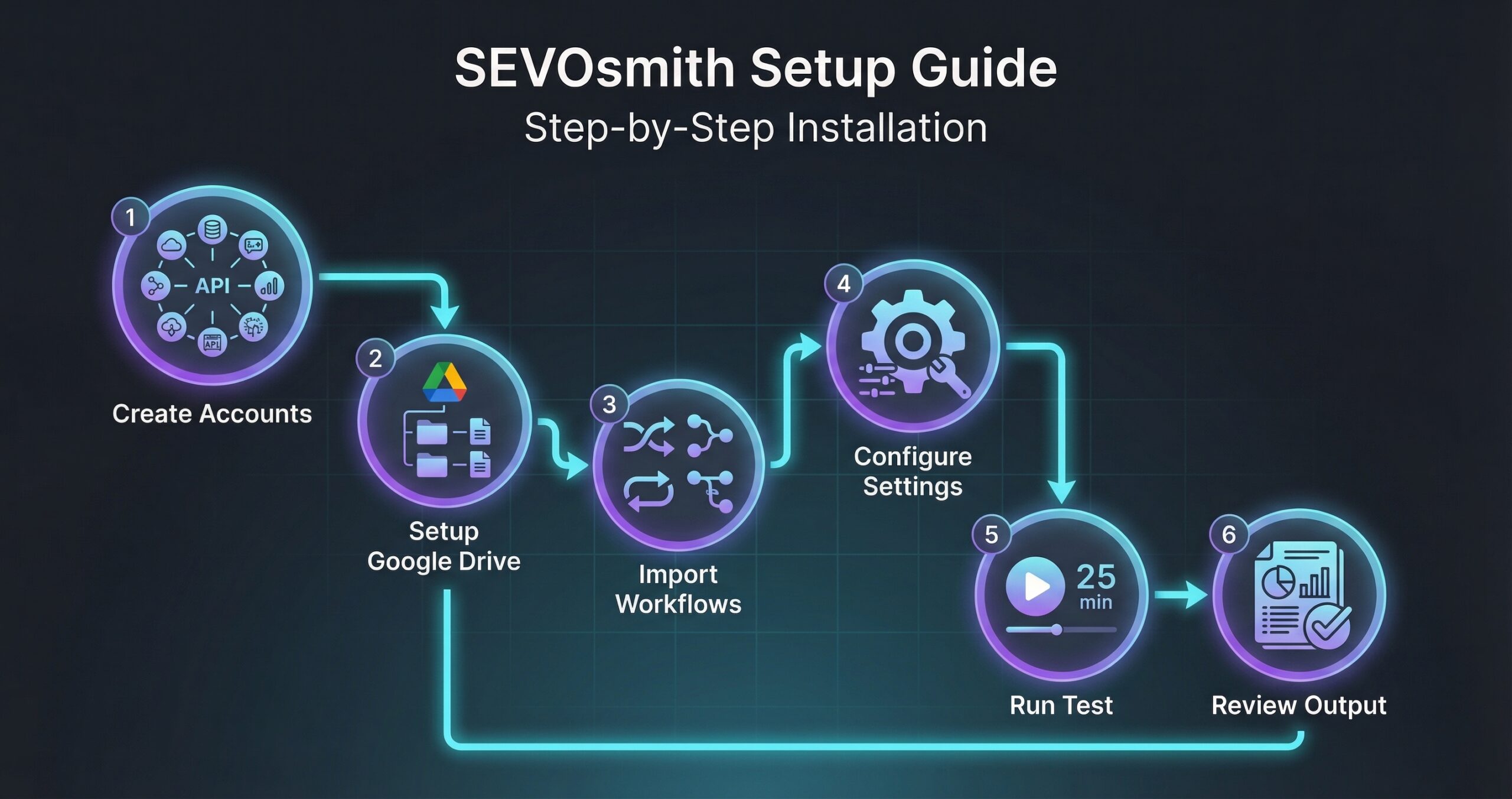
- Part 1: Required API Accounts
- Part 2: n8n Workflow Import & Setup
- Step 1: Download SEVOsmith Package
- Step 2: Copy google sheets and setup your folder in google drive
- Step 3: Configure the sub-workflow: SEVOsmith_Keyword_Research_Engine_v1.5.0
- 3.1 Create Data Table names: SEVOsmith_KW_Cache
- 3.2 Update 2 nodes: Get Cache and Create Cache
- 3.3 Update Credentials and sheet ID for all Google Sheet nodes
- 3.4 Add DataForSEO Credentials for all 9 HTTP request to DataForSEO
- 3.5 Configure Google Sheets Template ID for Keyword Research Data
- 3.6 Add Cloudflade R2 Credentials for node “Upload HTML Report S3“
- 3.7 Add Credentials for all Gmail nodes (total 2 nodes)
- Step 4: Configure the sub-workflow: SEVOsmith_Tools_v1.5.0
- 4.1 Set the Firecrawl API key
- 4.2 Add the Credentials and Sheet ID for all Google Sheets nodes
- Step 5: Configure the main workflow: SEVOsmith_v1.5.0_The_AI-Citable_Content_Engine
- 5.1 Zone 1: Campaign Initiation & Data Ingestion
- 5.2 Zone 2: AI-Powered Research & Strategic Analysis
- 5.3 Zone 3: Competitor Intelligence Analyst
- 5.4 Zone 4: Content & SEvO Strategist
- 5.5 Zone 5: Elite E-E-A-T Curation
- 5.6 Zone 6: Internal Linking
- 5.7 Zone 7: Article Outline & Content Generation
- 5.8 Zone 8: Automated Audit & Revision Loop
- 5.9 Zone 9: Visual Asset & Metadata Generation
- 5.10 Zone 10: . Generate Article and Audit Report in HTML
- 5.11 Zone 11: Publication & Final Delivery
- Part 3: First Test Run – SEVOsmith Content Planner Guide
- A Note on Quality Expectations
- Frequently Asked Questions
Part 1: Required API Accounts
1. DataForSEO Account
What it does: 9 parallel research endpoints (SERP, keywords, AI Mode, topics)
Affiliate disclosure: The signup link below is an affiliate link — if you create a DataForSEO account through it, NextGrowth.ai earns a small commission at no extra cost to you. We use DataForSEO ourselves as the backbone of SEVOsmith’s keyword research engine.
- Go to https://dataforseo.com
- Click “Sign Up”
- Verify email
- Navigate to Dashboard → Billing
- Add $50 minimum deposit
- Go to Dashboard → API Access
- Go to Dashboard → API Access
- Copy your Login (usually your email)
- Copy your Password (API password, NOT your account password)
- Save both credentials securely
Not sure if DataForSEO is right for you? Read our full DataForSEO review covering pricing, API quality, and how it compares to alternatives.
2. Firecrawl API
What it does: Sitemap extraction, competitor content scraping
Cost: Free tier available, then pay-as-you-go
Setup Steps:
- Go to https://firecrawl.dev
- Click “Sign Up”
- Sign up with email or GitHub
- Verify email
- Navigate to Dashboard → API Keys
- Click “Create API Key”
- Copy the API key
- Save securely
Free tier: 500 requests/month (sufficient for testing)
3. Perplexity API
What it does: Deep web research, real-time fact verification
Cost: Pay-as-you-go (used sparingly in workflow)
Setup Steps:
- Go to https://www.perplexity.ai/settings/api
- Sign in with Google/email
- Navigate to “API” section
- Click “Generate API Key”
- Copy the API key (starts with
pplx-...) - Save securely
Note: Optional but recommended for better research quality
4. WordPress Site
What it does: Where final articles are published
Requirements:
- WordPress site with admin access
- REST API enabled (default on most hosts)
Setup Steps:
- Log into WordPress as admin (need help setting up Application Passwords? See our WordPress Application Passwords guide)
- Go to Users → Your Profile
- Scroll to Application Passwords
- Enter name: “SEVOsmith n8n”
- Click “Add New Application Password”
- Copy the generated password (format:
xxxx xxxx xxxx xxxx) - Save password securely
Verify REST API is enabled:
- Visit:
https://yoursite.com/wp-json/ - Should see JSON response (not 404 error)
- If disabled, contact hosting provider to enable
What you need for n8n:
- Application Password: The password you just generated
- WordPress site URL:
https://yoursite.com - Username: Your admin username
READ MORE: WordPress Application Passwords: Complete n8n Setup Guide
5. Google Workspace (Google Sheets + Drive + Gmail)
What it does:
- Google Sheets: Campaign management interface
- Google Drive: HTML report storage
- Gmail: Completion notifications
Cost: FREE (uses personal Google account)
Setup Steps:
For Google Sheets & Drive:
- Go to https://console.cloud.google.com
- Create new project: “SEVOsmith”
- Enable APIs:
- Google Sheets API
- Google Drive API
- Gmail API (for notifications)
- Create OAuth 2.0 credentials:
- Go to “Credentials” → “Create Credentials” → “OAuth client ID”
- Application type: “Desktop app”
- Name: “SEVOsmith n8n”
- Download JSON credentials file
- Save credentials file (you’ll upload this to n8n)
For Gmail:
- Already enabled if you enabled Gmail API above
- Uses same OAuth credentials
What you need:
- OAuth credentials JSON file
- Google account with Sheets/Drive/Gmail access
Refer this video: Set up Google Credentials in n8n in 5 minutes
Follow my guide here: https://docs.google.com/document/d/1JKWb5o5WSpN2tpk1OKAW32ZPlUZ6pajpduODMvSZF0w/edit?usp=sharing
6. Google AI Studio
What it does: Powers all 10+ AI agents (writing, research, analysis, QA)
- Go to https://aistudio.google.com
- Sign in with Google account
- Click “Get API Key”
- Create new project (or select existing)
- Click “Create API Key”
- Copy the API key (starts with
AIza...) - Save securely
Billing Setup:
- Go to Google Cloud Console: https://console.cloud.google.com
- Navigate to “Billing”
- Enable billing for the project
- Add payment method
Important: Without billing enabled, you’ll hit free tier limits quickly
7. Cloud Storage
Option A: Google Drive (FREE, recommended)
- Already set up in step 8 above
- Free 15GB storage
- HTML reports stored here
Option C: Cloudflare R2 (S3-compatible, cheaper)
- Go to https://dash.cloudflare.com
- Navigate to R2
- Create bucket: “sevosmith-reports”
- Generate API token
- Save credentials
Recommendation: Start with Google Drive (free, simple). Upgrade to S3/R2 if you exceed 15GB. Read my detail guide: How to Get Cloudflare R2 Access Key for n8n
Part 2: n8n Workflow Import & Setup
Step 1: Download SEVOsmith Package
- Download from Gumroad
- Extract ZIP file to your computer
- Import Workflows to n8n
   SEVOsmith-v1.5.0/
   ├── SEVOsmith_v1.5.0_The_AI-Citable_Content_Engine.json     (main workflow)
   ├── SEVOsmith_Keyword_Research_Engine_v1.5.0.json           (sub-workflow)
   ├── SEVOsmith_Tools_v1.5.0.json                             (sub-workflow)
└── README.mdStep 2: Copy google sheets and setup your folder in google drive
2.1 Create folders in your google drive
📁 Google Drive (root)
└── 📁 SEVOsmith (Main Folder - stores Manager Sheet and all SEVOsmith files)
    ├── 📁 KW_research_report (Sub-folder for HTML reports)
└── 📁 KW_research_raw_data (Sub-folder for raw keyword data from DataForSEO API)2.2 Copy Template Files
You’ll receive 2 template files in the SEVOsmith download package:
- SEVOsmith_Content_Planner – Campaign control center. You should make a copy and save it to SEVOsmith folder.
- Raw Data Template – Keyword research data storage. You should make a copy and save it to KW_research_raw_data folder.
- Copy this get_style_guide_samples, the sample guides the Writer Agent to maintain the same tone and voice as your existing content, ensuring consistency with your brand style. You will need it later on main workflow setting.
📁 Google Drive (root)
└── 📁 SEVOsmith
    ├── 📄 SEVOsmith_Content_Planner
    ├── 📁 KW_research_report
    └── 📁 KW_research_raw_data/
├── 📄 Template Keyword Research with DataForSEO2.3 Get Folder and File IDs
Extract 3 critical folder IDs (they will be used later):
- SEVOsmith folder ID
- KW_research_report folder ID
- KW_research_raw_data folder ID
Step 3: Configure the sub-workflow: SEVOsmith_Keyword_Research_Engine_v1.5.0
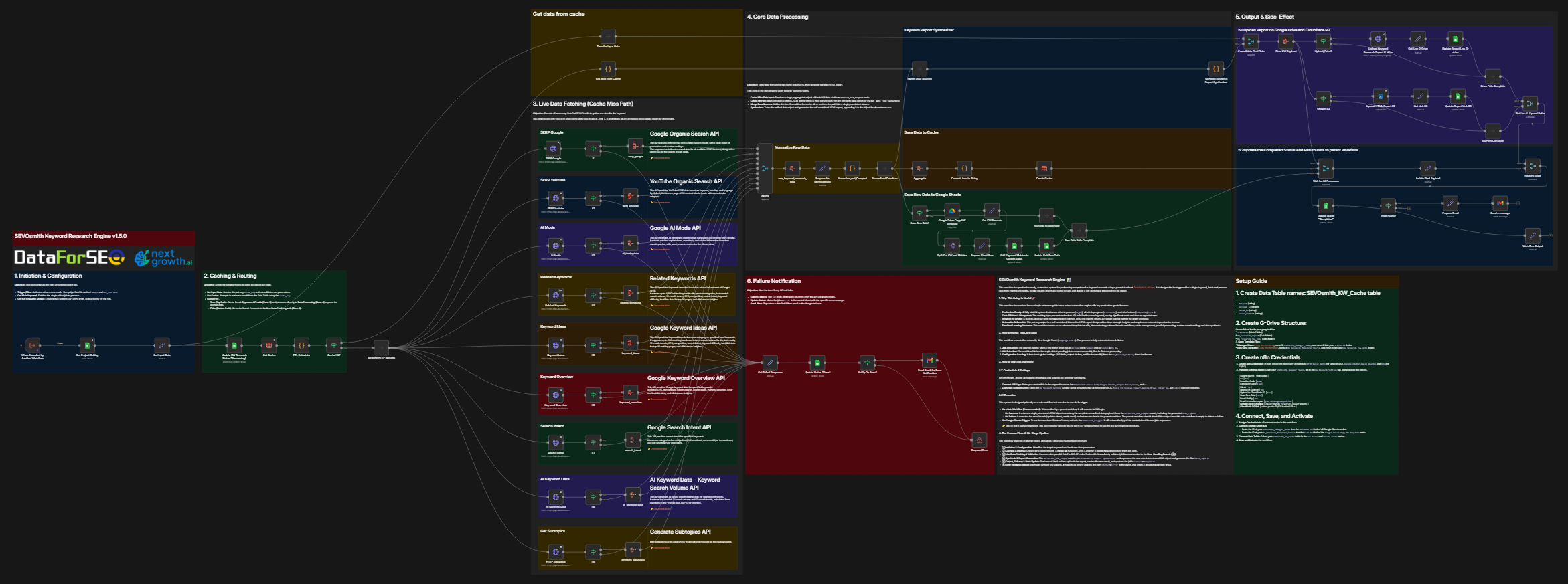
After import the workflow SEVOsmith_Keyword_Research_Engine_v1.5.0.json, you need to setup:
3.1 Create Data Table names: SEVOsmith_KW_Cache
In your n8n instance (self-hosting guide here if you need one), navigate to “Data tables” tab, and create a new table with exact name: SEVOsmith_KW_Cache
Then create 4 collumns as below (keeps exact collumn names):
Project (string)

session_id (string)

cache_id (string)

cache_content (string)3.2 Update 2 nodes: Get Cache and Create Cache
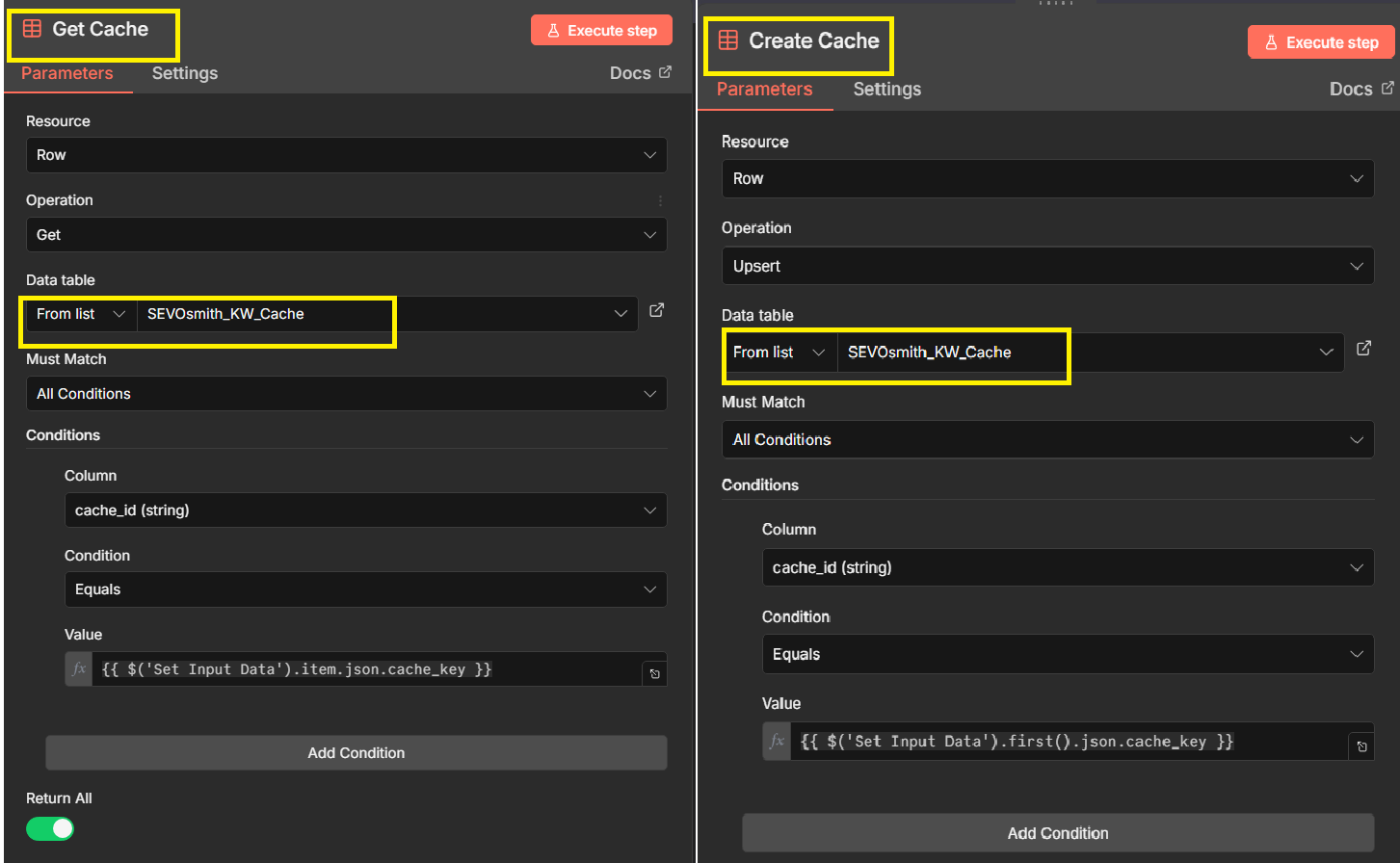
3.3 Update Credentials and sheet ID for all Google Sheet nodes
Find all (total 8) Google Sheet nodes in the workflow, and update the Credential and the Google sheets you copied in step 2.2: SEVOsmith_Content_Planner
⚠️ Important: Before updating any Google Sheets node, create a backup copy first.
Why: Updating Google Sheets nodes sometimes removes pinned parameters, and you may forget how they were configured.
Recommendation:
- Right-click the node → Duplicate
- Update the original node. If data is lost, refer to the duplicated node for the configuration.
- Delete the backup once you’ve verified the update worked.
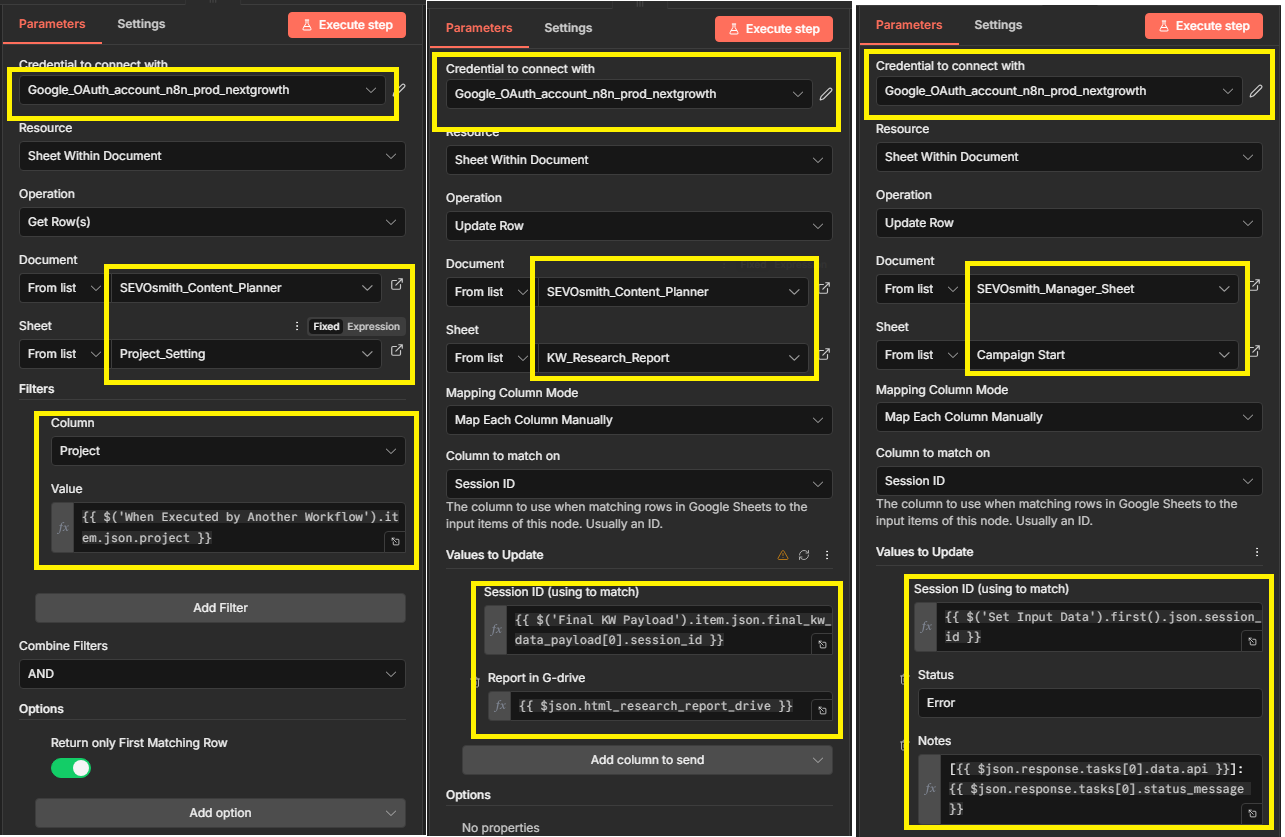
3.4 Add DataForSEO Credentials for all 9 HTTP request to DataForSEO
You need to enter your user (your email) and API password created from dataforSEO Dashboard. Refer at Authorization and API key
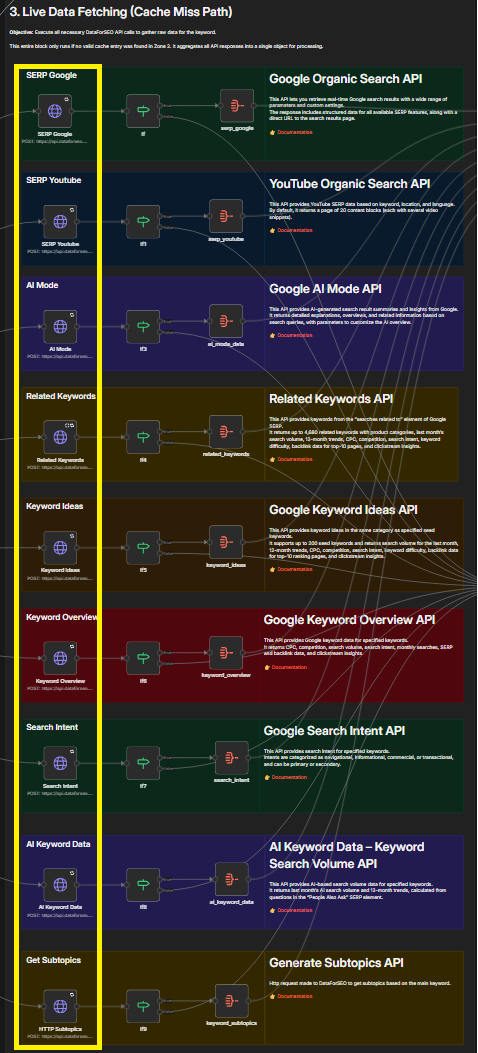
3.5 Configure Google Sheets Template ID for Keyword Research Data
Add google sheet ID of “Template Keyword Research with DataForSEO” which is the Raw Data Template you copied in the step 2.2 above.
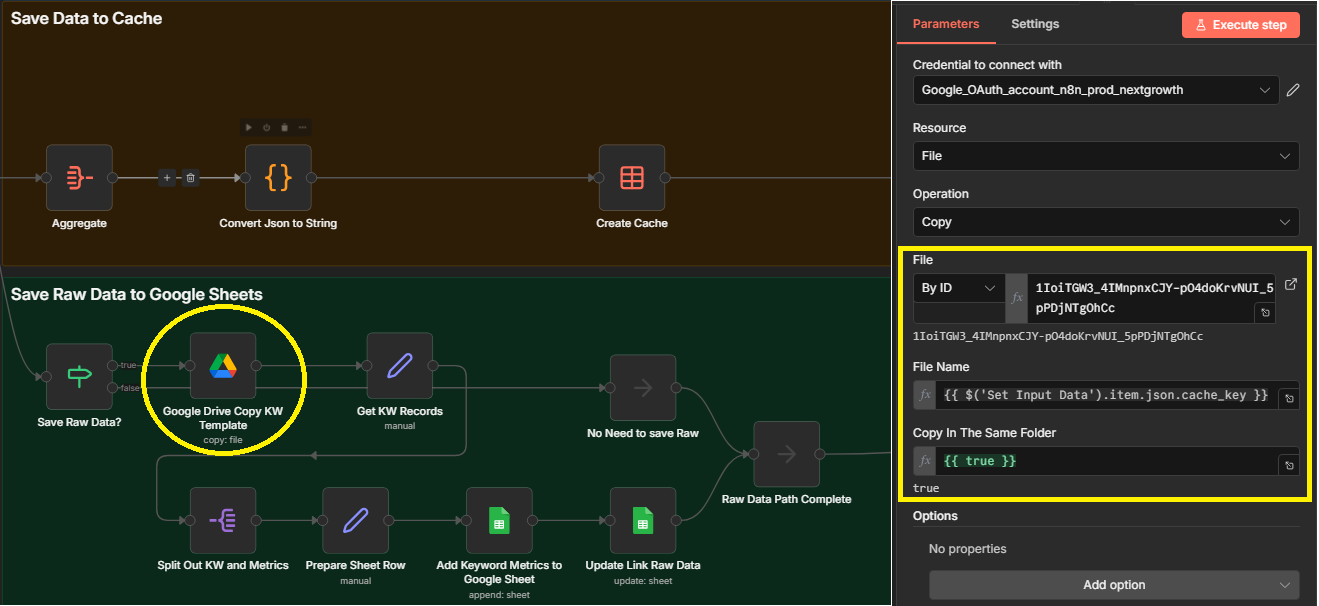
3.6 Add Cloudflade R2 Credentials for node “Upload HTML Report S3“
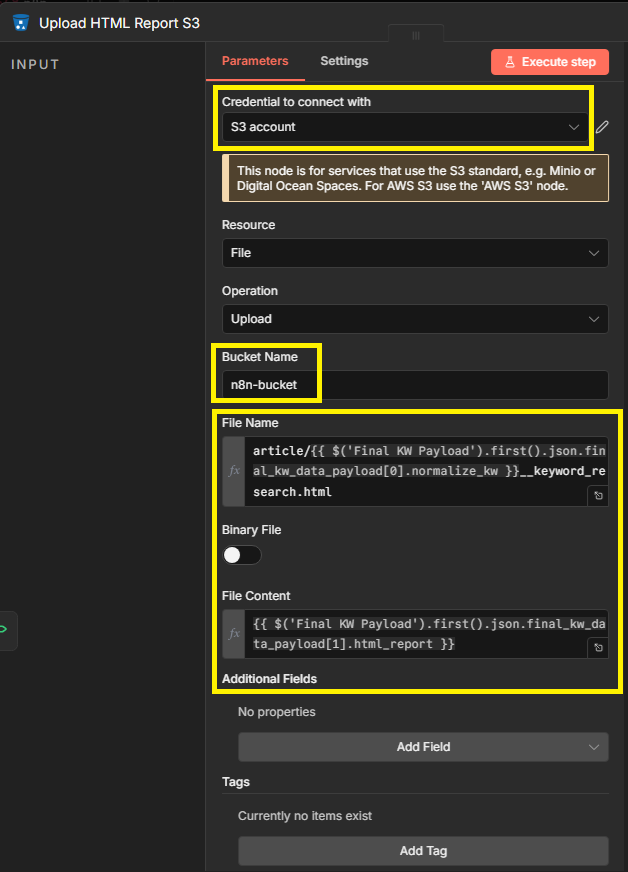
3.7 Add Credentials for all Gmail nodes (total 2 nodes)
Update credential for Gmail nodes.
Step 4: Configure the sub-workflow: SEVOsmith_Tools_v1.5.0
This SEVOsmith_Tools_v1.5.0 workflow is a production-ready, multi-tool microservice for the SEVOsmith ecosystem. It is designed to be called by other workflows to perform specific, isolated tasks. Its primary functions include:
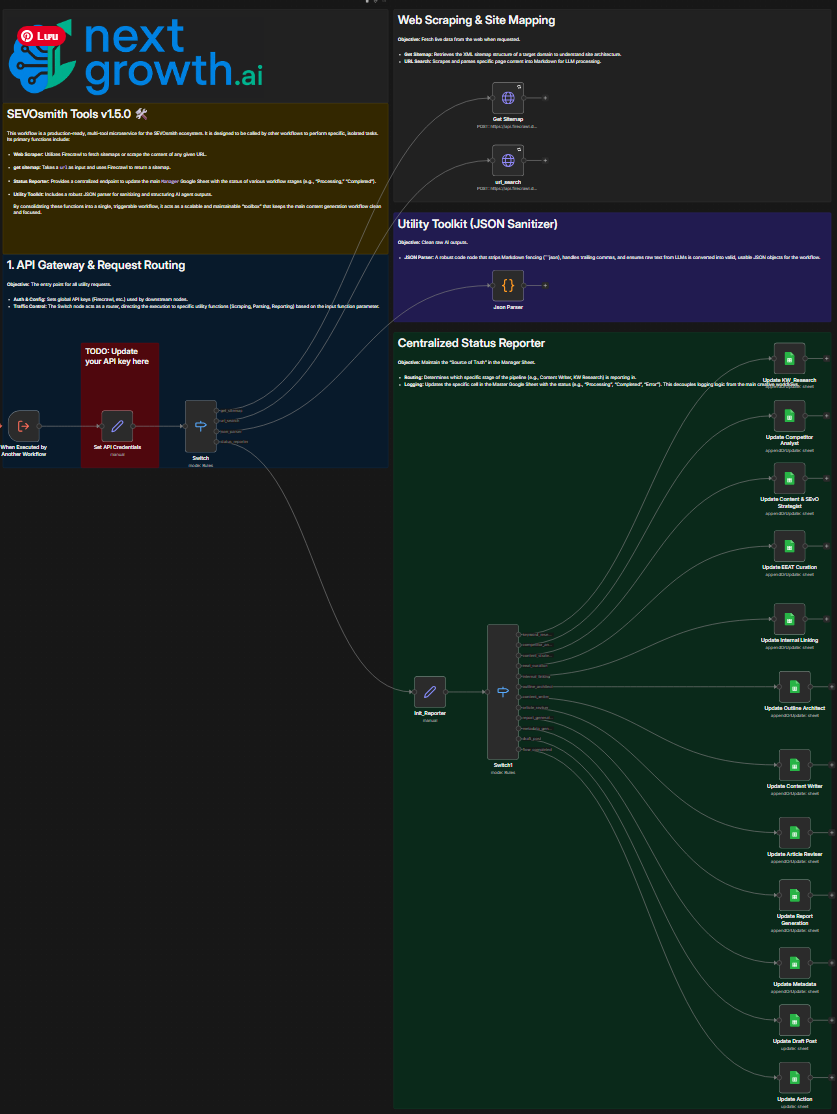
- Web Scraper: Utilizes Firecrawl to fetch sitemaps or scrape the content of any given URL.
- get sitemap: Takes a URL as input and uses Firecrawl to return a sitemap.
- Status Reporter: Provides a centralized endpoint to update the main “Manager” Google Sheet with the status of various workflow stages (e.g., “Processing”, “Completed”).
- Utility Toolkit: Includes a robust JSON parser for sanitizing and structuring AI agent outputs.
By consolidating these functions into a single, triggerable workflow, it acts as a scalable and maintainable “toolbox” that keeps the main content generation workflow clean and focused.
4.1 Set the Firecrawl API key
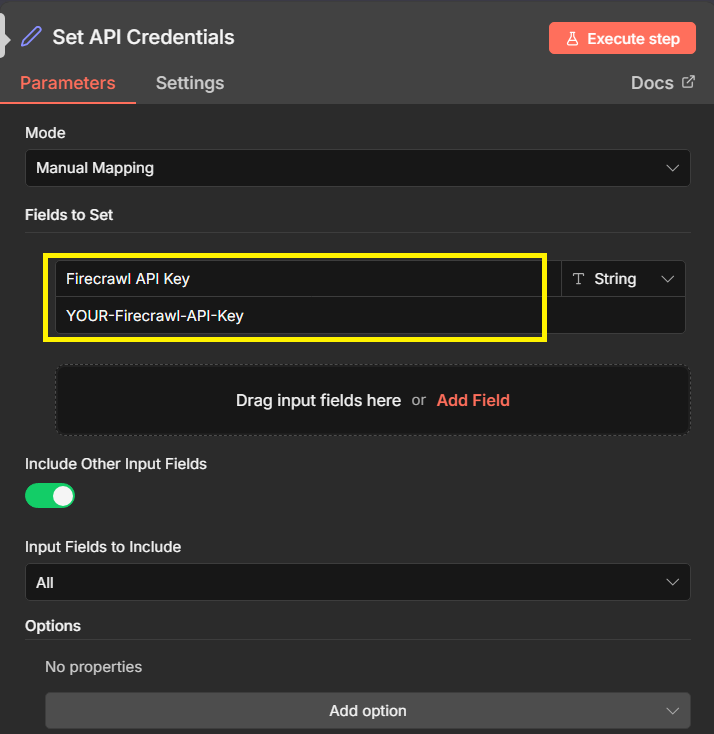
4.2 Add the Credentials and Sheet ID for all Google Sheets nodes
Add the credentials for the Google sheet nodes (total 12 nodes)
Step 5: Configure the main workflow: SEVOsmith_v1.5.0_The_AI-Citable_Content_Engine
Import the workflow SEVOsmith_v1.5.0_The_AI-Citable_Content_Engine.json, this is main workflow.
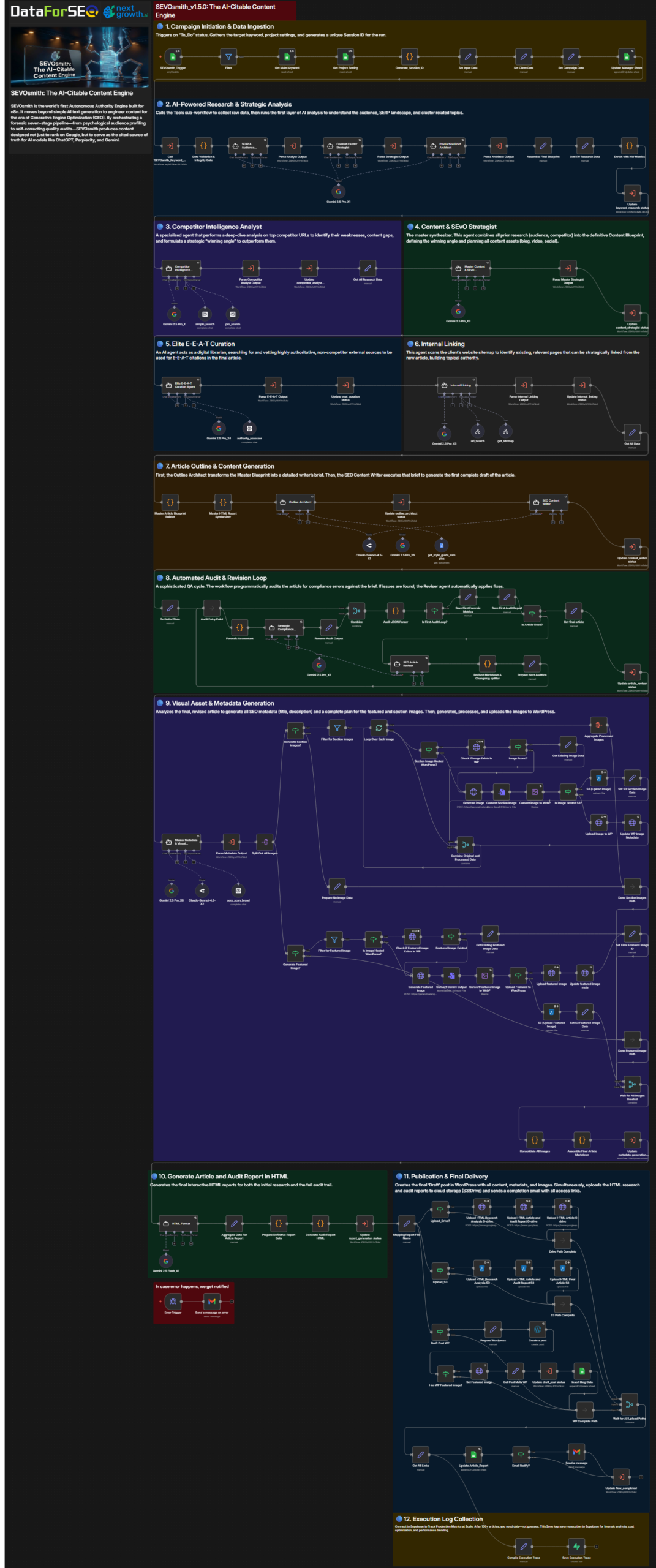
There are 12 zones requiring setup. To facilitate tracking, we should proceed zone by zone.
5.1 Zone 1: Campaign Initiation & Data Ingestion
Similar to Step 3, you’ll need to update credentials for all Google Sheets nodes. Make sure to duplicate each node as a backup before updating.
5.2 Zone 2: AI-Powered Research & Strategic Analysis
- Update the credentials for all Gemini Chat Model Gemini Pro_X1. You can choose Gemini 2.0 Flash or Gemini 1.5 Pro, or switch to ChatGPT or Claude if preferred.
- Update the node to execute sub-workflow:
- Call ‘SEVOsmith_Keyword_Research_Engine_v1.5.0’
- Parse Analyst Output
- Parse Strategist Output
- Parse Architect Output
- Update keyword_research status
5.3 Zone 3: Competitor Intelligence Analyst
- Update the credentials for all Gemini Chat Model Gemini Pro_X2
- Find Perplexity node (simple_search, pro_search)
- Click “Create New Credential”
- Select “Perplexity API”
- Enter the your Perplexity key (from Part 1, Step 3)
- Update the node to execute sub-workflow:
- Parse Competitor Analyst Output
- Update competitor_analyst status
5.4 Zone 4: Content & SEvO Strategist
- Update the credentials for all Gemini Chat Model Gemini Pro_X3
- Update the node to execute sub-workflow:
- Parse Master Strategist Output
- Update content_strategist status
5.5 Zone 5: Elite E-E-A-T Curation
- Update the credentials for all Gemini Chat Model Gemini Pro_X4
- Update Perplexity node (authority_assessor)
- Update the node to execute sub-workflow:
- Parse E-E-A-T Output
- Update eeat_curation status
5.6 Zone 6: Internal Linking
- Update the credentials for all Gemini Chat Model Gemini Pro_X5
- Update Perplexity node (authority_assessor)
- Update the node to execute sub-workflow:
- Parse Internal Linking Output
- Update internal_linking status
- url_search
- get_sitemap
5.7 Zone 7: Article Outline & Content Generation
- Update the credentials for all Gemini Chat Model Gemini Pro_X6
- Update the node to execute sub-workflow:
- Update outline_architect status
- Update content_writer status
- Update credential for Google docs node: get_style_guide_samples. This node connects to a sample article that the Writer Agent uses as a reference to maintain consistent tone and voice with your existing articles, ensuring the output matches your expectations.
5.8 Zone 8: Automated Audit & Revision Loop
- Update the credentials for all Gemini Chat Model Gemini Pro_X7
- Update the node to execute sub-workflow: Update article_reviser status
5.9 Zone 9: Visual Asset & Metadata Generation
- Update the credentials for all Gemini Chat Model Gemini Pro_X8
- Add WordPress Credentials for all HTTP requests (Check if Image Exists in WP, Upload Image to WP, Update WP Image Metadata, Check if Featured Image Exists in WP, Upload featured Image, Update featured image meta, Set Featured Image) and WordPress node (Create a post)
- Find WordPress node in the workflow
- Click “Create New Credential”
- Select “WordPress API”
- Enter:
- Site URL:
https://yoursite.com(NO trailing slash) - Username: Your WordPress admin username
- Password: Application password (from Part 1, Step 5)
- Site URL:
- Click “Save”
- Test connection (should show “Connected” or list your posts)
- Add Credentials for Cloudflade R2.
- Update the node to execute sub-workflow: Parse Metadata Output
5.10 Zone 10: . Generate Article and Audit Report in HTML
- Update the credentials for all Gemini Chat Model Gemini Flash_X1
- Update the node to execute sub-workflow: Update report_generation status
5.11 Zone 11: Publication & Final Delivery
- Update all HTTP nodes
- Update all google sheets and Gmail nodes
- Upgrade WordPress credenatial for: “Create a post”, Set Featured Image
- Update the node to execute sub-workflow: Update draft_post status
Part 3: First Test Run – SEVOsmith Content Planner Guide
The SEVOsmith Content Planner is your command center. It controls campaign execution, track progress, store outputs, and provide analytics.
Understanding the Content Planner Structure:
Control Sheets (You interact with these)
- Manager – Campaign control panel (where you add campaigns)
- Project_Setting – Global configuration per project/client
Output Sheets (Auto-populated by workflow)
- Article_Report – Final outputs (WordPress links, report links)
- Dashboard – Real-time analytics and KPIs
- Workflow_Log – Execution metrics (time, cost, status)
- Agent_Log – AI agent performance tracking
- KW_Research_Report – Keyword research costs and cache hits
Utility Sheets (Reference data)
- Filtered_Workflow – Workflow execution filtering
- Filtered_Agents – Agent execution filtering
- Pricing – LLM model costs (for calculations)
- REF_Locations – 1,007 DataForSEO location/language codes
Step 1: Configure Project Settings (One-Time Setup)
Before running campaigns, configure your project in the Project_Setting sheet.
Fill in these columns:
Basic Settings (Columns A-E):
| Column | Field | What to Enter | Example |
|---|---|---|---|
| A | Project | Your project/client name | Nextgrowth.AI |
| B | Location Name | Target country | United States |
| C | Location Code | DataForSEO code | 2840 |
| D | Language Name | Content language | English |
| E | Language Code | DataForSEO code | en |
Keyword Research Settings (Columns F-I)
| Column | Field | What to Enter | Options |
|---|---|---|---|
| F | Limit | Max number of keywords/URLs to fetch | 100 |
| G | Forced Refresh | Ignores cache and re-fetches all data | FALSE |
| H | Cache TTL Days | How many days to keep cached data before refreshing | 30 |
| I | Save Raw Data | Saves the complete, unprocessed API data to Google drive | TRUE |
Storage Settings (Columns J-K, Q-R)
| Column | Field | What to Enter | Options |
|---|---|---|---|
| J | Upload G-drive | Upload reports to Drive? | TRUE |
| K | Upload Cloudflare R2 | Upload to R2? | TRUE |
| Q | Google Drive Folder ID | Your SEVOsmith folder ID | 1BxiMVs0X... |
| R | Cloudflare R2 link | R2 endpoint | https://pub-888f481be9bxxx.r2.dev |
Email & Notifications (Columns L, S)
| Column | Field | What to Enter | Example |
|---|---|---|---|
| L | Email Notify | Send completion emails? | TRUE |
| S | Send To Email | Your email address | you@example.com |
Visual Assets (Columns M-O)
| Column | Field | What to Enter | Options |
|---|---|---|---|
| M | Auto Generate Featured Images | Generate featured image? | TRUE |
| N | Auto Generate Images H2 | Generate section images? | TRUE |
| O | Images Hosting | Where to upload images? | WordPress |
Publishing Settings (Column P)
| Column | Field | What to Enter | Options |
|---|---|---|---|
| P | Publish Draft | Auto-publish or save as draft? | TRUE |
Advanced Settings (Columns T-X)
| Column | Field | What to Enter | Example |
|---|---|---|---|
| T | Client Name | Client/brand name | NextGrowth |
| U | Target Domain | Your WordPress site | https:// |
| V | Brand voice tone | Tone descriptors | Professional, friendly, conversational |
| W | EEAT highlights | Authority signals | 7+ years experience in SEO |
| X | Writer Voice Tone Example | Sample text | https://docs.google.com/document/d/... |
Brand voice tone examples:
- Blog:
Conversational, friendly, helpful, clear - Business:
Professional, authoritative, trustworthy, data-driven - Technical:
Precise, detailed, educational, straightforward
How to Use Writer Voice Tone Example (Column X) – IMPORTANT!
The Content Writer AI agent (Zone 6) will learn your writing style from the example you provide in Column X.
What it does:
- Analyzes sentence structure, paragraph length, vocabulary choices
- Mimics your tone, rhythm, and voice patterns
- Applies your style to the generated article
How to set it up:
If you already have content that matches your desired style:
- Find your best existing article:
- Choose an article that represents your ideal voice and tone
- Should be 500-1,000 words minimum (2-3 full sections)
- Copy the content:
- Copy 2-3 complete sections (including headers)
- Include introduction + 1-2 body sections
- Don’t just copy one paragraph—the AI needs enough text to learn patterns
- Create a Google Doc:
- Go to https://docs.google.com
- Click “Blank document”
- Paste your sample content
- Name it:
[Project Name] Voice Tone Example - Example:
MyBlog Voice Tone Example
- Set sharing permissions:
- Click “Share” button (top right)
- Change from “Restricted” to “Anyone with the link”
- Set permission to “Viewer” (not Editor)
- Click “Copy link”
- Paste link in Column X:
- In Project_Setting sheet
- Column X (Writer Voice Tone Example)
- Paste the Google Docs link
- Example:
https://docs.google.com/document/d/1BxiMVs0XRA5nFMdKvBdBZjgmUUqptlbs74OgvE2upms/edit
Result: All articles generated for this project will match the voice and tone of your sample article.
Step 2: Add Your First Test Campaign
Now add a test campaign in the Manager sheet.
The Manager sheet has 33 columns divided into 3 sections:
Section 1: Input Fields (Columns A-H – You fill these)
| Column | Field | What to Enter | Example |
|---|---|---|---|
| A | Project | Project name (must match Project_Setting) | |
| B | Session ID | Auto-generated (leave blank) | – |
| C | Main Execution ID | Auto-generated (leave blank) | – |
| D | Keyword | Your target keyword | n8n keyword research |
| E | Word Count | Target article length | 3000 |
| F | Content Format | Article type | Blog Post |
| G | Target audience knowledge level | Reader expertise | Beginner |
| H | Action | Campaign status/trigger | Planning |
Section 2: Zone Status (Columns I-S – Auto-updated by workflow)
These columns show real-time execution status for each zone:
| Column | Zone | Status Values |
|---|---|---|
| I | KW Research | ▶️ Processing→ ✅ Completed |
| J | Competitor Analyst | ▶️ → ✅ |
| K | Content & SEvO Strategist | ▶️ → ✅ |
| L | EEAT Curation | ▶️ → ✅ |
| M | Internal Linking | ▶️ → ✅ |
| N | Outline Architect | ▶️ → ✅ |
| O | Content Writer | ▶️ → ✅ |
| P | Article Reviser | ▶️ → ✅ |
| Q | Report Generation | ▶️ → ✅ |
| R | Metadata Generation | ▶️ → ✅ |
| S | Draft Post | ▶️ → ✅ |
You don’t touch these – the workflow updates them automatically as it progresses.
Understanding the Action Column (H)
The Action column is your workflow trigger. It has 4 states:
| Value | Meaning | What Happens |
|---|---|---|
Planning | Draft mode | Nothing – campaign is in planning, not executed |
ToDo | Queued for execution | Workflow picks it up and starts processing |
Processing | Currently running | Workflow is actively executing this campaign |
Completed | Finished | Workflow has completed, outputs available |
Workflow trigger logic:
- You set Action to
Planning(campaign draft) - When ready, change to
ToDo - Workflow auto-detects
ToDoand changes toProcessing - Workflow executes all 9 zones
- Workflow changes to
Completedwhen done
Step 3: Review Outputs
After execution completes (Action = Completed), review all outputs.
Output 1: Article_Report Sheet
- Click “Article_Report” tab
- Find your campaign (Row 2 should have same keyword)
- Review columns:
| Column | Field | What You Get |
|---|---|---|
| A | Project | |
| B | Session ID | 20251126_012023 |
| C | Keyword | n8n keyword research |
| D | Title | SEO-optimized title (50-60 chars) |
| E | Meta Description | CTR-optimized description (150-158 chars) |
| F | Post Slug | URL slug ( |
| G | Draft Post Link | ⭐ Click to open WordPress Draft |
| H | Research Report in S3 | URL to HTML research report (S3) |
| I | Audit Report in S3 | URL to HTML audit report (S3) |
| J | Research Report in G-Drive | ⭐ Click to open Research Report |
| K | Audit Report in G-Drive | ⭐ Click to open Audit Trail |
| L | Human Review Status | Manual tracking (you update this) |
Output 2: WordPress Draft Post
- Click the link in Article_Report column G
- OR go to WordPress admin → Posts → All Posts
- Find Draft post: “Keyword Research Tools” (or your keyword)
Status: Draft (not published)
Output 3: Research Report (HTML)
- Click link in Article_Report column J (Google Drive)
- HTML file opens in browser
Contains (Zones 1-3):
- Zone 1: Complete keyword research data
- SERP top 20 results
- People Also Ask
- Related keywords (50-100)
- Search volume, difficulty, trends
- AI Overview detection
- YouTube analysis
- Topic clusters (5-8)
- Zone 2: Strategic intelligence
- User profile and persona
- Voice of customer analysis
- Content cluster strategy (5-8 clusters)
- Multimedia strategy (video, social, infographics)
- Zone 3: Competitor intelligence
- Top 5 competitor analysis
- Structural weakness tally
- Gap probe findings
- Winning angle recommendation
- Priority 1-5 strategic recommendations
Use this to:
- Understand research foundation
- Justify content decisions to clients
- Create supporting content (videos, social posts)
- Brief freelance editors
Output 4: Audit Trail Report (HTML)
- Click link in Article_Report column K (Google Drive)
- HTML file opens in browser
Contains (Zones 4-8):
- Zone 4: Master Content Blueprint
- Content angle and UVP
- Strategic imperatives
- Multi-platform asset briefs
- Zone 5: Linking intelligence
- 8 vetted external citations (URLs, context, rationale)
- Internal link recommendations (1-2 per cluster)
- Zone 6: Content execution
- Complete outline with rationale
- Writer’s brief (per-section directives)
- Zone 7: Quality assurance
- Forensic metrics (keyword count, link integrity)
- Quality score breakdown (0-100)
- Fix tickets (if revision triggered)
- Zone 8: Visual & metadata strategy
- 5 title options with scores
- 3 description options with analysis
- Image prompt strategy
Use this to:
- Prove quality to stakeholders
- Debug low-quality outputs
- Train editors on quality standards
- Comply with industry regulations
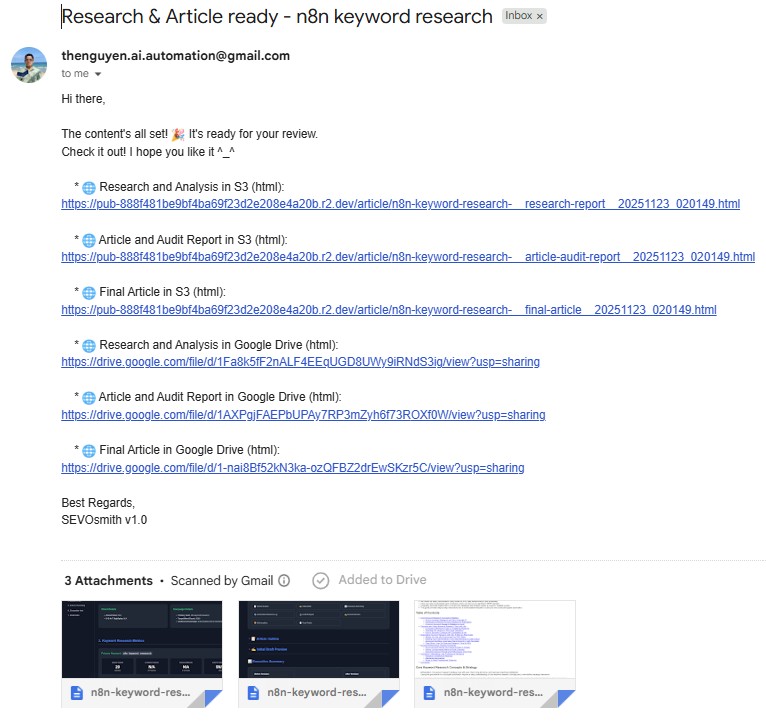
Output 5: Completion Email
Check your email (configured in Project_Setting column S):
Subject: Research & Article ready - <keyword>
Output 6: Raw Keyword Data (Google Sheets)
- Go to Google Drive
- Navigate to:
SEVOsmith→KW_research_raw_data - Find file (example):
n8n-keyword-research__Nextgrowth__2840__en.xlsx - Open it
Contains 9 sheets with raw DataForSEO API data:
- serp_google_organic (20 rows)
- serp_google_ai_mode
- serp_youtube
- keyword_overview
- keyword_ideas (50-100 rows)
- related_keywords (50-100 rows)
- search_intent
- ai_keyword_data
- topic_clusters (10 subtopics)
Use this for:
- Deep data analysis
- Custom reporting
- Export to other tools
- Historical comparison
🎉 Congratulations! You’ve successfully run your first SEVOsmith campaign.
Need help with your SEVOsmith setup? Get in touch — we offer setup support for agencies and solo operators.
A Note on Quality Expectations
What SEVOsmith does exceptionally well:
- ✅ Forensic keyword research
- ✅ Strategic content planning
- ✅ E-E-A-T compliance
- ✅ Structural consistency
- ✅ Complete audit trails
What still benefits from human review (30-45 minutes):
- Brand voice nuance (fine-tuning tone)
- Industry-specific examples (your unique insights)
- Controversial topics (AI is cautious, you might be bolder)
- Creative storytelling (AI follows patterns, you break them)
Recommended workflow: SEVOsmith generates draft (18-25 min) → Human editor polishes it → Total: 60-70 minutes vs 4-6 hours manual.
Frequently Asked Questions
What if a workflow node fails during my first run?
Check the n8n execution log for the failed node — it shows the exact error and which credential or input caused it. Common first-run failures are a wrong API key, a Google Sheets permission issue, or an S3 bucket misconfiguration. Fix the credential in n8n Settings → Credentials, then re-trigger. Nodes that already completed successfully are not re-run.
Can I use OpenAI or a different LLM instead of Gemini?
SEVOsmith v1.5.0 is built and tested with Google Gemini (via AI Studio) and Perplexity sonar-pro. Swapping models requires editing individual AI agent nodes and adjusting prompt formatting — possible but not supported in v1.5.0. SEVOsmith v2.2.0 adds Claude Sonnet via OpenRouter for writing and revision agents alongside Gemini.
Do I need a self-hosted n8n instance or can I use n8n Cloud?
Both work. Self-hosted n8n gives faster execution (18–25 min vs 25–35 min on Cloud) and no execution count limits. n8n Cloud works well for lower volumes and requires no server management. If you are running more than 20 articles per month, self-hosted is recommended for cost and speed. See our n8n self-hosting guide to get started.
What happens if I trigger the same keyword twice?
SEVOsmith runs the full pipeline again and creates a second WordPress draft. There is no duplicate detection in v1.5.0 — manage deduplication via your Content Planner by not adding the same keyword row twice, or mark completed rows with a Done status.
How much do API calls cost per article?
API costs run $1.02–$1.88 per article. DataForSEO accounts for $0.07–0.08, Gemini agents for $0.80–1.50, and Gemini image generation for $0.15–0.30 if enabled. All are pay-as-you-go with no monthly minimums beyond DataForSEO’s $50 initial deposit.
How do I upgrade to SEVOsmith v2.2.0?
v2.2.0 is a complete architectural rebuild — 7 workflows, 467 nodes, modular sub-workflow design — and requires a fresh import and setup rather than an in-place upgrade. Your existing Content Planner data and Google Drive outputs from v1.5.0 are not affected. See the SEVOsmith v2.2.0 guide for the full setup process.
The goal isn’t to eliminate human expertise—it’s to eliminate the tedious 80% so you can focus on the valuable 20%.